

Comparison
QNAP QSW-1108-8T-R2 vs TP-Link TL-SG108S-M2
Which 2.5G Switch?
Choose your eight-port 2.5G switch: QNAP R2 vs TP-Link V2, with a port plan, power-adapter checks, loop-prevention setup, cable advice and warranty guidance.
By thisPING EditorialUpdated November 3, 20268 min read
On this page · Quick picks
For a small wired home network, our default 2.5G switch is the TP-Link TL-SG108S-M2 V2: its smaller case and documented wall mounting make placement straightforward. Choose the QNAP QSW-1108-8T-R2 for front-facing LEDs, rear cabling and loop blocking without a separate enable step. Both provide eight 2.5GbE ports; the decision is about installation and support, with no speed winner established by these specifications.
Quick picks
Compare specifications and all conditions
Small enclosure or wall placement
- Pick
- TP-Link TL-SG108S-M2 V2
- Why
- Smaller published dimensions; desktop and wall mounting explicitly documented
Visible desk, cables running behind it
- Pick
- QNAP QSW-1108-8T-R2
- Why
- Front-facing LEDs and rear ports; automatic loop detection and blocking
Every relevant device is still gigabit
- Pick
- Keep your existing gigabit switch
- Why
- Neither upgrade changes the capabilities of those devices' Ethernet ports
Full comparison table
Swipe to compare. Row labels stay visible.
| Your priority | Pick | Why |
|---|---|---|
| Small enclosure or wall placement | TP-Link TL-SG108S-M2 V2 | Smaller published dimensions; desktop and wall mounting explicitly documented |
| Visible desk, cables running behind it | QNAP QSW-1108-8T-R2 | Front-facing LEDs and rear ports; automatic loop detection and blocking |
| Every relevant device is still gigabit | Keep your existing gigabit switch | Neither upgrade changes the capabilities of those devices' Ethernet ports |
Scroll horizontally to see every column
| Your priority | Pick | Why |
|---|---|---|
| Small enclosure or wall placement | TP-Link TL-SG108S-M2 V2 | Smaller published dimensions; desktop and wall mounting explicitly documented |
| Visible desk, cables running behind it | QNAP QSW-1108-8T-R2 | Front-facing LEDs and rear ports; automatic loop detection and blocking |
| Every relevant device is still gigabit | Keep your existing gigabit switch | Neither upgrade changes the capabilities of those devices' Ethernet ports |
Each switch has eight ports supporting 2.5 Gbps, 1 Gbps or 100 Mbps. Using one for the router leaves seven endpoint connections, calculated from that port count. Sources: QNAP R2, TP-Link V2.
- 8 portsTotal on either switch
- 7 endpointsAfter one router uplink; port-count arithmetic
- 2.5 GbpsMaximum link rate per port on either switch
Compare the exact R2 and V2 models
RJ45 connections
- QNAP QSW-1108-8T-R2
- 8 × 100 Mbps / 1 Gbps / 2.5 Gbps
- TP-Link TL-SG108S-M2 V2
- 8 × 100 Mbps / 1 Gbps / 2.5 Gbps
Switching capacity, maker specification
- QNAP QSW-1108-8T-R2
- 40 Gbps aggregate
- TP-Link TL-SG108S-M2 V2
- 40 Gbps aggregate
Setup and cooling
- QNAP QSW-1108-8T-R2
- Unmanaged; fanless
- TP-Link TL-SG108S-M2 V2
- Unmanaged; fanless
Loop protection
- QNAP QSW-1108-8T-R2
- Automatically detects and blocks looped ports
- TP-Link TL-SG108S-M2 V2
- Automatic detection when enabled; installation guide says switch is Off by default
Dimensions, W × D × H (mm)
- QNAP QSW-1108-8T-R2
- 160 × 110 × 26
- TP-Link TL-SG108S-M2 V2
- 158 × 101 × 25.4
Placement detail
- QNAP QSW-1108-8T-R2
- Desktop form factor; LEDs in front, ports behind
- TP-Link TL-SG108S-M2 V2
- Desktop or wall mounting; metal case
Documented DC power
- QNAP QSW-1108-8T-R2
- Adapter included; switch input 12 V / 1 A
- TP-Link TL-SG108S-M2 V2
- Adapter included; output 12 V DC / 1 A
Published maximum consumption
- QNAP QSW-1108-8T-R2
- 12 W
- TP-Link TL-SG108S-M2 V2
- 9.11 W
Listed box contents beyond switch
- QNAP QSW-1108-8T-R2
- Power supply, screws, anchors, feet, quick installation guide
- TP-Link TL-SG108S-M2 V2
- Power adapter, rubber feet, installation guide
Warranty starting point
- QNAP QSW-1108-8T-R2
- US product page states two years
- TP-Link TL-SG108S-M2 V2
- US policy depends on product category; confirm exact unit eligibility
Full comparison table
Swipe to compare. Row labels stay visible.
| What matters | QNAP QSW-1108-8T-R2 | TP-Link TL-SG108S-M2 V2 |
|---|---|---|
| RJ45 connections | 8 × 100 Mbps / 1 Gbps / 2.5 Gbps | 8 × 100 Mbps / 1 Gbps / 2.5 Gbps |
| Switching capacity, maker specification | 40 Gbps aggregate | 40 Gbps aggregate |
| Setup and cooling | Unmanaged; fanless | Unmanaged; fanless |
| Loop protection | Automatically detects and blocks looped ports | Automatic detection when enabled; installation guide says switch is Off by default |
| Dimensions, W × D × H (mm) | 160 × 110 × 26 | 158 × 101 × 25.4 |
| Placement detail | Desktop form factor; LEDs in front, ports behind | Desktop or wall mounting; metal case |
| Documented DC power | Adapter included; switch input 12 V / 1 A | Adapter included; output 12 V DC / 1 A |
| Published maximum consumption | 12 W | 9.11 W |
| Listed box contents beyond switch | Power supply, screws, anchors, feet, quick installation guide | Power adapter, rubber feet, installation guide |
| Warranty starting point | US product page states two years | US policy depends on product category; confirm exact unit eligibility |
Scroll horizontally to see every column
| What matters | QNAP QSW-1108-8T-R2 | TP-Link TL-SG108S-M2 V2 |
|---|---|---|
| RJ45 connections | 8 × 100 Mbps / 1 Gbps / 2.5 Gbps | 8 × 100 Mbps / 1 Gbps / 2.5 Gbps |
| Switching capacity, maker specification | 40 Gbps aggregate | 40 Gbps aggregate |
| Setup and cooling | Unmanaged; fanless | Unmanaged; fanless |
| Loop protection | Automatically detects and blocks looped ports | Automatic detection when enabled; installation guide says switch is Off by default |
| Dimensions, W × D × H (mm) | 160 × 110 × 26 | 158 × 101 × 25.4 |
| Placement detail | Desktop form factor; LEDs in front, ports behind | Desktop or wall mounting; metal case |
| Documented DC power | Adapter included; switch input 12 V / 1 A | Adapter included; output 12 V DC / 1 A |
| Published maximum consumption | 12 W | 9.11 W |
| Listed box contents beyond switch | Power supply, screws, anchors, feet, quick installation guide | Power adapter, rubber feet, installation guide |
| Warranty starting point | US product page states two years | US policy depends on product category; confirm exact unit eligibility |
The table uses the QNAP US product page, its hardware and package listing on QNAP's Chinese site, the TP-Link V2 datasheet and installation guide. Dimensions are reordered into the same width/depth/height sequence. Maximum-consumption figures are each maker's published limits, not measurements under matched loads or a prediction of your electricity use.
Keep the full model names. QNAP's recommendation here is specifically the R2. TP-Link's is TL-SG108S-M2 V2, including the S: the separately documented TL-SG108-M2 V2 has a larger 226 × 131 × 35 mm case. TP-Link's support selector also lists other revisions; do not transfer this V2 feature list to unspecified stock.
Default pick: TP-Link TL-SG108S-M2 V2
Pick the TP-Link when you want the smaller enclosure or intend to mount the switch on a wall. Its V2 specifications list fanless cooling, a metal case, loop prevention, 802.1p/DSCP QoS and IGMP snooping. Those automatic traffic features are useful distinctions to check, but they do not make it a configurable managed switch.
The installation guide specifies 110 mm between mounting holes for TL-SG108S-M2. Use that model's row: the shared manual illustrates TL-SG105S-M2 and covers several switches. Plan suitable wall fixings; screws are absent from the V2 datasheet's package list.
For routine switching, TP-Link describes plug-and-play deployment. For fault-finding, the manual distinguishes the 2.5G LED from the 1G/100M LED, so check the indicated link rate before blaming a slow backup on the switch.
Check the exact V2 specifications at TP-Link.
Best for a tidy desktop: QNAP QSW-1108-8T-R2
Choose the QNAP when a visible status display and rear cable routing suit your desk. QNAP explicitly describes front LEDs and rear ports, plus automatic loop detection and blocking with no configuration needed. Those are firmer reasons to choose it than assuming a QNAP NAS requires a QNAP switch: both switches document ordinary multi-speed RJ45 Ethernet connections.
QNAP describes internal heat sinks, metal heat-dissipation plates and ventilation holes in its fanless design. Leave ventilation unobstructed. Fanless cooling is documented for both models, so it does not establish that either runs cooler in your room.
The R2 hardware/package listing documents the power supply and mounting accessories, but calls the form factor desktop. Use the supplied installation guide to confirm your intended mounting arrangement. Do not infer an installation restriction merely from the word desktop, or borrow dimensions and power details from another QSW model.
Allocate every port before ordering
Neither specification lists a separate uplink: the router connection uses an ordinary port from the same eight-port pool. Here is a worked allocation; the counts are our arithmetic, not an extra manufacturer capacity claim.
Router LAN uplink
- Ports used
- 1
NAS
- Ports used
- 1
Desktop PC
- Ports used
- 1
Laptop dock
- Ports used
- 1
Wired mesh nodes or access points
- Ports used
- 2
Existing gigabit switch for slower devices
- Ports used
- 1
Spare for the next device
- Ports used
- 1
Total allocated
- Ports used
- 8
Full comparison table
Swipe to compare. Row labels stay visible.
| Connection in this example | Ports used |
|---|---|
| Router LAN uplink | 1 |
| NAS | 1 |
| Desktop PC | 1 |
| Laptop dock | 1 |
| Wired mesh nodes or access points | 2 |
| Existing gigabit switch for slower devices | 1 |
| Spare for the next device | 1 |
| Total allocated | 8 |
Scroll horizontally to see every column
| Connection in this example | Ports used |
|---|---|
| Router LAN uplink | 1 |
| NAS | 1 |
| Desktop PC | 1 |
| Laptop dock | 1 |
| Wired mesh nodes or access points | 2 |
| Existing gigabit switch for slower devices | 1 |
| Spare for the next device | 1 |
| Total allocated | 8 |
That layout has six downstream connections in use and one spare after the router uplink. If you need eight endpoints plus the router, neither model is large enough. Retaining the gigabit switch is an option for devices that do not need multi-gig links; its connection still consumes a port here.
Keep the NAS and fast computer on this new switch. With a gigabit router uplink, traffic crossing that uplink remains limited to gigabit, but local traffic between those multi-gig devices does not need to cross it. That is why a local NAS upgrade can make sense even before upgrading your internet plan. These are consequences of the documented port rates and connection layout, not measured transfer results.
The 40 Gbps switching-capacity figure is aggregate; it does not give a NAS a 40 Gbps connection. Both individual port specifications top out at 2.5 Gbps. For other layouts and configurable features, see our managed vs unmanaged switch guide.
Check NICs, cables and power before replacing gigabit
Start with the devices doing the transfer. QNAP documents negotiation at 2.5G, 1G or 100M according to the attached device; an existing gigabit NIC still negotiates a gigabit link. If every relevant endpoint remains gigabit, keep the existing switch until a faster endpoint creates a reason to upgrade.
For cabling, TP-Link's V2 datasheet specifies Cat5e or better, up to 100 m for 2.5GBASE-T. Try compliant existing runs before ordering replacements. If a link negotiates below the expected rate, check the NIC settings and substitute a known-good patch lead: TP-Link's troubleshooting guidance recommends checking connection speed, auto-negotiation and standard cabling.
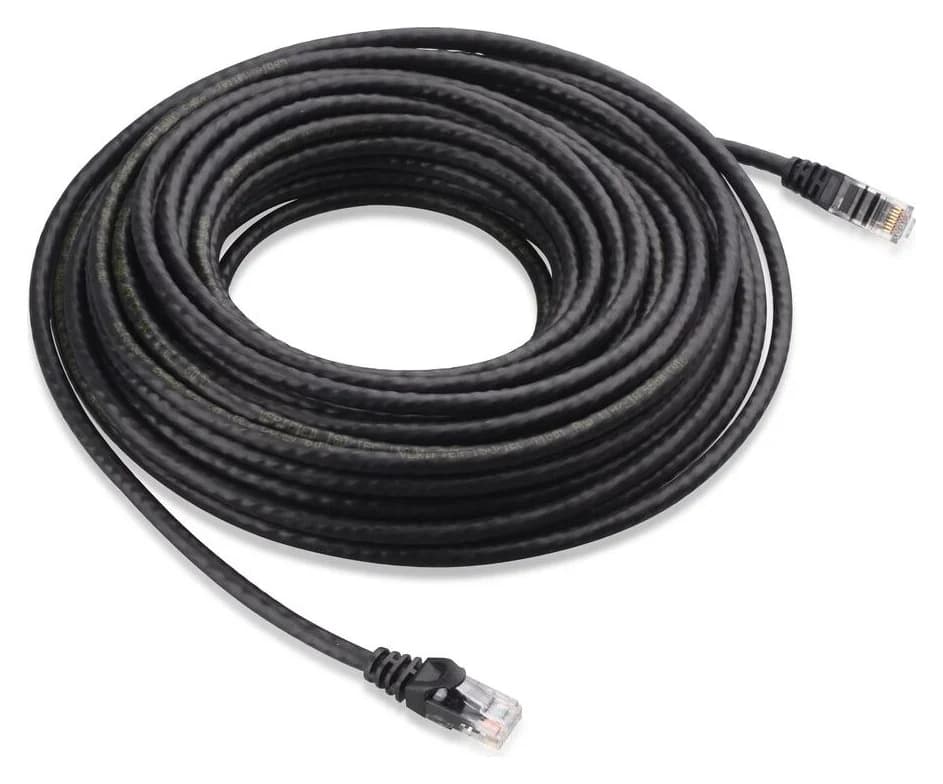
If leads are missing, Cable Matters 160001 Cat6 is an optional indoor patch-cable family with bare-copper conductors and snagless boots, according to its official specifications. The existing linked variant is one black 7 ft cable; choose another length when the route requires it.
Cable Matters
An indoor unshielded Cat6 Ethernet patch cable with bare-copper conductors and snagless boots.
Check package and model options
Check price on Amazon. Our Ethernet cable guide covers category choices beyond this upgrade.
Both switches list an adapter and a 12 V / 1 A DC requirement or output. That alone does not confirm interchangeable plugs or polarity: use the supplied adapter, confirm the local mains plug and keep its label with the switch. TP-Link's manual instructs users to use recommended adapters. Treat access-point power as a separate purchase requirement; these specifications provide no PoE power budget to allocate.
Neither is the right choice if you need to configure VLAN membership for separate networks. TP-Link's VLAN explanation states that unmanaged switches do not support VLAN configuration; its automatic QoS and IGMP features do not change that limitation.
Confirm the revision and warranty route
Before paying, request the exact model/revision and supplied-adapter details in the order description. TP-Link says the hardware version is on the product label, usually as Ver: X.X or VX (label guide). Match that to the regional support selector, rather than assuming a listing title identifies V2.
QNAP's US R2 page states a two-year warranty and directs customers to its service portal. For TP-Link, the current US warranty policy lists three years for non-Omada switches with steel chassis. The model page says metal casing, so confirm the exact product's category and serial eligibility with TP-Link instead of promising a blanket lifetime warranty. Its policy requires valid proof of purchase and the complete serial number, and excludes unauthorized-reseller purchases. The documented replacement route is product registration, technical-support troubleshooting, then an authorized RMA.
Match the model
Keep QNAP's R2 suffix or confirm TP-Link's V2 label and regional documentation.
Check the box and location
Confirm the supplied adapter, local mains plug, cable reach and mounting fixings.
Connect and inspect
Use the router's LAN side, check link-rate indicators and enable TP-Link loop prevention if wanted.
Keep support evidence
Save the invoice, serial number, hardware revision and adapter details for a support request.
How we choose
This is a documentation-based comparison, with no physical or speed testing. We compared official model pages, TP-Link's V2 datasheet and shared installation guide, QNAP's R2 hardware/package listing, and US warranty documentation. The recommendations prioritize equal endpoint capacity, placement, documented setup and a usable support route. Port allocations and bottleneck explanations are our stated deductions from those specifications. Full editorial method: How we choose.
Verdict
Choose TL-SG108S-M2 V2 for the smaller case and documented wall mounting, remembering the loop-prevention switch. Choose QSW-1108-8T-R2 for its front status display, rear cabling and automatic loop blocking without that setup step. Order the chosen switch with its supplied adapter and only the patch leads your port plan is missing; keep the current gigabit switch if your endpoints cannot use faster links.
Frequently asked questions
Which is better, QNAP QSW-1108-8T-R2 or TP-Link TL-SG108S-M2?
Our default is the TL-SG108S-M2 V2 for its smaller enclosure and documented wall mounting. Choose the QNAP R2 for front-facing LEDs, rear ports and automatic loop blocking without a separate enable step. Both have eight ports supporting up to 2.5 Gbps, so these specifications do not establish a file-transfer speed winner.
Is a 2.5G switch worth buying with gigabit internet?
It can be worthwhile for local transfers between a multi-gig NAS and computer connected to that switch. A gigabit router uplink still limits traffic crossing that link, including internet traffic, but does not turn the local switch ports into gigabit ports. Keep your existing switch if the devices and connections you want to accelerate are all gigabit.
Do I need Cat6 or Cat8 cable for these 2.5G switches?
No special cable upgrade is required solely for 2.5G: TP-Link's V2 datasheet specifies Cat5e or better for 2.5GBASE-T, up to 100 m. Try compliant existing cabling first. Cat6 patch leads are an option for missing or damaged cables, but choose the length for the actual route and check the negotiated link speed after connecting.
Is loop prevention enabled by default on TL-SG108S-M2 V2?
The installation guide linked from the V2 support page describes the loop-prevention switch as Off by default. Set it to On if you want loop monitoring and blocking. This qualifies the product page's automatic-loop-prevention wording: detection is automatic when enabled. The manual also warns that other switches can limit detection if they do not forward its detection packets properly.
Related guides
Best picks · Network Switches
Best 10GbE Switches for a Home NAS: Copper, SFP+ and Usable Ports
Choose a 10GbE switch for your NAS and PC: compare usable copper and SFP+ ports, check NETGEAR revisions, and match cables, adapters, cooling and storage.
Comparison · Network Switches
Managed vs Unmanaged Switch: What Your Home Network Needs
Choose managed or unmanaged by the controls you need. Compare VLANs, monitoring and PoE, with clear picks and a complete router-to-AP segmentation example.
Best picks · Network Switches
Best 2.5Gb Switches for Home: Choose Five or Eight Ports
Choose a 2.5Gb switch for your NAS, PC and mesh: compare usable ports, fanless picks, exact revisions, warranty conflicts and the cables your upgrade needs.