

Buying guide
Docker Home Server: Choose Hardware and Run Your First Service
Start a Docker home server on an existing PC or mini PC. Run FreshRSS with persistent storage, private access, and a backup, restore and update rollback plan.
By thisPING EditorialUpdated November 3, 20267 min read1 pick
On this page · Our picks at a glance
Our picks at a glance
- 1
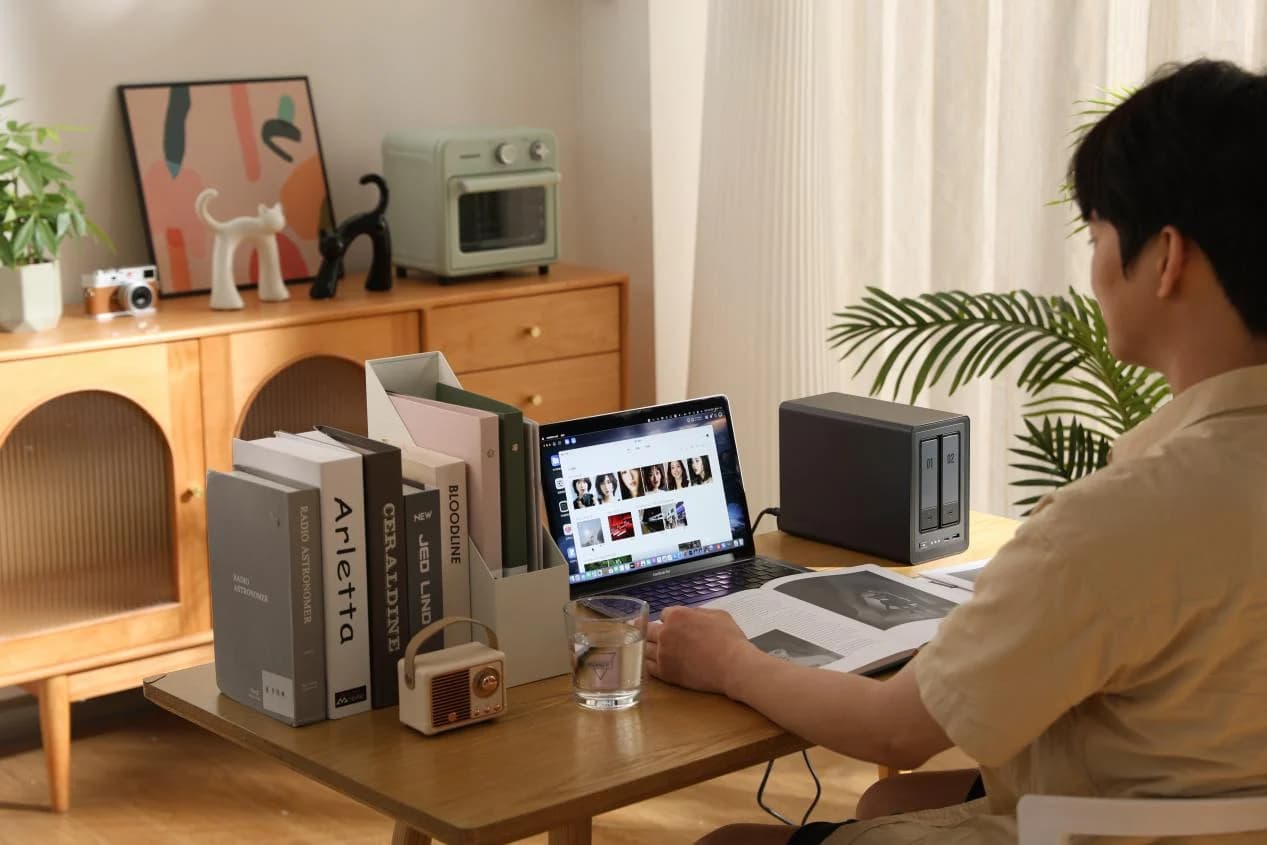
Choose for: Storage-first alternative or separate backup target
Limit: Diskless: plan compatible drives separately; UGOS is a different setup path
For your first Docker home server, use a suitable computer you already own and run FreshRSS with SQLite, persistent storage and a rehearsed restore. If you need a dedicated host, our pick is the Beelink EQ14 N150, 16GB/500GB, dual-2.5GbE kit, subject to its pre-order timing; choose the UGREEN NASync DXP2800 when shared storage is the main job.
Official documentation checked November 2, 2026. These are research-based recommendations; no performance measurements are claimed.
Quick picks: buy for the job
Compare specifications and all conditions
Existing computer
- Choose it for
- Our default: learn before buying
- Relevant hardware
- Check its own RAM, SSD and Ethernet specifications
- Configuration trap
- Meet the supported-OS requirements below
Beelink EQ14 N150
- Choose it for
- Dedicated starter host
- Relevant hardware
- 16GB DDR4, 500GB SATA SSD, dual 2.5GbE
- Configuration trap
- Selected kit is a pre-order; memory ceiling is 16GB
UGREEN NASync DXP2800
- Choose it for
- Storage-first alternative or separate backup target
- Relevant hardware
- Intel N100; two SATA bays and two M.2 NVMe slots; 8 GB DDR5, maximum 16 GB; 2.5GbE
- Configuration trap
- Diskless: plan compatible drives separately; UGOS is a different setup path
Minisforum MS-A2 9955HX barebone
- Choose it for
- Expansion-led homelab
- Relevant hardware
- Up to 96GB DDR5; dual 10G SFP+ and dual 2.5GbE RJ45
- Configuration trap
- Barebone includes no RAM, SSD or OS
Full comparison table
Swipe to compare. Row labels stay visible.
| Pick | Choose it for | Relevant hardware | Configuration trap |
|---|---|---|---|
| Existing computer | Our default: learn before buying | Check its own RAM, SSD and Ethernet specifications | Meet the supported-OS requirements below |
| Beelink EQ14 N150 | Dedicated starter host | 16GB DDR4, 500GB SATA SSD, dual 2.5GbE | Selected kit is a pre-order; memory ceiling is 16GB |
| UGREEN NASync DXP2800 | Storage-first alternative or separate backup target | Intel N100; two SATA bays and two M.2 NVMe slots; 8 GB DDR5, maximum 16 GB; 2.5GbE | Diskless: plan compatible drives separately; UGOS is a different setup path |
| Minisforum MS-A2 9955HX barebone | Expansion-led homelab | Up to 96GB DDR5; dual 10G SFP+ and dual 2.5GbE RJ45 | Barebone includes no RAM, SSD or OS |
Scroll horizontally to see every column
| Pick | Choose it for | Relevant hardware | Configuration trap |
|---|---|---|---|
| Existing computer | Our default: learn before buying | Check its own RAM, SSD and Ethernet specifications | Meet the supported-OS requirements below |
| Beelink EQ14 N150 | Dedicated starter host | 16GB DDR4, 500GB SATA SSD, dual 2.5GbE | Selected kit is a pre-order; memory ceiling is 16GB |
| UGREEN NASync DXP2800 | Storage-first alternative or separate backup target | Intel N100; two SATA bays and two M.2 NVMe slots; 8 GB DDR5, maximum 16 GB; 2.5GbE | Diskless: plan compatible drives separately; UGOS is a different setup path |
| Minisforum MS-A2 9955HX barebone | Expansion-led homelab | Up to 96GB DDR5; dual 10G SFP+ and dual 2.5GbE RJ45 | Barebone includes no RAM, SSD or OS |
The makers' linked specification tables supply these figures. For the broader platform decision, use our home-server guide.
Best dedicated starter: Beelink EQ14 N150
Choose the exact 16GB DDR4 / 500GB / dual-2.5G selection and your regional power option. Beelink distinguishes the supplied SATA III SSD from the PCIe-capable M.2 slots; slot shape does not establish the installed SSD's interface. Its page lists Windows 11 Home, so Ubuntu installation and hardware checks are separate work. Confirm delivery timing before scheduling a migration. Check configuration at Beelink.
Best storage-first alternative: UGREEN NASync DXP2800
UGREEN
A two-bay NAS with an Intel N100, 8 GB DDR5, a 2.5GbE port, two M.2 NVMe slots and 4K HDMI output.
Check package and model options
- 2.5 Gbps port
- 2 bays
Choose this for shared files or as a separate destination for the backup archive below. The DXP2800 has an Intel N100, 8 GB DDR5 expandable to 16 GB, two SATA bays, two M.2 NVMe slots and a 2.5GbE port. It is sold diskless, so plan compatible drives separately. This Ubuntu walkthrough targets a PC; follow UGREEN's setup instructions for its UGOS operating system instead of applying the Ubuntu commands to the NAS. Compare alternatives in our NAS buying guide.
Check specifications and setup at UGREEN.
Best when expansion is already required: Minisforum MS-A2
The Ryzen 9 9955HX barebone is our conditional upgrade pick for its memory ceiling and networking. Add RAM, an SSD and an OS; distinguish it from the configured bundles and other processors on the same page. The advertised 10G connections are SFP+, so plan matching link equipment. We would not buy it just for this walkthrough. Check the exact kit at Minisforum.
How we choose
We use maker specifications and official OS, Docker and application documentation. Our declared workload is a personal FreshRSS feed reader using SQLite, with no added extensions or public publishing. This is a sizing exercise, not a promise about container counts, media streams, Linux certification or idle power. FreshRSS supplies its own Docker image and describes SQLite as the easiest database option. Full method: How we choose.
Before installation: OS, storage and addressing
This recipe chooses Ubuntu Server 24.04 LTS on amd64. Docker currently lists Ubuntu 26.10, 26.04 LTS, 24.04 LTS and 22.04 LTS; Ubuntu derivatives are not officially supported. Canonical's 24.04 amd64 requirements distinguish the 1.5 GB RAM / 5 GB storage ISO minimum from its suggested 3 GB RAM / 25 GB storage or more. Those are OS figures: leave additional room for images, application data and backups.
Use local SSD storage for this exercise. Check the actual host against its manual, preserve existing files before changing OS, and confirm Ethernet works. Record its LAN address; if your router supports address reservations, reserve that host's address there. TP-Link's reservation example illustrates the IP/MAC relationship; use your own router's instructions.
Choose the workload
Start with the personal feed reader described above.
Check the host
Confirm supported OS, memory, storage and Ethernet before ordering hardware.
Plan recovery
Identify a separate backup destination before starting the service.
Follow Docker's current Ubuntu apt-repository installation, including its conflicting-package check, signing key and repository setup. Install its Engine and Compose plugin packages, then verify:
sudo docker run hello-world
sudo docker version
sudo docker compose version
Require Engine 28.0.0 or newer for this recipe: Docker documents a localhost-publishing exposure issue in older releases. Keep using sudo here; Docker warns that membership of the docker group grants root-level privileges.
Bring FreshRSS online with persistent storage
Run these on the server, in a new project directory. Stop if any command fails. The official image documentation defines the paths, timezone and refresh setting used below.
mkdir -p ~/services/freshrss
cd ~/services/freshrss
mkdir data extensions
sudo docker pull freshrss/freshrss:latest
fr_image=$(sudo docker image inspect --format '{{index .RepoDigests 0}}' freshrss/freshrss:latest)
printf 'FRESHRSS_IMAGE=%s\n' "$fr_image" > .env
FreshRSS's latest means its latest versioned release; edge is rolling development, and -alpine selects a different base image. We select the default Debian variant, then record its immutable image digest in .env. The official image supports linux/amd64, linux/arm64 and linux/arm/v7; an Arm host still needs its own supported OS/Docker check.
Save this as compose.yaml in that directory:
services:
  freshrss:
    image: ${FRESHRSS_IMAGE:?set FRESHRSS_IMAGE in .env}
    restart: unless-stopped
    ports:
      - "127.0.0.1:8080:80"
    environment:
      TZ: UTC
      CRON_MIN: "1,31"
      TRUSTED_PROXY: "0"
    volumes:
      - ./data:/var/www/FreshRSS/data
      - ./extensions:/var/www/FreshRSS/extensions
    logging:
      driver: json-file
      options:
        max-size: "10m"
        max-file: "3"
Here, host port 8080 maps to container port 80, bound only to server loopback. CRON_MIN schedules refreshes at minutes 1 and 31; proxy-header trust is disabled. Docker's logging options rotate logs at the configured 10m threshold, retaining at most 3 files.
The bind mounts keep data on the host; relative paths resolve beside the Compose file. FreshRSS stores configuration and SQLite databases in data; extensions have their own directory. Keep these paths consistent. If using a separate disk later, verify it is mounted before startup rather than accepting an empty directory at the same path.
sudo docker compose config
sudo docker compose up -d
sudo docker compose ps
sudo docker compose logs
Open it privately, then prove persistence
Enable Ubuntu's OpenSSH server if needed. From your client computer, replace youruser@SERVER_LAN_IP with your server login and recorded address:
ssh -N -L 127.0.0.1:8080:127.0.0.1:8080 youruser@SERVER_LAN_IP
Keep that terminal open and browse to http://127.0.0.1:8080 on the client. OpenSSH's -L forwarding carries the connection through the secure channel to server loopback. Choose SQLite and Form Authentication in FreshRSS's installer, set a unique password, then add a feed and mark an article as a favorite.
- Yes: Expected: the signed-in reader opens through the SSH tunnel
- Yes: Expected: your feed and favorite remain after a container restart
- No: Unexpected: the web port opens directly at the server's LAN address
Run sudo docker compose restart freshrss on the server, then verify those saved items. Check sudo docker stats --no-stream during a refresh and check host free space before expanding the workload. Reboot the host during a maintenance window and reconnect: Docker starts on boot by default on Ubuntu, and this service uses unless-stopped. A manually stopped service stays stopped until you start it again.
If access fails, check compose ps and logs first, then the SSH login, tunnel and local port availability. If FreshRSS offers a fresh installer after previously working, stop and inspect the mount paths before initializing anything. If data is unwritable, inspect directory ownership and FreshRSS's startup permission messages; avoid blanket world-write permissions.
Back up, restore and rehearse an update rollback
FreshRSS's backup instructions require data, recommend extensions, and include SQLite in the data copy. External databases need separate backups; this recipe deliberately avoids one. Stopping the container stops the web server and its refresh job during the copy.
From the project directory, use fresh archive and holding-directory names for each rehearsal. Run each command only after the preceding one succeeds:
sudo docker compose stop
sudo tar -czpf ../freshrss-baseline.tgz compose.yaml .env data extensions
sudo tar -tzf ../freshrss-baseline.tgz
sudo mv data data.before-restore
sudo mv extensions extensions.before-restore
sudo tar -xzpf ../freshrss-baseline.tgz
sudo docker compose up -d --force-recreate
The original directories remain available. Sign in, find the feed and favorite, and refresh successfully; listing an archive alone is not a restore rehearsal. Copy the archive to a separate device or protected offsite destination and verify that copy too. Protect it as private account data. It contains configuration and data, not image layers: retain the previous image locally through updates.
Update procedure: read the FreshRSS release notes, stop the service, and make a new archive named freshrss-before-update.tgz using the same files. Pull freshrss/freshrss:latest, repeat the digest-to-.env commands above, and run sudo docker compose up -d. Verify login, feed refresh and saved items before accepting the update. If a download fails, start the unchanged old configuration again.
Rollback procedure: stop the service; move its current data and extensions to new holding directories. Extract ../freshrss-before-update.tgz from the project directory, restoring compose.yaml, .env and both data directories together, then run sudo docker compose up -d --force-recreate. Repeat the acceptance checks. Restoring the old data with the old image avoids assuming database changes are backward-compatible; changes made since the backup will be absent.
Repeat backups after configuration changes and before updates, and rehearse restores periodically. For hardware continuity and shutdown planning, use our router/NAS UPS guide.
Verdict
Start on the existing computer if it passes the OS and workload checks. Choose the EQ14 for a dedicated starter, the DXP2800 for storage, and the MS-A2 only when its expansion solves a defined need. Your finish line is a private service whose saved state survives restart and restore.
Frequently asked questions
Can I use an old PC as a Docker home server?
Yes, if its architecture, memory, storage and network adapter suit a currently supported OS. This walkthrough chooses Ubuntu Server 24.04 LTS on amd64. Canonical suggests at least 3 GB RAM and 25 GB storage for that OS, before application headroom. Check your PC's own manual and try the declared FreshRSS workload before buying replacement hardware.
How much RAM does a Docker home server need?
There is no container-count formula here. Canonical's suggested minimum for Ubuntu Server 24.04 LTS on amd64 is 3 GB RAM; that is an OS baseline, not a FreshRSS capacity guarantee. Leave headroom, observe memory with docker stats during feed refreshes, and check free disk space as data grows. Our EQ14 hardware selection includes 16GB RAM, but the walkthrough does not require buying it.
Can I access this Docker service outside my home?
This setup uses a loopback port and an SSH tunnel from a computer that can already reach the server. It does not configure remote access through your router. FreshRSS recommends an HTTPS reverse proxy for production exposure; follow its deployment and access-control documentation before adding that separate project. Keep Form Authentication enabled and leave the internal-host allowlist at its default.
Related guides
Comparison · Homelab Hardware
Protectli V1410 vs VP2420e: Which Vault Fits Your Firewall?
Choose the right Protectli Vault: compare fixed and replaceable RAM, NVMe and SATA storage, firmware warnings, firewall releases and a complete order checklist.
Best picks · Homelab Hardware
Best Firewall Routers for Home: Wired Gateways and Wi-Fi Kits
Choose a wired home firewall by management workload, ports and supported software, then complete the order with compatible Wi-Fi, switching, power and cables.
Buying guide · Homelab Hardware
Home Server Hardware for a DIY NAS: A Complete Four-Drive Build
Choose DIY NAS hardware with a complete four-drive parts list, case and PSU clearances, SATA and PCIe checks, boot storage, cooling, and a clear recovery plan.