

Best picks
Best Routers for Gaming
Choose by Connection and Shared Load
Find the best gaming router for your console or PC: compare useful ports, Wi-Fi support and traffic controls, then check latency under load before buying.
By thisPING EditorialUpdated November 3, 20268 min read4 picks
Our recommendation: TP-Link Archer BE550
Best for most gaming households with up to 2.5 Gbps WAN
Limit: there is no 10 Gbps port; use the RS700S or ROG option when that connection is necessary.
On this page · Our picks at a glance
Our picks at a glance
- 1
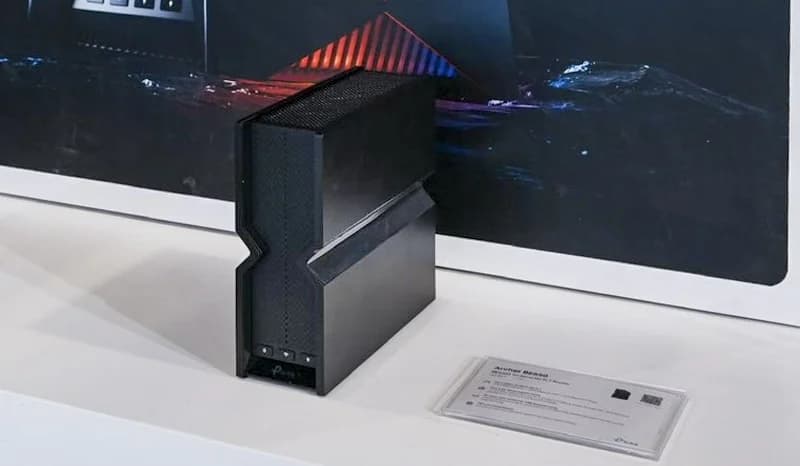
Choose for: Best for most gaming households with up to 2.5 Gbps WAN
Check before buying: there is no 10 Gbps port; use the RS700S or ROG option when that connection is necessary.
- 2
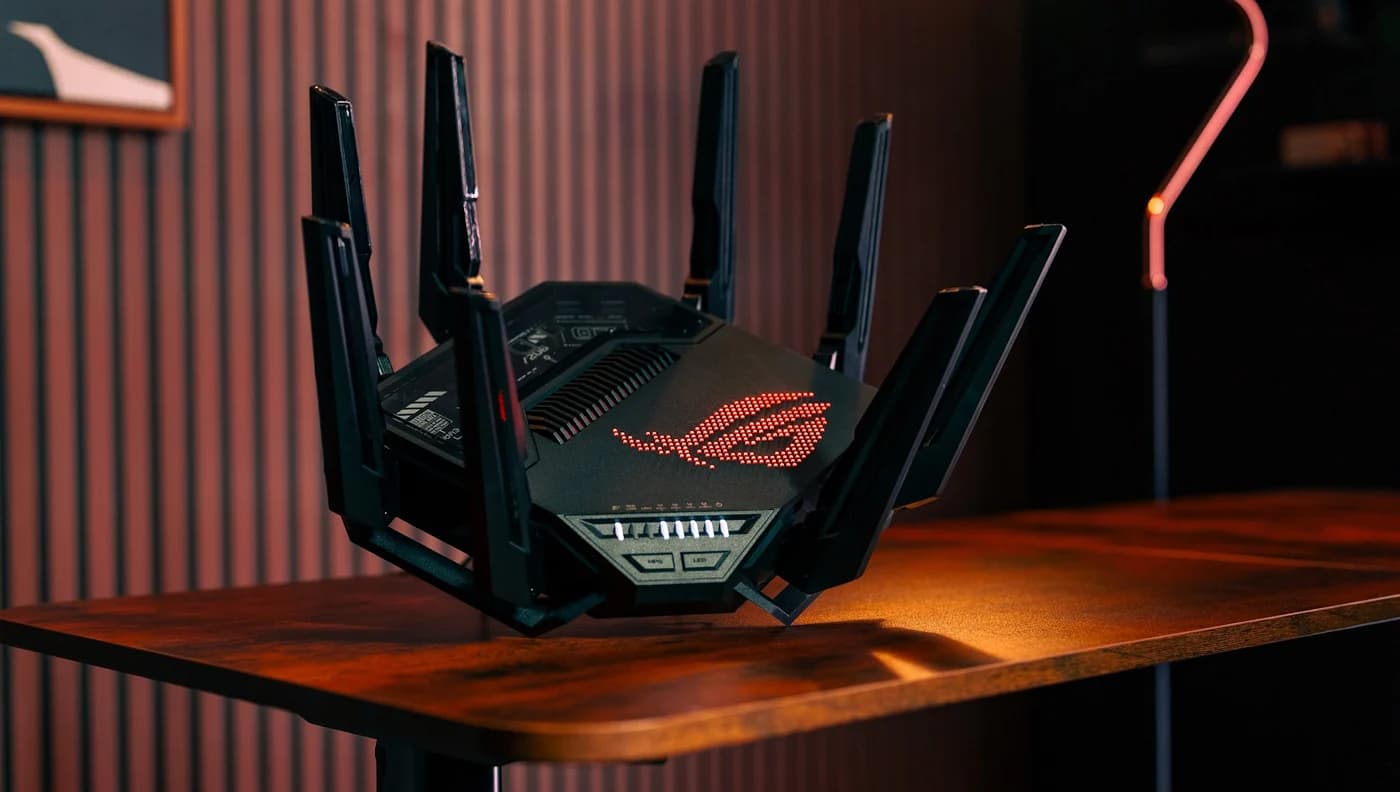
Choose for: Best for extra radios and wired devices
Check before buying: ASUS publishes no coverage figure on the spec page
- 3
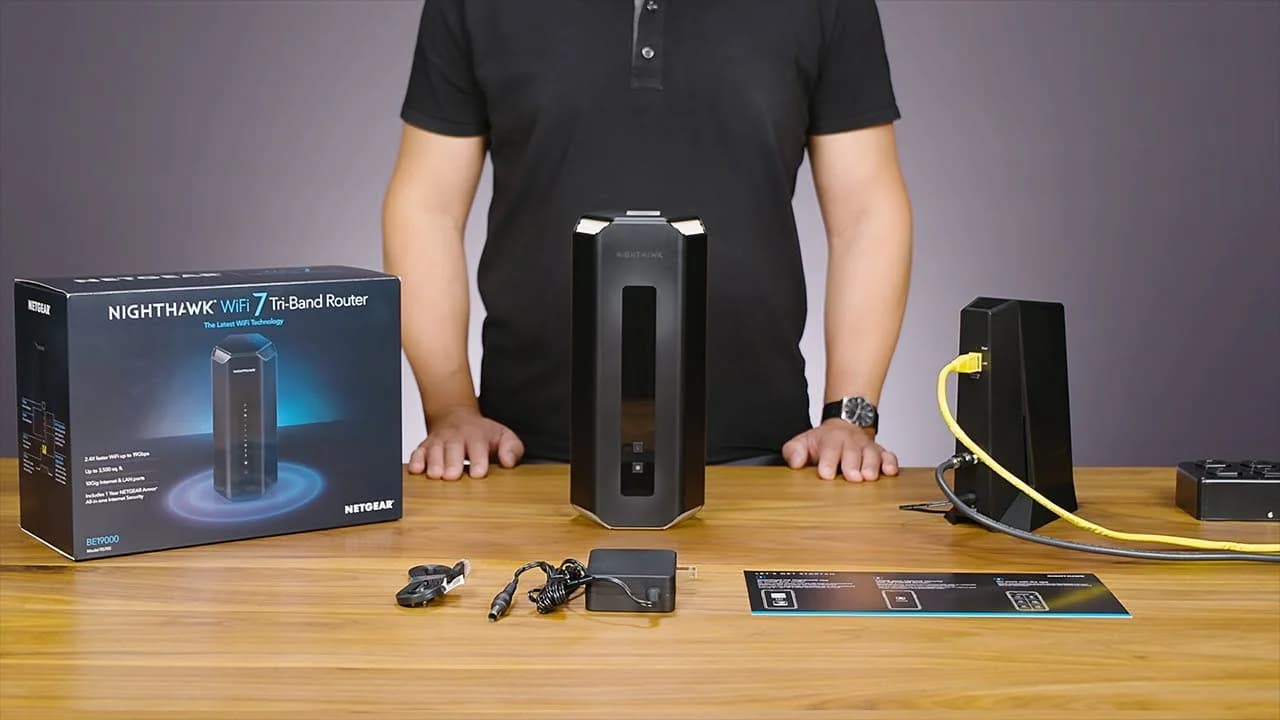
Choose for: Alternative for a 10 Gbps WAN and gaming PC
Check before buying: only one LAN socket supports multi-gig link rates; the other four stop at gigabit.
Show all 4 picks
- 4
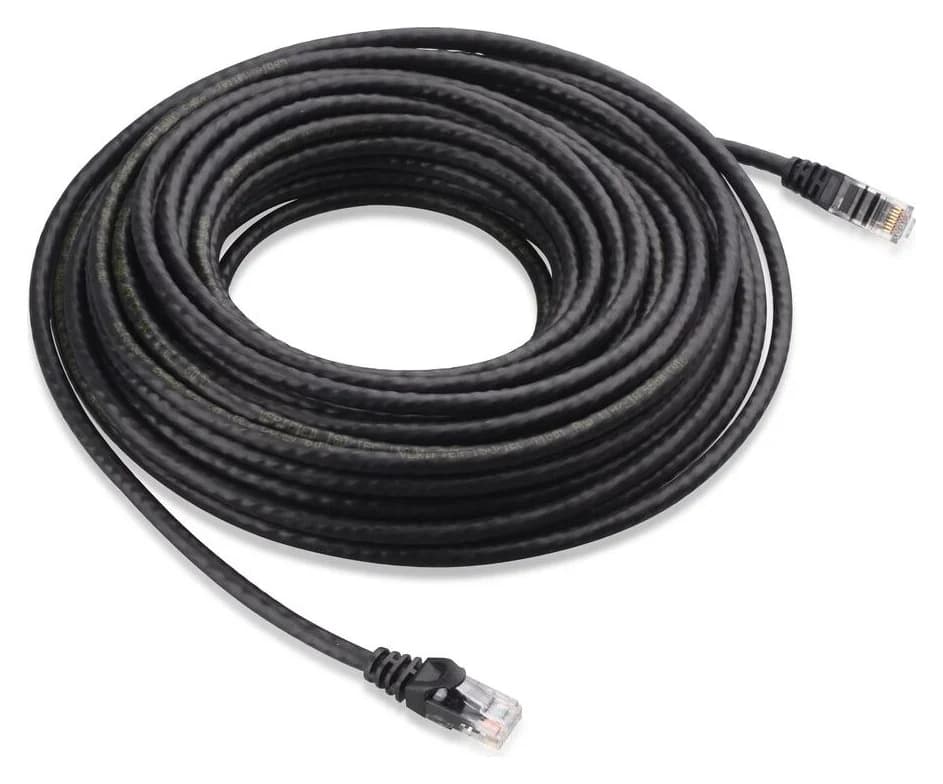
Choose for: Best first purchase for a reachable room
Check before buying: Cat6 does not provide the full 100 m 10G application of Cat6A
The TP-Link Archer BE550 is our starting recommendation for most gaming households replacing a router with a WAN connection up to 2.5 Gbps: its four 2.5 Gbps LAN ports and device-priority QoS address shared console and PC setups. Choose the ROG Rapture GT-BE98 Pro when you can use its extra radios and ports, or the Nighthawk RS700S for a 10 Gbps WAN and one fast LAN device; try Ethernet with your existing supported router before buying. No pick here comes with a measured lowest-ping claim.
Quick picks
- Most households with up to 2.5 Gbps WAN: Archer BE550, for four multi-gig LAN ports and device-priority QoS.
- Busy network with extra wired devices: GT-BE98 Pro, for additional radios and connections.
- A 10 Gbps WAN and one fast PC: Nighthawk RS700S; its other four LAN ports are gigabit.
- A cable can reach the gaming room: Cable Matters Cat6; keep the router if the checks below meet your needs.
Compare the ports and controls that matter
Compare specifications and all conditions
TP-Link Archer BE550
- WAN used for this comparison
- 2.5 Gbps WAN
- LAN ports remaining
- 4 × 2.5 Gbps
- Documented traffic controls
- QoS by device; set total bandwidth and high-priority devices
ASUS GT-BE98 Pro
- WAN used for this comparison
- 10 Gbps WAN/LAN
- LAN ports remaining
- 1 × 10 Gbps, 4 × 2.5 Gbps, 1 × 1 Gbps
- Documented traffic controls
- Adaptive QoS, Traditional QoS, Bandwidth Limiter; dedicated gaming LAN port and Game Boost
NETGEAR RS700S
- WAN used for this comparison
- 10 Gbps internet
- LAN ports remaining
- 1 × 10 Gbps, 4 × 1 Gbps
- Documented traffic controls
- QoS with configurable internet bandwidth and an application database
Full comparison table
Swipe to compare. Row labels stay visible.
| Router | WAN used for this comparison | LAN ports remaining | Documented traffic controls |
|---|---|---|---|
| TP-Link Archer BE550 | 2.5 Gbps WAN | 4 × 2.5 Gbps | QoS by device; set total bandwidth and high-priority devices |
| ASUS GT-BE98 Pro | 10 Gbps WAN/LAN | 1 × 10 Gbps, 4 × 2.5 Gbps, 1 × 1 Gbps | Adaptive QoS, Traditional QoS, Bandwidth Limiter; dedicated gaming LAN port and Game Boost |
| NETGEAR RS700S | 10 Gbps internet | 1 × 10 Gbps, 4 × 1 Gbps | QoS with configurable internet bandwidth and an application database |
Scroll horizontally to see every column
| Router | WAN used for this comparison | LAN ports remaining | Documented traffic controls |
|---|---|---|---|
| TP-Link Archer BE550 | 2.5 Gbps WAN | 4 × 2.5 Gbps | QoS by device; set total bandwidth and high-priority devices |
| ASUS GT-BE98 Pro | 10 Gbps WAN/LAN | 1 × 10 Gbps, 4 × 2.5 Gbps, 1 × 1 Gbps | Adaptive QoS, Traditional QoS, Bandwidth Limiter; dedicated gaming LAN port and Game Boost |
| NETGEAR RS700S | 10 Gbps internet | 1 × 10 Gbps, 4 × 1 Gbps | QoS with configurable internet bandwidth and an application database |
Sources: Archer BE550 specifications, Archer BE550 QoS instructions, section 11.3, GT-BE98 Pro specifications and RS700S manual, pages 17–18 and 105–107. Counts assume a single Ethernet WAN, without aggregation or a second WAN. Port rates describe connections, not measured routing throughput or gaming latency.
Fill in your console or PC connection worksheet
Cable route
Measure a safe indoor route from the router to the gaming device; check whether you already have a suitable lead.
Exact client
Write down the console model or PC adapter, its supported bands and its Ethernet link rate.
Shared load
Note whether lag appears during uploads, downloads, or even when the household connection is idle.
Port allocation
List the modem or fiber box, gaming devices, storage and switch; assign the WAN before counting available LAN ports.
If your present setup passes both idle and busy-household checks, buy nothing. If only the gaming room fails, investigate placement or a connection to that room before replacing the main router; our mesh versus extender guide helps with that choice.
Best for most gaming households with up to 2.5 Gbps WAN: TP-Link Archer BE550
TP-Link
A tri-band Wi-Fi 7 router with five 2.5 Gbps Ethernet ports (one WAN, four LAN) and EasyMesh support.
Check package and model options
- Wi-Fi 7
- BE9300
- 3 bands
- 2.5 Gbps port
The Archer BE550 combines tri-band Wi-Fi with Wi-Fi 7 on 5 and 6 GHz, one 2.5 Gbps WAN port and four 2.5 Gbps LAN ports. Connect the modem or fiber box to WAN, then allocate LAN sockets to the console, PC, storage and a switch as needed. This is our starting point when those link rates cover your connection needs.
Its user guide, section 11.3 documents device-priority QoS: enable it under Advanced > HomeShield > QoS, set total bandwidth, then choose a high-priority device and duration. Compare the same shared-load workload with priority disabled and enabled before deciding whether it helps your game.
Trade-off: there is no 10 Gbps port; use the RS700S or ROG option when that connection is necessary. The 5 and 6 GHz radios are 2×2, versus the ROG's 4×4 radios. Version check: the 2.4 GHz radio is Wi-Fi 6 on V1 and Wi-Fi 7 on V2; match the label to the hardware-specific downloads. These specifications do not predict your client's ping.
Best for extra radios and wired devices: ASUS ROG Rapture GT-BE98 Pro
ASUS
A quad-band Wi-Fi 7 gaming router with two 6 GHz bands, two 10G ports and seven Ethernet ports in all.
Check package and model options
- Wi-Fi 7
- BE30000
- 4 bands
- 10 Gbps port
The Pro has quad-band Wi-Fi 7: 2.4 GHz, 5 GHz and two separate 6 GHz radios, with 4×4 on every radio. Its two 10 Gbps sockets let you connect a fast WAN and a fast LAN device simultaneously. ASUS identifies the dedicated 10 Gbps LAN socket as the gaming port, giving connected gaming devices priority.
ASUS describes Game Boost as Adaptive QoS that prioritizes game packets. Buy the Pro for the additional connections and radios, rather than assuming its gaming label guarantees better latency than the Archer BE550.
Variant trap: the non-Pro GT-BE98 has two 5 GHz radios and one 6 GHz radio. Documentation conflict: the Pro's launch page still calls MLO forthcoming, while ASUS's MLO support FAQ now lists supported firmware for it. Check firmware and client compatibility instead of relying on that launch footnote.
Alternative for a 10 Gbps WAN and gaming PC: NETGEAR Nighthawk RS700S
Netgear
Netgear's flagship tri-band Wi-Fi 7 router, with a 10 Gig internet port and a 10 Gig LAN port.
Check package and model options
- Wi-Fi 7
- BE19000
- 3 bands
- 10 Gbps port
The RS700S offers tri-band Wi-Fi 7 on 2.4, 5 and 6 GHz, with 4×4 radios, a fixed 10 Gbps internet port, one 10 Gbps LAN port and four gigabit LAN ports. Reserve the fast LAN socket for a capable PC or switch and connect consoles to gigabit. Choose it when the faster WAN and one fast LAN connection solve your port-allocation problem.
Traffic controls: the manual, pages 105–107 documents enabling QoS, setting internet bandwidth automatically or manually, and updating its application database. Check firmware through RS700S support, then compare throughput and latency under the same load with QoS disabled and enabled. Documentation of QoS does not establish its effectiveness against bufferbloat.
Trade-off: only one LAN socket supports multi-gig link rates; the other four stop at gigabit. A PC and NAS that both need multi-gig Ethernet require an appropriate switch, or the Archer BE550 or ROG port layout. This is a specialized alternative for faster connections; it is not the starting recommendation for a household whose ports already meet its needs.
Best first purchase for a reachable room: Cable Matters Cat6
Cable Matters
An indoor unshielded Cat6 Ethernet patch cable with bare-copper conductors and snagless boots.
Check package and model options
The 160001 patch cable uses bare-copper conductors and RJ45 plugs; Cable Matters specifies unshielded construction and indoor use. Try the wired connection, disable Wi-Fi on the gaming device for the comparison, and rerun the same game or load check.
Choose the variant deliberately: the linked option is black, 7 ft, one cable. Measure your route before ordering a length; a different color or length needs its own selection. An indoor patch lead is not a substitute for cable rated for outdoor installation. See Cat6 versus Cat6A versus Cat8 before planning permanent cabling.
How we choose
This is a documentation-based shortlist, without physical product testing. We compare official port layouts, radio specifications, configuration instructions and firmware notes, then recommend by connection needs. None of those establishes a latency winner. Original sources were checked November 2, 2026; replacement-pick documentation was checked November 3, 2026. Full editorial method: How we choose.
Support matters too. NETGEAR's policy generally places end of service three years after the last sale date, when firmware and security updates stop. For the Archer BE550, match the hardware version and region on its download page before choosing firmware. Check the ASUS EOL list for your exact model and region.
Buying guide: distinguish bandwidth, Wi-Fi and shared-load delay
Check the client before buying newer radios
Sony's regular PS5 documentation lists 802.11ax on 2.4 and 5 GHz; PS5 Pro adds 802.11be. Xbox Series X lists dual-band 802.11ac. All list gigabit Ethernet, so connecting them to a faster router socket does not upgrade their wired interface.
The Wi-Fi Alliance describes MLO as distributing traffic among links; 320 MHz channels are a 6 GHz feature. Neither is a reason to skip checking the exact client.
- Yes: Regular PS5 or Xbox Series X: use their documented wired connection when a safe cable route exists.
- Partly: PS5 Pro: Sony documents an MLO toggle for the CFI-7000 group; confirm the compatible access point and compare enabled versus disabled.
- Partly: PC: check the adapter, operating system, driver and supported bands before paying for newer Wi-Fi features.
For PS5 Pro, Sony's instructions put MLO in the access point's Advanced Settings. On a PC, Microsoft says Wi-Fi 7 support starts with Windows 11 version 24H2 and requires a compatible adapter. Run netsh wlan show drivers, then check the adapter maker's band specifications; our PC Wi-Fi adapter guide covers replacement choices.
Configure a response to congestion
ASUS's QoS instructions distinguish application priority from limiting a device's bandwidth. For gaming during household uploads, try Adaptive QoS with the Games profile; for an identified bandwidth-hogging device, compare Bandwidth Limiter instead. ASUS permits only one QoS type at a time and says device limits must be below the connection's maximum to constrain it. Record the chosen mode and upload/download settings before repeating the check. ASUS also warns that Traditional QoS can reduce speed.
Repeat this latency-under-load check before and after setup
Cloudflare distinguishes idle latency from latency under load: queues can add delay even when headline download speed looks good. Its explanation also separates jitter, the variation in delay, from packet loss. Use those measures alongside throughput.
Fix the conditions
Use the same client, location, test endpoint and observation window. Record firmware and traffic-control settings. Begin over Ethernet with Wi-Fi disabled.
Record idle behavior
Pause transfers. Note in-game ping and run the same internet-quality test, recording latency, jitter, loss and throughput.
Add repeatable load
Run a sustained upload from another device, then a download separately. Record the same measures and the workload used; repeat each condition.
Change one thing
Compare Wi-Fi with Ethernet, or traffic control disabled with enabled. Repeat the identical workload and window after each change.
For a local cross-check on Windows, ipconfig displays the default gateway. In separate terminals, run ping /t <gateway-address> and ping /t <responding-internet-target>, replacing the placeholders. Microsoft's ping documentation explains round-trip times and continuous mode; press Ctrl+C to stop. Keep the internet target unchanged between runs.
Wi-Fi suffers; Ethernet is repeatably better
- Next check before spending
- Investigate room placement, interference and the client connection.
Internet delay rises under upload; gateway stays steady
- Next check before spending
- Try traffic controls or pause/cap that upload, then repeat.
Wired internet delay remains high while idle
- Next check before spending
- Compare another endpoint and the game's server region; investigate the ISP path.
Wired and wireless results meet your needs under load
- Next check before spending
- Keep the existing supported router.
Full comparison table
Swipe to compare. Row labels stay visible.
| Observation | Next check before spending |
|---|---|
| Wi-Fi suffers; Ethernet is repeatably better | Investigate room placement, interference and the client connection. |
| Internet delay rises under upload; gateway stays steady | Try traffic controls or pause/cap that upload, then repeat. |
| Wired internet delay remains high while idle | Compare another endpoint and the game's server region; investigate the ISP path. |
| Wired and wireless results meet your needs under load | Keep the existing supported router. |
Scroll horizontally to see every column
| Observation | Next check before spending |
|---|---|
| Wi-Fi suffers; Ethernet is repeatably better | Investigate room placement, interference and the client connection. |
| Internet delay rises under upload; gateway stays steady | Try traffic controls or pause/cap that upload, then repeat. |
| Wired internet delay remains high while idle | Compare another endpoint and the game's server region; investigate the ISP path. |
| Wired and wireless results meet your needs under load | Keep the existing supported router. |
These are diagnostic clues, not proof of a failing component. Cloudflare notes that speed-test traffic can take a different path from the applications you use; confirm improvements in the same game and server region. BE speed classes add maximum theoretical rates across bands; that total does not establish lower game-server latency. For broader router choices, see best Wi-Fi 7 routers.
Verdict
Start with the connection worksheet and load check. Buy the Archer BE550 when a WAN up to 2.5 Gbps, four multi-gig LAN ports and device-priority QoS fit your household; choose the GT-BE98 Pro when its additional radios and wired connections solve a specific need. The RS700S is an alternative for a 10 Gbps WAN and one fast LAN device, with its four gigabit LAN ports accounted for. If Ethernet solves the problem—or your present setup already meets your needs—the cable or no purchase wins.
Frequently asked questions
Will a gaming router lower my ping?
It may help when competing household traffic is the problem: ASUS documents prioritizing gaming applications with Adaptive QoS. It cannot promise a particular ping to every server. Cloudflare explains that latency depends partly on distance and that queues can add delay under load. Compare idle and loaded latency over Ethernet before deciding whether to replace your router.
Do PS5 and Xbox Series X need a Wi-Fi 7 router?
Choose for the exact console. Sony lists Wi-Fi through 802.11ax for the regular PS5 and through 802.11be for PS5 Pro; Xbox Series X lists dual-band 802.11ac. All have gigabit Ethernet. Sony documents MLO for the CFI-7000 PS5 Pro group. A newer router does not change an older console's radio capabilities, so try the wired option first when practical.
Should I enable every gaming and QoS setting?
Start with the control that addresses the observed problem, then repeat the same load check. ASUS allows only one QoS type at a time: Adaptive QoS, Traditional QoS or Bandwidth Limiter. Its Games profile prioritizes gaming applications; the limiter caps a device's upload and download bandwidth. ASUS also warns that Traditional QoS can reduce speed, so compare throughput as well as latency.
Does a 10 Gbps gaming port make a console faster?
The PS5, PS5 Pro and Xbox Series X specifications list gigabit Ethernet, so a faster router socket does not turn their connections into multi-gigabit links. On the GT-BE98 Pro, ASUS also assigns device priority to its dedicated 10 Gbps LAN gaming port. Treat that priority function separately from the port's link rate, and reserve other fast ports for devices that support them.
TP-Link Archer BE550
AmazonRelated guides
Comparison · Wi-Fi Routers
ASUS GT-AXE16000 vs GT-BE98 Pro: Keep or Upgrade?
Keep the GT-AXE16000 or buy the GT-BE98 Pro? Compare US radios, every Ethernet port, NAS wiring, firmware and the GT-BE19000AI alternative before buying.
Comparison · Wi-Fi Routers
GL.iNet Slate 7 vs Beryl 7: Which Should You Pack?
Choose between GL.iNet Slate 7 and Beryl 7 by hotel uplink, screen, phone tethering and your complete power kit. Includes exact-model and US buying checks.
Best picks · Wi-Fi Routers
Best Wi-Fi 6 Routers: The Models Still Worth Buying
Choose a Wi-Fi 6 router by ports, mesh compatibility and support. Compare eero 6+, ASUS RT-AX57 and RT-AX86U Pro, stock warnings and a Wi-Fi 7 alternative.