

Comparison
Wi-Fi Extender vs Mesh: When an Extender Is Enough
Fix weak Wi-Fi without buying the wrong system: compare extenders, compatible mesh nodes and wired options, with clear picks, placement and compatibility tips.
By thisPING EditorialUpdated November 2, 20268 min read2 picks
Our picks at a glance
- See on Amazon1
Best simple mesh starting point
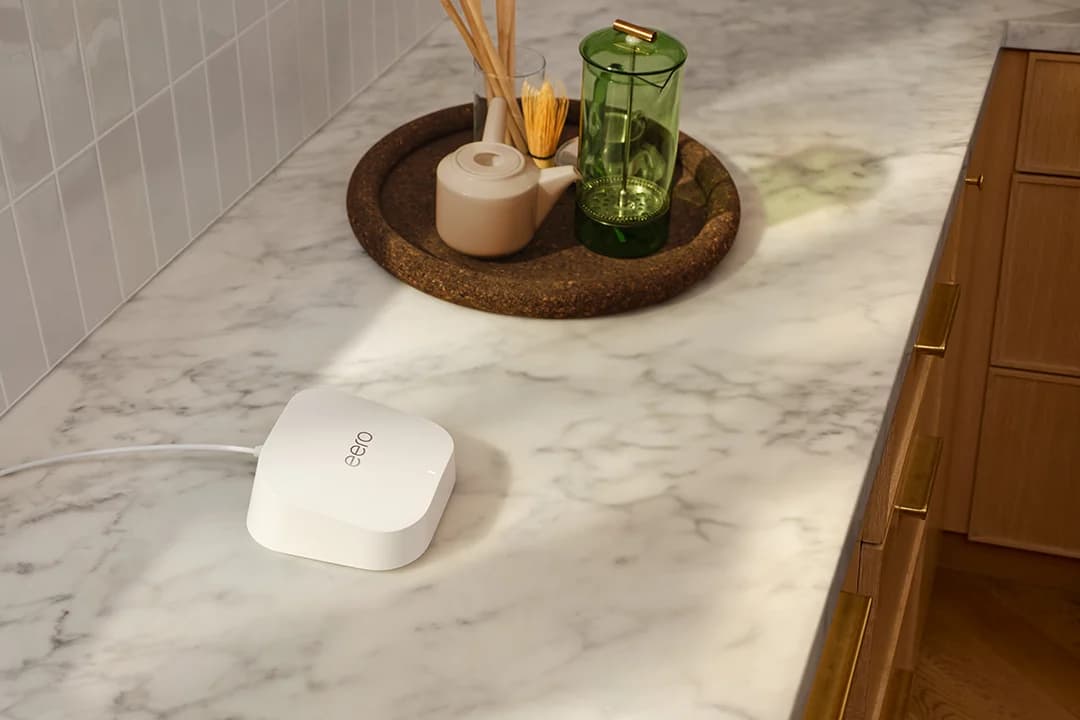
eero 7 Dual-Band Wi-Fi 7 Mesh RouterWi-Fi 7 · BE5000 · 2 bands · 2.5 Gbps port
- See on Amazon2
Best alternative when you have coax
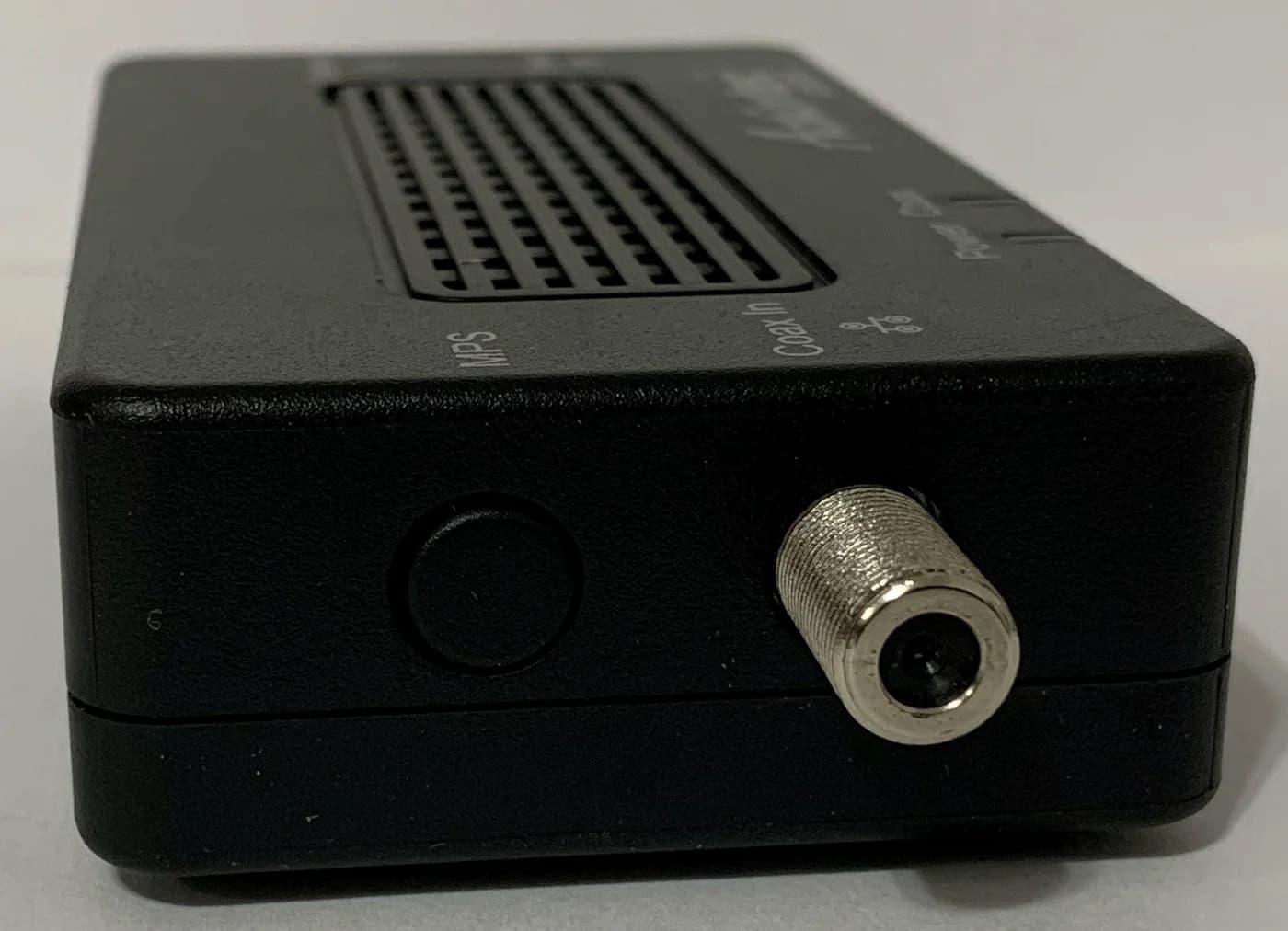
ScreenBeam ECB7250 Bonded MoCA 2.5 Network Adapter (2.5GbE)2.5 Gbps port
For one weak room, keep a working router and add an extender: the TP-Link RE655BE is our pick for its 6 GHz radio, 2.5 Gbps port and access-point option; choose the ASUS RP-BE58 when you already have AiMesh. For weak coverage across several rooms or floors, choose a coordinated mesh such as eero 7, preferably with Ethernet or compatible coax carrying the connection between units. Check your router's existing mesh support before replacing it.
thisPING is reader-supported: when you buy through our links, we may earn a commission at no extra cost to you. As an Amazon Associate, thisPING earns from qualifying purchases.
Quick picks
| Pick | Choose it for | Radios | Ethernet on each unit | Main buying trap |
|---|---|---|---|---|
| TP-Link RE655BE | An isolated weak room; EasyMesh if compatible | Wi-Fi 7: 2.4, 5, 6 GHz | One 2.5 Gbps | Cross-vendor EasyMesh is not guaranteed |
| ASUS RP-BE58 | Adding a compact AiMesh node | Wi-Fi 7: 2.4, 5 GHz | One gigabit | No 6 GHz; wired link is gigabit |
| ASUS RT-BE92U | Desktop AiMesh expansion with wired devices | Wi-Fi 7: 2.4, 5, 6 GHz | One 10 Gbps WAN/LAN, one 2.5 Gbps WAN/LAN, three 2.5 Gbps LAN | Match AiMesh support on the main router |
| eero 7 | Starting a mesh or expanding an existing eero network | Wi-Fi 7: 2.4, 5 GHz | Two 2.5 GbE | One unit is a router; choose the required pack size |
| ScreenBeam ECB7250 | Getting Ethernet to another room over compatible coax | MoCA 2.5; no Wi-Fi radio | One 2.5 Gbps | Needs another MoCA endpoint and separate Wi-Fi equipment |
Specifications and support pages checked November 2, 2026. These are compatibility-based picks, without measured speed rankings.
Extender, mesh or access point: choose the connection first
An extender receives your router's Wi-Fi and retransmits it; a mesh coordinates coverage across compatible units. Backhaul means the connection from an added unit toward the main router. A wired access point uses Ethernet for that connection, leaving its radio airtime for nearby devices (TP-Link's explanation).
Use this decision order, consistent with NETGEAR's guidance on localized gaps versus whole-home coverage:
- An isolated weak room, with a usable signal nearby: try an extender or a node matching your existing router.
- Several weak rooms, floors, or calls that follow you around: choose a coordinated mesh; compare the larger systems in our mesh Wi-Fi guide.
- Ethernet already reaches the problem area: use an access point or a node with wired backhaul.
- Connected coax outlets but no Ethernet run: investigate MoCA before buying more wireless relays; our MoCA vs powerline guide covers that route.
If the router itself has lost internet access, an extender cannot restore it: TP-Link's troubleshooting starts by checking internet access directly through the router. Make that check before buying anything.
Best extender with 6 GHz: TP-Link RE655BE
The RE655BE at TP-Link combines tri-band Wi-Fi 7 with a 2.5 Gbps Ethernet port. It supports ordinary range extension and wired access-point mode, so it remains useful if you later run a cable to the room.
Choose it for an isolated coverage gap, especially when you want a local 6 GHz connection for compatible devices. EasyMesh is an additional option with a compatible main router. TP-Link explicitly warns about cross-vendor firmware conflicts and says this model has not obtained Wi-Fi EasyMesh certification; treat compatibility as something to verify.
Version check: the US download page has V1 and V1.60 selectors. TP-Link's US page and datasheet call it BE11000, while its global V1 page says BE9300. The US page also disagrees with itself on the maximum 5 GHz rate: its headline, illustration and specification table give different figures. Confirm the hardware label and consult the matching US support page and datasheet; the recommendation here rests on bands, port and modes.
Wi-Fi 7 features such as MLO require corresponding client support. A newer extender also remains dependent on its upstream router link.
Best compact AiMesh add-on: ASUS RP-BE58
The RP-BE58 at ASUS is a dual-band Wi-Fi 7 extender using 2.4 and 5 GHz, with one gigabit Ethernet port. With an AiMesh-compatible ASUS router, it becomes a coordinated node; with other routers it can provide ordinary extension.
ASUS documents Ethernet backhaul both as an AiMesh node and in access-point mode. This makes it a sensible room extension when gigabit Ethernet is enough. Its Wi-Fi 7 label does not mean it has a 6 GHz radio or multi-gig Ethernet.
Use the ASUS Router app for AiMesh setup. ASUS directs other-router setup to the ASUS Extender app or WPS; those methods are unavailable in AiMesh mode. Pick the mode before following setup instructions.
Best desktop AiMesh expansion: ASUS RT-BE92U
A desktop router can be the expansion unit. ASUS lists both AiMesh node mode and standalone repeater mode for the RT-BE92U, alongside tri-band Wi-Fi 7. Choose the AiMesh mode when your main router supports it.
Its port set is one 10 Gbps WAN/LAN, one 2.5 Gbps WAN/LAN and three 2.5 Gbps LAN ports. That is the reason to choose it over the compact extender for a room with several wired devices. ASUS documents Ethernet-first backhaul settings for AiMesh; follow the setup for the node's assigned ports.
Only buy this much hardware if you need the ports. Our Wi-Fi 7 router guide compares its role as the main router.
Best simple mesh starting point: eero 7
eero
eero 7 Dual-Band Wi-Fi 7 Mesh Router
A dual-band Wi-Fi 7 router with two 2.5 GbE ports that works on its own or as one node of an eero mesh.
Comes in 3 versions: see which to buy
- Wi-Fi 7
- BE5000
- 2 bands
- 2.5 Gbps port
eero 7 has dual-band Wi-Fi 7 and two auto-sensing 2.5 GbE ports per unit. It can be a gateway or an extension of an existing eero network, and eero confirms compatibility with previous generations. Setup and management require the eero phone app.
Pack check: the existing product card covers a single unit. Choose the maker's pack selector for a new multi-unit network; an existing eero owner may only need an add-on. The maker offers single, two-unit and three-unit packs. eero 7 has no 6 GHz radio; see our eero model comparison before choosing a larger model.
eero supports Ethernet backhaul. It normally replaces your router; if the ISP's combined modem/router stays, eero recommends bridging either that box or the eeros. Bridging the eeros gives up advanced networking features, so check the maker's routing guidance. eero Plus adds subscription features including ad blocking and advanced security.
Best alternative with coax: ScreenBeam ECB7250
ScreenBeam
ScreenBeam ECB7250 Bonded MoCA 2.5 Network Adapter (2.5GbE)
A bonded MoCA 2.5 network adapter with a 2.5 Gbps Ethernet port that turns coax wiring into a wired backbone.
Comes in 3 versions: see which to buy
- 2.5 Gbps port
The ECB7250 provides a 2.5 Gbps Ethernet port over MoCA 2.5 coax networking. It does not broadcast Wi-Fi: connect a wired access point or Ethernet-capable mesh node at the far end.
Buy a starter kit when you need adapters at both ends; a single add-on only suffices when a compatible MoCA endpoint already exists. ScreenBeam's starter-kit guide lists two adapters, and the maker says the coax outlets must belong to the same coax system.
Check the wiring first. ScreenBeam excludes satellite-TV and AT&T U-verse coax networks and warns of possible DOCSIS 3.1 frequency conflicts. Its installation guide calls for cable subscribers to arrange a MoCA point-of-entry filter with their provider. Having coax sockets alone is insufficient confirmation.
How we choose
We compare official specifications, setup manuals, compatibility notes and firmware downloads. Recommendations prioritize keeping useful equipment, choosing a workable backhaul and matching ports to the job. Product facts and the quotes supporting this guide are recorded in the source ledger; our research method explains the approach. Coverage promises and speed classes do not substitute for measurements in your home.
Buying guide: speed, compatibility and placement
Why repeating can cost speed
With single-radio, same-channel repeating, data occupies airtime once arriving at the extender and again leaving for the client. The often-quoted “half speed” penalty describes that arrangement. Separate-band backhaul changes the airtime sharing, and Ethernet avoids the wireless backhaul hop. Mesh using wireless backhaul also consumes radio airtime.
TP-Link's speed explanation says more wireless hops reduce speed and that results depend on specifications, obstacles and traffic. Do not assume a universal percentage loss, or that the Wi-Fi 7 label removes it. BE classes combine theoretical band rates; they are not a single device's internet throughput.
Match the system before matching the brand
Ordinary extension and coordinated mesh are different compatibility questions. TP-Link's EasyMesh FAQ requires an EasyMesh main router, distinguishes Deco from the Archer/OneMesh ecosystem, and says Ethernet backhaul depends on model and firmware support.
- Yes: AiMesh router with RP-BE58: supported mesh pairing
- Yes: Existing eero network with eero 7: supported expansion
- Partly: EasyMesh across different makers: verify firmware compatibility first
- No: A TP-Link logo alone: insufficient proof of a shared mesh system
A matching network name alone does not guarantee smooth roaming. Apple explains that the client decides when to move between access points; roaming assistance helps that process. Try the actual phone or laptop while walking your usual call route.
Install, then judge the result
Configure near the router, then relocate within its usable signal. TP-Link recommends roughly halfway to the dead zone and checking the signal indicator; use the model's own LED instructions. An open location away from metal furniture and appliances gives you a better starting point.
Pair near the router
Use the setup method for your selected operating mode.
Relocate toward the weak room
Keep a strong upstream signal; move closer if the indicator reports a weak link.
Check the room's actual workload
Compare performance through the router and extender, then try your calls or streaming.
TP-Link recommends connecting additional extenders directly to the router for best performance. If no position gives a workable upstream link and room coverage, stop adding wireless relays and investigate wiring.
Check support before reusing old equipment
The checked downloads include RE655BE security/stability firmware published September 5, 2025, RP-BE58 firmware dated October 20, 2026, and RT-BE92U firmware dated October 12, 2026. Match the hardware version and region when downloading.
TP-Link's lifecycle policy usually ends maintenance three years after end of sales. ASUS's EOL list says listed models no longer receive firmware updates. For eero 7, security updates are guaranteed at least through October 31, 2031, or five years after buying new through eero or Amazon, whichever is later. A download date is evidence of a release, not a future support guarantee.
Verdict
Start with the problem area and the wiring. Choose RE655BE for an isolated gap needing 6 GHz, RP-BE58 for compact AiMesh expansion, or RT-BE92U when the added ASUS node also needs several wired ports. Choose eero 7 when you want a coordinated multi-unit network; investigate ECB7250 first when connected, compatible coax can carry the backhaul. Give the added unit a good upstream connection before spending on a faster Wi-Fi label.
Frequently asked questions
Is mesh Wi-Fi better than an extender?
Choose mesh when weak coverage affects several rooms or floors and you want coordinated expansion. An extender is enough for an isolated weak room if it can receive a strong router signal. Before replacing your router, check whether it already supports a compatible mesh node. Ethernet backhaul is worth prioritizing with either approach because it avoids spending wireless airtime on the upstream link.
Do Wi-Fi extenders cut speed in half?
That is a useful warning for single-radio repeating on the same channel, where traffic occupies airtime on both the incoming and outgoing hops. It is not a universal prediction for every extender. Separate-band backhaul and Ethernet change the arrangement. TP-Link says extra wireless hops generally reduce speed, but actual results depend on device specifications, obstacles and traffic.
Can I use a Wi-Fi extender with any router?
The RE655BE and RP-BE58 support ordinary extension with a wide range of routers. Joining a coordinated mesh requires the appropriate system: EasyMesh for the TP-Link, AiMesh for the ASUS. TP-Link warns that cross-vendor EasyMesh firmware can conflict. Match the router model, hardware revision and installed firmware; a shared Wi-Fi name alone does not establish mesh compatibility.
Where should I put a Wi-Fi extender?
Start roughly halfway between the router and the weak room, while still within a strong router signal. Check the extender's signal indicator and move it closer to the router if the upstream link is weak. Keep it in the open, away from large metal objects and appliances. If no position can reach both ends reliably, use a wired access point or wired mesh node.
Related guides
Best Wi-Fi 7 Mesh Systems in 2026: Picks by Home Size and Wiring
Wi-Fi 7 mesh kits from eero, Netgear Orbi and ASUS ZenWiFi matched to home size and wiring, with ports per unit, backhaul and FCC status checked Nov 1, 2026.
Updated November 2, 2026Read
eero 7 vs eero Pro 7 vs eero Max 7: Which eero Should You Buy?
eero 7, Pro 7 and Max 7 compared on bands, Ethernet ports, plan speeds and coverage claims, plus how each one stacks up against the Orbi 770 and the Deco BE63.
Updated November 2, 2026Read