

Buying guide
Ethernet Backhaul Setup
Wire eero, Deco or Orbi Correctly
Wire eero, Deco or Orbi mesh correctly: router and access-point layouts, spare ports, cable and switch picks, and checks that confirm each satellite's link.
By thisPING EditorialUpdated November 3, 20268 min read1 pick
On this page · Our picks at a glance
Our picks at a glance
- 1
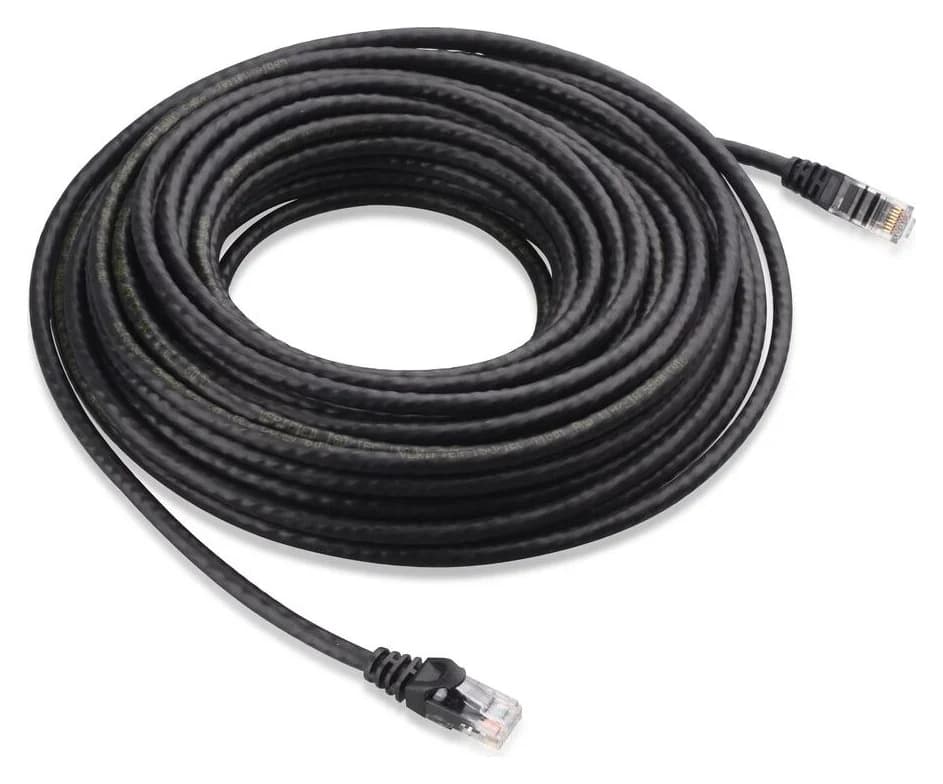
Choose for: Missing indoor patch lead
Limit: Cat6 does not provide the full 100 m 10G application of Cat6A
For Ethernet backhaul, keep your existing mesh and cable its satellites to the main unit's LAN side, directly or through a downstream switch; Deco in access-point mode also permits connections to the existing router. Our missing-cable pick is Cable Matters Cat6; for extra gigabit ports, choose the TP-Link TL-SG108, which TP-Link explicitly lists for Deco backhaul. (eero wiring, Deco wiring and switches, Orbi manual)
Official instructions checked November 2, 2026. See the existing backhaul diagram and mesh buying advice.
Quick picks: buy only what is missing
Compare specifications and all conditions
Mesh and usable Ethernet already installed
- Pick
- Keep both
- Why / limit
- First prove a direct wired connection using your brand's steps below
Missing indoor patch lead
- Pick
- Cable Matters Cat6, model 160001
- Why / limit
- Bare copper, RJ45 plugs, snagless boots; choose the measured length
Need more gigabit connections
- Pick
- TP-Link TL-SG108
- Why / limit
- Eight gigabit ports; listed by TP-Link for Deco backhaul
Need to retain multi-gig links
- Pick
- Keep direct connections, or consult multi-gig switches
- Why / limit
- Match port speeds and backhaul compatibility; see the loop-prevention caveat below
Full comparison table
Swipe to compare. Row labels stay visible.
| Your situation | Pick | Why / limit |
|---|---|---|
| Mesh and usable Ethernet already installed | Keep both | First prove a direct wired connection using your brand's steps below |
| Missing indoor patch lead | Cable Matters Cat6, model 160001 | Bare copper, RJ45 plugs, snagless boots; choose the measured length |
| Need more gigabit connections | TP-Link TL-SG108 | Eight gigabit ports; listed by TP-Link for Deco backhaul |
| Need to retain multi-gig links | Keep direct connections, or consult multi-gig switches | Match port speeds and backhaul compatibility; see the loop-prevention caveat below |
Scroll horizontally to see every column
| Your situation | Pick | Why / limit |
|---|---|---|
| Mesh and usable Ethernet already installed | Keep both | First prove a direct wired connection using your brand's steps below |
| Missing indoor patch lead | Cable Matters Cat6, model 160001 | Bare copper, RJ45 plugs, snagless boots; choose the measured length |
| Need more gigabit connections | TP-Link TL-SG108 | Eight gigabit ports; listed by TP-Link for Deco backhaul |
| Need to retain multi-gig links | Keep direct connections, or consult multi-gig switches | Match port speeds and backhaul compatibility; see the loop-prevention caveat below |
Sources: Cable Matters, TP-Link.
Before wiring: mode, sockets and spare ports
Record the main unit's model and mode, each satellite's room, and where its wall socket terminates. Label connections before repatching.
Choose the mode
Decide whether your mesh or your existing router will handle routing; use the brand-specific paths below.
Map each cable
Trace the room sockets to their other ends and identify the main unit's LAN connection.
Prove a direct link
Connect a satellite with a known-working patch cable before adding wall cabling or a switch.
Check each satellite
Confirm its backhaul type in the app or router interface, then repeat for the next room.
Choose the path matching your operating mode.
eero routing
- Cable path to satellites
- Modem/ONT → gateway eero → satellites
- Where the backhaul switch goes
- After the gateway eero
eero bridge mode
- Cable path to satellites
- Existing router → gateway eero → satellites
- Where the backhaul switch goes
- Still after the gateway eero
Deco router mode
- Cable path to satellites
- Modem or existing router → main Deco → satellites
- Where the backhaul switch goes
- On the main Deco's LAN side
Deco access-point mode
- Cable path to satellites
- Existing router → main Deco and/or satellites
- Where the backhaul switch goes
- On the existing router's LAN network, or after a Deco
Orbi 770, router or AP mode
- Cable path to satellites
- Upstream device → Orbi Internet port; Orbi LAN → satellites
- Where the backhaul switch goes
- After an Orbi LAN port in this manual-based layout
Full comparison table
Swipe to compare. Row labels stay visible.
| System / operating mode | Cable path to satellites | Where the backhaul switch goes |
|---|---|---|
| eero routing | Modem/ONT → gateway eero → satellites | After the gateway eero |
| eero bridge mode | Existing router → gateway eero → satellites | Still after the gateway eero |
| Deco router mode | Modem or existing router → main Deco → satellites | On the main Deco's LAN side |
| Deco access-point mode | Existing router → main Deco and/or satellites | On the existing router's LAN network, or after a Deco |
| Orbi 770, router or AP mode | Upstream device → Orbi Internet port; Orbi LAN → satellites | After an Orbi LAN port in this manual-based layout |
Scroll horizontally to see every column
| System / operating mode | Cable path to satellites | Where the backhaul switch goes |
|---|---|---|
| eero routing | Modem/ONT → gateway eero → satellites | After the gateway eero |
| eero bridge mode | Existing router → gateway eero → satellites | Still after the gateway eero |
| Deco router mode | Modem or existing router → main Deco → satellites | On the main Deco's LAN side |
| Deco access-point mode | Existing router → main Deco and/or satellites | On the existing router's LAN network, or after a Deco |
| Orbi 770, router or AP mode | Upstream device → Orbi Internet port; Orbi LAN → satellites | After an Orbi LAN port in this manual-based layout |
Sources: eero switches, eero bridge mode, Deco modes, Orbi manual. The Orbi row documents a recommended layout; it does not prohibit every other AP-mode layout.
eero: retain a gateway, including in bridge mode
Connect the modem/ONT to your gateway eero. Connect the gateway's spare Ethernet port to a satellite, or to a switch feeding the satellites. eero also documents chaining one eero to the next. Do not connect the gateway and satellites as peers on a switch before the gateway. (eero instructions, daisy chaining)
If keeping an existing router in charge, set up eero first, then use Settings → Advanced networking → DHCP & NAT → Bridge. eero says connections must still funnel through a gateway eero in bridge mode; advanced routing features are reduced. (bridge instructions)
Confirm it: on the eero app's Home page, inspect the satellite's connection symbol. eero defines a wired node as Ethernet-connected to the gateway directly or through a switch; the gateway's own wired symbol represents its internet connection. Check the satellite, rather than taking the gateway's symbol as proof. (symbol meanings)
Deco: router and access-point wiring differ
First add all units to the same Deco network wirelessly in the app. Then connect the Ethernet cables; backhaul activates automatically. In router mode, attach satellites to the main Deco's LAN ports or a switch behind those ports. Do not put satellites on the router/modem ahead of the main Deco. (Deco setup)
For access-point mode, TP-Link's illustrated app path is More → Advanced → Operation Mode → Access Point → Save, followed by a reboot; screens vary by model/app version. The existing router must provide DHCP, and features including port forwarding and parental controls are unavailable in the Deco app. Satellites can then connect to a Deco or the existing router's LAN network. (AP instructions, wiring rules)
Confirm it: open the Deco app's network map and tap each satellite to inspect its backhaul type. An IPTV-assigned port cannot serve backhaul, so use a different port if IPTV is enabled. (verification and IPTV restriction)
TP-Link's documents differ on wireless behavior: its general FAQ says Wi-Fi backhaul disconnects once Ethernet is established, while the BE63 page describes combining wired and tri-band Wi-Fi links with MLO. Use the model's reported connection to verify installation; do not infer that all Deco models handle their radios identically. (general FAQ, BE63 description)
Orbi 770: use the router and satellite model numbers
The RBE773 kit contains an RBE771 router and two RBE770 satellites. Follow their exact manual, rather than another Orbi model's instructions. (kit contents)
- Connect the internet handoff to the router's Internet port.
- In the satellite's intended room, connect its Ethernet port to a LAN port on the Orbi router, directly or through the downstream switch.
- Power the satellite and allow automatic synchronization. The manual allows five to ten minutes on first sync because firmware may update. In this wired setup, blue for about three minutes, then off, indicates successful synchronization and a good wired connection.
- For several satellites, the manual supports separate router connections, chaining through another satellite, or a switch after the router.
The manual covers wired setup on pages 19–21. For AP mode, connect the existing router's LAN to the Orbi's Internet port, then select ADVANCED → Advanced → Router / AP Mode → AP Mode in the browser interface (pages 68–69). Keep the satellite layout above.
Confirm it: sign into orbilogin.com, choose Attached Devices, and inspect Connected Satellites → Connection Type, plus Backhaul Status (manual, pages 103–104). Check the satellite's connection rather than a client's row.
Count ports before buying a switch
Free-port counts are calculated after the stated connection.
eero Pro 7
- Maker's Ethernet inventory
- Two auto-sensing 5 GbE ports per unit
- Main unit: free after internet uplink
- One
- Satellite: free after backhaul cable
- One
Deco BE63, marketed as Deco 7 Pro
- Maker's Ethernet inventory
- Four auto-sensing 2.5 Gbps ports per unit
- Main unit: free after internet uplink
- Three
- Satellite: free after backhaul cable
- Three
Orbi 770
- Maker's Ethernet inventory
- RBE771: one 2.5 Gbps Internet + three LAN; RBE770: two 2.5 Gbps LAN
- Main unit: free after internet uplink
- Three
- Satellite: free after backhaul cable
- One
Full comparison table
Swipe to compare. Row labels stay visible.
| Existing hardware | Maker's Ethernet inventory | Main unit: free after internet uplink | Satellite: free after backhaul cable |
|---|---|---|---|
| eero Pro 7 | Two auto-sensing 5 GbE ports per unit | One | One |
| Deco BE63, marketed as Deco 7 Pro | Four auto-sensing 2.5 Gbps ports per unit | Three | Three |
| Orbi 770 | RBE771: one 2.5 Gbps Internet + three LAN; RBE770: two 2.5 Gbps LAN | Three | One |
Scroll horizontally to see every column
| Existing hardware | Maker's Ethernet inventory | Main unit: free after internet uplink | Satellite: free after backhaul cable |
|---|---|---|---|
| eero Pro 7 | Two auto-sensing 5 GbE ports per unit | One | One |
| Deco BE63, marketed as Deco 7 Pro | Four auto-sensing 2.5 Gbps ports per unit | Three | Three |
| Orbi 770 | RBE771: one 2.5 Gbps Internet + three LAN; RBE770: two 2.5 Gbps LAN | Three | One |
Sources: eero Pro 7, Deco BE63, Orbi router/satellite manual. Connecting a downstream switch also consumes a main-unit LAN port. Budget a switch port for its uplink as well as each satellite or client.
- Yes: eero with Ethernet ports: supports wired backhaul; wired and wireless units can coexist
- No: eero Beacon or eero 6 Extender: no Ethernet ports; leave these wireless
- Partly: PC wired to a wireless eero: the upstream connection still uses Wi-Fi
These distinctions come from eero's Ethernet guide and switch instructions.
Cable Matters Cat6: buy only a missing patch lead
Cable Matters
An indoor unshielded Cat6 Ethernet patch cable with bare-copper conductors and snagless boots.
Check package and model options
Cable Matters' 160001 is an indoor, unshielded Cat6 patch cable with bare-copper conductors and snagless RJ45 plugs. The linked version is a black, 7 ft single cable; measure your route and use the maker's length selector if you need another length. A bulk spool is a different purchase from a finished patch lead.
Keep working cable: eero explicitly accepts Cat5e, Cat6 or Cat6a. For new permanent runs and category/distance choices, use our Ethernet cable guide. Count both ends of wall runs: a lead from the main unit/switch to the wall connection and another from the room socket to the satellite.
TP-Link TL-SG108: extra ports for gigabit backhaul
The TL-SG108 offers eight 10/100/1000 Mbps ports, plug-and-play operation and fanless cooling. TP-Link specifically lists it among Deco-compatible switches. Its V9.6 installation guide shows a physical loop-prevention switch with Off as the default; check your hardware revision using the support selector. (specifications, Deco compatibility)
Choose it when a gigabit link is sufficient. Its gigabit ports cannot retain the Deco BE63 or Orbi 770's 2.5 Gbps links. The TL-SG108S-M2 V2 is a different, eight-port 2.5G model with automatic loop prevention; check compatibility before substituting it. (multi-gig specifications)
If wired backhaul does not appear
Start with satellite → known-working patch lead → main-unit LAN. Add the wall run, then the switch, checking the satellite after each change. TP-Link recommends bypassing the switch, replacing the cable and trying another port. (fault-isolation instructions)
Deco remains wireless
- Next action
- Check the mode's wiring path and avoid any IPTV-assigned port
Direct cable works; switch path fails
- Next action
- Check switch compatibility and loop detection; do not replace the mesh first
Connection becomes unstable through a switch
- Next action
- TP-Link identifies switches failing to forward IEEE 1905.1 traffic as a possible cause; ask the switch maker
Switch light is on but backhaul is unclear
- Next action
- Inspect the satellite's connection type; the TL-SG108 Link/Act indicator can represent 10, 100 or 1000 Mbps
Full comparison table
Swipe to compare. Row labels stay visible.
| Symptom | Next action |
|---|---|
| Deco remains wireless | Check the mode's wiring path and avoid any IPTV-assigned port |
| Direct cable works; switch path fails | Check switch compatibility and loop detection; do not replace the mesh first |
| Connection becomes unstable through a switch | TP-Link identifies switches failing to forward IEEE 1905.1 traffic as a possible cause; ask the switch maker |
| Switch light is on but backhaul is unclear | Inspect the satellite's connection type; the TL-SG108 Link/Act indicator can represent 10, 100 or 1000 Mbps |
Scroll horizontally to see every column
| Symptom | Next action |
|---|---|
| Deco remains wireless | Check the mode's wiring path and avoid any IPTV-assigned port |
| Direct cable works; switch path fails | Check switch compatibility and loop detection; do not replace the mesh first |
| Connection becomes unstable through a switch | TP-Link identifies switches failing to forward IEEE 1905.1 traffic as a possible cause; ask the switch maker |
| Switch light is on but backhaul is unclear | Inspect the satellite's connection type; the TL-SG108 Link/Act indicator can represent 10, 100 or 1000 Mbps |
Sources: Deco troubleshooting and TL-SG108 indicators.
eero recommends unmanaged switches; for an existing managed switch, follow its specific STP/RSTP, IGMP, VLAN and QoS guidance. If Ethernet does not reach the room but coax does, continue with our MoCA installation and compatibility guide.
How we choose
This is documentation research, without physical installation or throughput testing. Wiring comes from each brand's official instructions; Orbi steps cover RBE771/RBE770. Parts are chosen for documented construction, port speed and compatibility. See How we choose.
Verdict
Keep your mesh, choose its operating-mode path and verify every satellite. Buy Cable Matters Cat6 for a missing indoor lead and TL-SG108 for extra gigabit ports. Prove a direct connection first.
Frequently asked questions
Can I put the Ethernet switch before the main mesh unit?
For eero, put the backhaul switch after the gateway eero, including in bridge mode. For Deco in router mode, satellites must connect behind the main Deco. Deco access-point mode allows satellites to connect to the existing router instead. This guide keeps Orbi satellites behind the Orbi router's LAN ports, following the Orbi 770 manual's switch layout. Choose the operating mode before repatching wall sockets.
Do all mesh nodes need Ethernet backhaul?
No. eero documents mixed wired and wireless networks, and TP-Link explicitly allows some Decos to remain wireless. The Orbi 770 manual describes both wireless and Ethernet connections between its router and satellites. Check each satellite separately after installation. A computer connected by Ethernet to a wireless eero still reaches the upstream network over Wi-Fi; wiring the computer alone does not establish wired backhaul.
Do I need Cat6A or a multi-gig switch for Ethernet backhaul?
Start with working cabling: eero allows Cat5e, Cat6 and Cat6a between its units. TP-Link documents 2.5G over Cat5e or better for the TL-SG108S-M2. A multi-gig switch only makes sense when the mesh ports and your intended link support it. The gigabit TL-SG108 cannot preserve a 2.5 Gbps link, so keep direct multi-gig connections where you already have enough free ports.
Related guides
Comparison · Mesh Wi-Fi Systems
Orbi 770 vs 970: Which Mesh Kit Fits Your Wiring and Internet Plan?
Choose Orbi 770 or 970 by your internet plan, spare Ethernet ports and backhaul. Compare exact packs, compatible satellites and subscriptions before buying.
Buying guide · Mesh Wi-Fi Systems
How to Set Up Mesh Wi-Fi: Place Nodes, Choose Modes and Verify
Set up mesh Wi-Fi with the right router or AP mode, sensible node placement and a room-by-room check. Includes eero and ASUS instructions and a gift checklist.
Comparison · Mesh Wi-Fi Systems
ASUS ZenWiFi BQ16 Pro vs BT10: Which Mesh Pack Fits Your Wiring?
Choose ASUS ZenWiFi BQ16 Pro or BT10 for your wiring: compare US packs, radio bands, ports left after backhaul, AiMesh limits and the kit you need to order.