

Comparison
Ethernet vs Wi-Fi: Choose for Your PC, Console, TV or NAS
Choose Ethernet or Wi-Fi by device, ports and cable access. Find the smallest useful upgrade for gaming, calls, streaming and NAS transfers, then verify it.
By thisPING EditorialUpdated November 3, 20268 min read3 picks
Our recommendation: Cable Matters 160001
Default wired pick
Limit: Cat6 does not provide the full 100 m 10G application of Cat6A
On this page · Our picks at a glance
Our picks at a glance
- 1
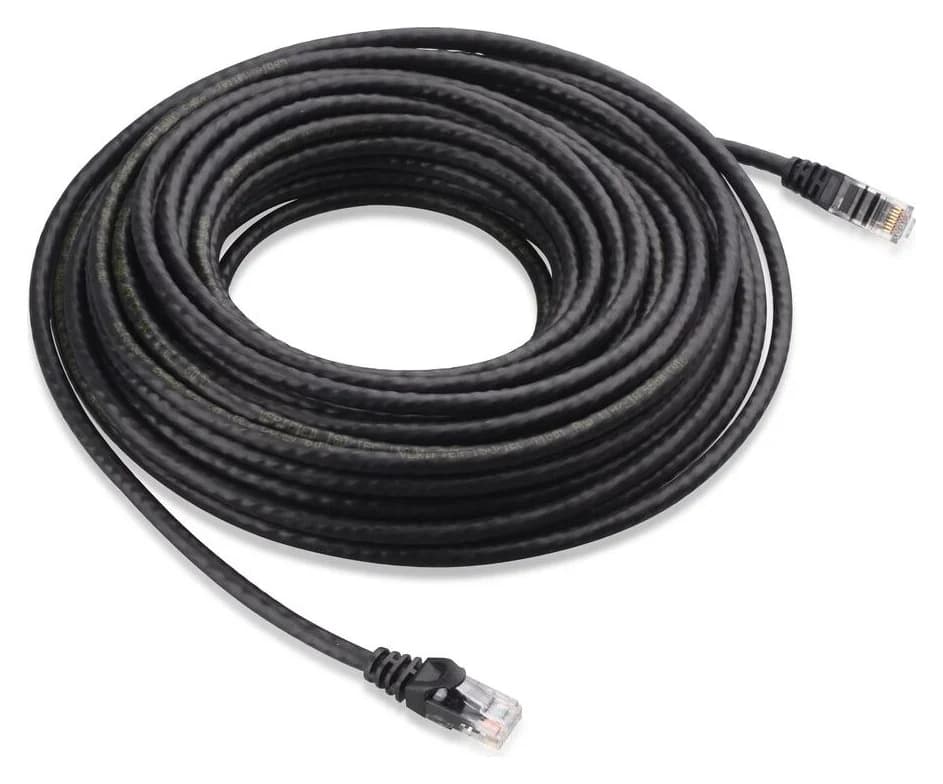
Choose for: Default wired pick
Check before buying: Cat6 does not provide the full 100 m 10G application of Cat6A
- 2
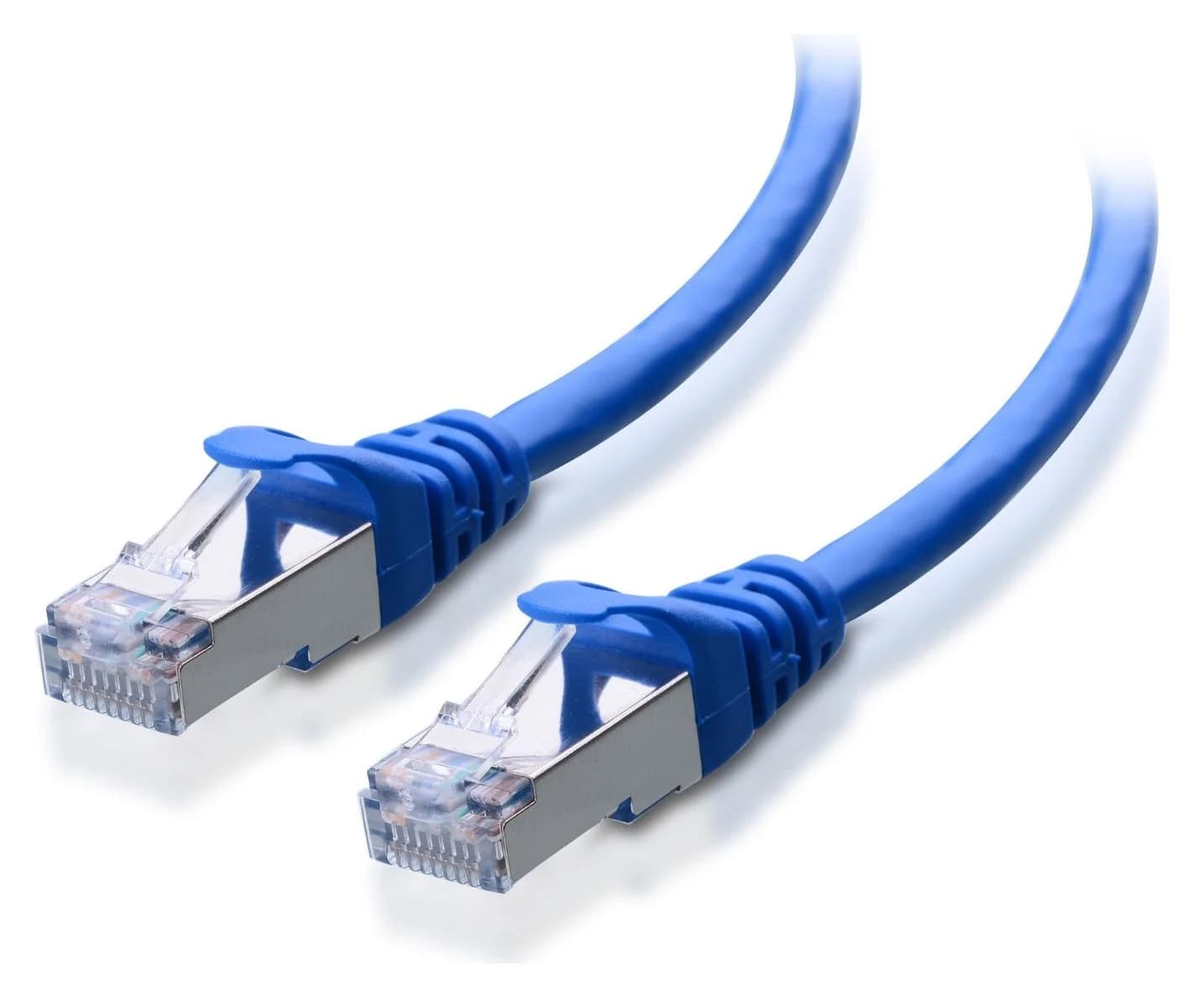
Choose for: Cat6A option for a verified 10G path
Check before buying: Five-cable pack; check the length and jacket color selected at checkout
- 3
Choose for: Remote room
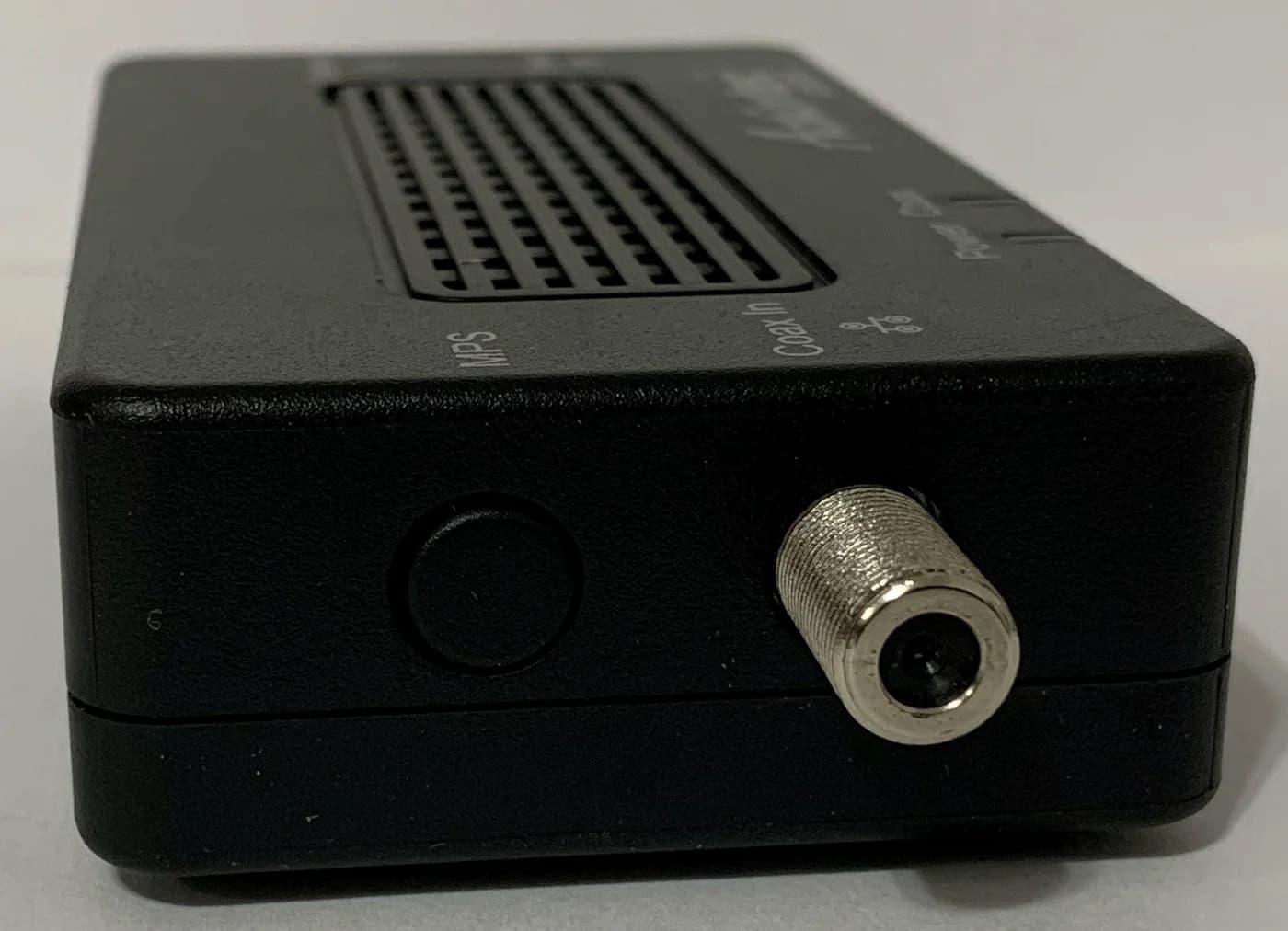
Check before buying: Its up-to-2.5 Gbps network figure is a manufacturer ceiling, not a guaranteed result in each room.
Use Ethernet for a stationary gaming PC, console or NAS when a cable can reach your router or switch, and keep Wi-Fi for mobile devices and workloads that already run reliably. Our default new cable is the Cable Matters 160001 Cat6; a laptop without an Ethernet socket can use the Cable Matters 201485 USB-C adapter below. Buy an upgrade after identifying the failing part of the path.
Quick choice by device
Gaming PC or console, reachable router
- Our choice
- Ethernet
- Smallest useful next step
- Use the built-in RJ45 port and a suitable existing cable; buy Cat6 only if needed.
Work laptop, mostly at a desk
- Our choice
- Ethernet if calls or transfers are unreliable
- Smallest useful next step
- Use its Ethernet port, or a compatible USB adapter; keep Wi-Fi when moving around.
TV, streaming reliably
- Our choice
- Keep Wi-Fi
- Smallest useful next step
- Buy nothing. If playback buffers, compare a temporary cable before changing hardware.
NAS and a PC copying large files
- Our choice
- Ethernet for both
- Smallest useful next step
- Check the PC, switch and NAS port rates, then check storage performance.
Fixed device in a room without Ethernet
- Our choice
- Keep working Wi-Fi; investigate coax if it fails
- Smallest useful next step
- Check mesh backhaul or compatible MoCA before replacing the router.
Full comparison table
Swipe to compare. Row labels stay visible.
| Device and situation | Our choice | Smallest useful next step |
|---|---|---|
| Gaming PC or console, reachable router | Ethernet | Use the built-in RJ45 port and a suitable existing cable; buy Cat6 only if needed. |
| Work laptop, mostly at a desk | Ethernet if calls or transfers are unreliable | Use its Ethernet port, or a compatible USB adapter; keep Wi-Fi when moving around. |
| TV, streaming reliably | Keep Wi-Fi | Buy nothing. If playback buffers, compare a temporary cable before changing hardware. |
| NAS and a PC copying large files | Ethernet for both | Check the PC, switch and NAS port rates, then check storage performance. |
| Fixed device in a room without Ethernet | Keep working Wi-Fi; investigate coax if it fails | Check mesh backhaul or compatible MoCA before replacing the router. |
Scroll horizontally to see every column
| Device and situation | Our choice | Smallest useful next step |
|---|---|---|
| Gaming PC or console, reachable router | Ethernet | Use the built-in RJ45 port and a suitable existing cable; buy Cat6 only if needed. |
| Work laptop, mostly at a desk | Ethernet if calls or transfers are unreliable | Use its Ethernet port, or a compatible USB adapter; keep Wi-Fi when moving around. |
| TV, streaming reliably | Keep Wi-Fi | Buy nothing. If playback buffers, compare a temporary cable before changing hardware. |
| NAS and a PC copying large files | Ethernet for both | Check the PC, switch and NAS port rates, then check storage performance. |
| Fixed device in a room without Ethernet | Keep working Wi-Fi; investigate coax if it fails | Check mesh backhaul or compatible MoCA before replacing the router. |
These are workload recommendations, based on Linksys's connection guidance and Synology's local-transfer troubleshooting. A laptop can use a cable at its desk and Wi-Fi elsewhere; the whole home need not choose one connection method.
Ethernet vs Wi-Fi: what actually changes?
Mobility
- Ethernet
- A physical cable limits movement.
- Wi-Fi
- Wireless access lets a laptop move around.
Consistency
- Ethernet
- Bypasses radio interference on the cabled segment.
- Wi-Fi
- Distance, obstacles and competing traffic affect performance.
Speed to compare
- Ethernet
- Check the negotiated Ethernet rate and actual throughput.
- Wi-Fi
- Check actual throughput; the displayed radio link rate is not a file-copy rate.
Installation
- Ethernet
- Needs compatible ports and a cable route.
- Wi-Fi
- Needs compatible router and client radios, with a usable signal.
Full comparison table
Swipe to compare. Row labels stay visible.
| Decision | Ethernet | Wi-Fi |
|---|---|---|
| Mobility | A physical cable limits movement. | Wireless access lets a laptop move around. |
| Consistency | Bypasses radio interference on the cabled segment. | Distance, obstacles and competing traffic affect performance. |
| Speed to compare | Check the negotiated Ethernet rate and actual throughput. | Check actual throughput; the displayed radio link rate is not a file-copy rate. |
| Installation | Needs compatible ports and a cable route. | Needs compatible router and client radios, with a usable signal. |
Scroll horizontally to see every column
| Decision | Ethernet | Wi-Fi |
|---|---|---|
| Mobility | A physical cable limits movement. | Wireless access lets a laptop move around. |
| Consistency | Bypasses radio interference on the cabled segment. | Distance, obstacles and competing traffic affect performance. |
| Speed to compare | Check the negotiated Ethernet rate and actual throughput. | Check actual throughput; the displayed radio link rate is not a file-copy rate. |
| Installation | Needs compatible ports and a cable route. | Needs compatible router and client radios, with a usable signal. |
For gaming and calls, consistency matters alongside download speed. Linksys's gaming guidance identifies interference, packet loss and congestion as separate problems. A cable addresses the wireless part; it cannot promise a fixed reduction in game-server ping. If uploads disrupt play on both connections, investigate congestion and the router's supported traffic-management settings before buying a faster network card.
Separate your home network from your internet plan
An internet speed test includes the path through your ISP. A copy between a PC and NAS on the same local network exercises your local equipment and storage instead. NETGEAR explains why the test location matters; Synology separately checks the client, network and NAS when diagnosing slow transfers.
For an internet download, inspect the client connection, router LAN and WAN ports, and ISP service. For a local NAS copy, inspect the client, intervening switch ports and NAS connection. A 10 Gbps adapter connected through a 1 Gbps port cannot make that segment run at 10 Gbps. Storage or CPU limits can also hold back a NAS copy after the network is upgraded.
Use that distinction to decide what to buy: a slow local copy calls for local diagnosis; poor internet results on both connections call for checking the shared router and upstream service.
Default wired pick: Cable Matters 160001 Cat6
Cable Matters
An indoor unshielded Cat6 Ethernet patch cable with bare-copper conductors and snagless boots.
Check package and model options
Choose this for a straightforward indoor connection to a reachable router or switch. The maker's product page identifies the 160001 as an unshielded Cat6 patch cable with bare-copper conductors, RJ45 connectors and snagless boots. It is an indoor lead; use an appropriately rated product for an outdoor route.
Keep a suitable cable that already works at the required rate. When buying, measure the route and choose the length, colour and pack quantity deliberately: this linked maker page is a single pack. Cable-category and installation-distance decisions belong in our Cat6 vs Cat6A vs Cat8 guide.
For a PS5, Sony's wired setup instructions use Settings → Network → Settings → Set Up Internet Connection → Set Up Wired LAN → Connect. Select the wired connection explicitly when comparing it with Wi-Fi.
Laptop without Ethernet: Cable Matters 201485 USB-C
The 201485 adapter adds Ethernet up to 2.5 Gbps through a USB-C data port. Cable Matters lists Windows, macOS, Linux and Chrome OS compatibility and recommends the current Realtek driver for best performance on some systems. Its network connection also supports 1 Gbps and 100 Mbps; buying it does not require upgrading every port immediately.
Check the connector variant: 201485 is USB-C; the separate 202485 is USB-A. The 201485 documentation excludes Android, while the 202485 page excludes Nintendo Switch, Wii and TVs. Do not extend a laptop compatibility claim to a console or television.
Use a data-capable host port and check the official downloads page for the exact model. If a dock already provides the connection you need, try it before buying another adapter.
When Wi-Fi is the right answer
Keep Wi-Fi if the actual call, game, stream or copy works reliably where you use the device. First try placement and a supported band: Microsoft's home-layout guidance describes longer range on 2.4 GHz and generally faster throughput on 5 GHz; 6 GHz offers another option near the router with compatible hardware, but penetrates walls less well.
A new router does not give an older client every new Wi-Fi feature. Microsoft's requirements include compatible router, adapter and operating-system support. Check those together, then use our Wi-Fi adapter buying guide for client upgrades or mesh guide for coverage.
USB Wi-Fi option: NETGEAR Nighthawk A9000
Consider the A9000 when a cable route is impractical and a supported Windows PC needs a different wireless adapter. NETGEAR specifies Windows 11 and above Consumer Editions, excludes Windows 10 and older, and recommends USB 3.0. The cradle provides a way to reposition the antenna.
The datasheet says its bands alternate rather than operate concurrently and lists up to 2,882 Mbps on 6 GHz. Treat those as radio specifications, not measured copy speeds. Run the installation program before inserting the adapter when prompted, following the official manual.
Remote room: ScreenBeam ECB7250 over compatible coax
ScreenBeam
A bonded MoCA 2.5 network adapter with a 2.5 Gbps Ethernet port that turns coax wiring into a wired backbone.
Check package and model options
- 2.5 Gbps port
Choose the ECB7250 if a fixed device needs a wired route and suitable connected coax already reaches both locations. It combines MoCA 2.5 with a 2.5 Gbps Ethernet port. ScreenBeam specifies the same coax system and at least two adapters unless a compatible MoCA-equipped modem, router or gateway supplies the other end. Its up-to-2.5 Gbps network figure is a manufacturer ceiling, not a guaranteed result in each room.
Kit versus add-on matters: the starter-kit quick-start guide includes two adapters. An add-on requires an existing compatible endpoint. ScreenBeam excludes satellite-TV coax and warns about DOCSIS 3.1 frequency conflicts; its guide calls for provider advice on entry-point filtering. Check the installation before ordering. Our MoCA vs powerline guide covers the alternatives.
A cable into a mesh satellite still leaves a wireless hop if that satellite uses wireless backhaul. TP-Link documents that Ethernet backhaul applies only between physically wired Deco units. In Deco Router mode, satellites must connect downstream of the main Deco's LAN port; follow your own mesh maker's topology instructions.
- Yes: Ethernet backhaul between the relevant mesh units: that inter-node connection is wired
- Partly: Ethernet into a wireless-backhaul satellite: the device cable leaves a wireless hop upstream
- Partly: MoCA: connected coax and compatible endpoints must be confirmed first
Cat6A option for a verified 10G path: Cable Matters 160012
Cable Matters
A Cat6A equipment patch lead with S/FTP shielding, bare-copper conductors and shielded RJ45 connectors.
Check package and model options
Choose the 160012 Cat6A when the surrounding equipment justifies it: Cable Matters documents shielded RJ45 connectors, S/FTP construction and 10-Gigabit Ethernet support. The page title says five-pack while its main heading omits the quantity; confirm the selected pack, length and colour.
Check included accessories first. TP-Link's TX401 desktop card uses PCIe 3.0 x4, supports a 10 Gbps RJ45 connection and includes a 1.5 m Cat6A lead. Check the slot and case fit, and match the hardware label to the revision-specific drivers. This is a desktop expansion route; our multi-gig switch guide helps check the rest of the path before buying it.
Estimate transfers, then verify the improvement
NETGEAR distinguishes radio link rate from application throughput: Mbps means megabits per second; MB/s means megabytes per second, with eight bits per byte. Use an actual file-copy rate to estimate the job.
Illustrative estimate, not a benchmark: using decimal prefixes, a 10 GB folder is 10,000 MB. At an assumed sustained 100 MB/s, the copy takes about 100 seconds: file size in MB divided by MB/s. Those are chosen inputs, not a prediction for either connection; substitute your own observed rate. Storage, CPU and network overhead can change the result.
Compare the same device in the same location, with only the connection method changed. For calls and gaming, compare interruptions and latency during normal use and during household uploads. On Windows, Microsoft's router test uses ipconfig to find the active connection's Default Gateway, then ping <DefaultGateway>. A gateway reply checks local reachability; it does not prove that the ISP or game-server path is healthy.
Confirm the route
Verify the intended Ethernet or Wi-Fi connection and any mesh backhaul in use.
Repeat the real job
Compare the same download, NAS copy, call or game under comparable household traffic.
Keep the smallest fix
Keep working Wi-Fi, retain the cable that solves the problem, or investigate the shared upstream path if neither helps.
For TV streaming, Netflix recommends a stable 15 Mbps or higher for 4K and offers Get Help → Check your Network in its TV app. Keep Wi-Fi if playback is reliable. Check the TV's port specification when comparing Ethernet, and do not treat Netflix's recommendation as a requirement for every local NAS video file.
How we choose
We use official product pages, manuals and support documentation to match connection methods to ports, operating systems, cable routes and workloads. Recommendations are based on those specifications and compatibility limits. The transfer example is arithmetic with stated assumptions; we have no physical performance results for these products. Manufacturer radio rates and MoCA ceilings are labelled accordingly. Our selection policy explains the approach.
Verdict
Wire the stationary devices whose connection needs more consistency, starting with an existing suitable cable or the 160001 Cat6. Choose the 201485 for a compatible USB-C laptop without Ethernet, or investigate the ECB7250 kit when suitable coax replaces an impractical cable route. Keep reliable Wi-Fi, and buy faster ports only after the full path and the actual workload justify them.
Frequently asked questions
Is Ethernet better than Wi-Fi for gaming?
Ethernet is our default for a stationary gaming PC or console because it avoids the wireless interference part of the connection. It cannot guarantee a particular ping to a game server. Congestion and the route beyond your home still matter. Compare stability during play and during household uploads before paying for faster hardware.
Is Ethernet always faster than Wi-Fi 7?
No connection name guarantees the faster result. Check the Ethernet port's negotiated rate and measure the same download or local transfer over both connections. A Wi-Fi link rate is also different from application throughput. NETGEAR's A9000 illustrates another trap: its bands alternate, so its headline wireless rate should not be treated as one file-transfer speed.
Does plugging Ethernet into a mesh node remove Wi-Fi from the path?
It removes the wireless connection between that device and the node, but the node may still use wireless backhaul to reach the main router. Check the mesh app's backhaul status. TP-Link documents that only the Deco units physically connected by Ethernet switch to wired backhaul; unwired units continue using Wi-Fi.
Should a smart TV use Ethernet or Wi-Fi?
Keep Wi-Fi when the TV plays reliably at the quality you want. Netflix recommends a stable connection of at least 15 Mbps for 4K. If it buffers, compare a temporary Ethernet connection on that TV. Check its own network-port specification before buying an adapter, and evaluate local NAS video separately from Netflix's internet-streaming recommendation.
Cable Matters 160001
AmazonRelated guides
Best picks · Cables & Accessories
Battery Backup for a Router and NAS: UPS Picks That Fit
Choose a battery backup for your router and NAS by load, outlets and shutdown support. Compare APC and CyberPower, check runtime, and wire every needed box.
Comparison · Cables & Accessories
Cat6 vs Cat6a vs Cat8: Which Ethernet Cable Do You Need?
Choose Cat6, Cat6A or Cat8 by port speed and cable length, with official distance limits, copper checks and clear picks for patch leads and in-wall wiring.