

Explainer
Where to Put Your Router
A Room-by-Room Placement Checklist
Find the best router location room by room. Map walls, floors and cable routes, compare Wi-Fi results, and decide whether you need a lead or mesh node.
By thisPING EditorialUpdated November 3, 20268 min read
On this page · Quick picks: choose the smallest useful change
Put your router on an open shelf near the middle of the rooms you actually use, off the floor and away from large obstructions. Our first pick is to reposition your existing router, then compare the same rooms before buying equipment. Google recommends a central location at about eye level, with placement adjusted to your home's construction and where you use Wi-Fi.
Quick picks: choose the smallest useful change
These are our decision rules, not coverage guarantees.
Compare specifications and all conditions
Keep your router and move it
- When to try it
- It is on the floor, inside furniture or away from occupied rooms
- What to check before committing
- An open shelf, power and a safe cable route
Change the modem-to-router Ethernet lead
- When to try it
- A separate modem's location prevents a better router position
- What to check before committing
- Measure the entire route; the cable card below is only 7 ft
Add a compatible wireless node
- When to try it
- The best router position still leaves an essential room weak
- What to check before committing
- Put the node partway toward that room, where its connection back is strong
Use a supported wired node
- When to try it
- Barriers leave the wireless link between nodes weak
- What to check before committing
- Confirm Ethernet ports, model support and the maker's connection layout
Full comparison table
Swipe to compare. Row labels stay visible.
| Choose | When to try it | What to check before committing |
|---|---|---|
| Keep your router and move it | It is on the floor, inside furniture or away from occupied rooms | An open shelf, power and a safe cable route |
| Change the modem-to-router Ethernet lead | A separate modem's location prevents a better router position | Measure the entire route; the cable card below is only 7 ft |
| Add a compatible wireless node | The best router position still leaves an essential room weak | Put the node partway toward that room, where its connection back is strong |
| Use a supported wired node | Barriers leave the wireless link between nodes weak | Confirm Ethernet ports, model support and the maker's connection layout |
Scroll horizontally to see every column
| Choose | When to try it | What to check before committing |
|---|---|---|
| Keep your router and move it | It is on the floor, inside furniture or away from occupied rooms | An open shelf, power and a safe cable route |
| Change the modem-to-router Ethernet lead | A separate modem's location prevents a better router position | Measure the entire route; the cable card below is only 7 ft |
| Add a compatible wireless node | The best router position still leaves an essential room weak | Put the node partway toward that room, where its connection back is strong |
| Use a supported wired node | Barriers leave the wireless link between nodes weak | Confirm Ethernet ports, model support and the maker's connection layout |
The placement principles come from Google and eero; Google's hardwiring guide documents supported wired layouts.
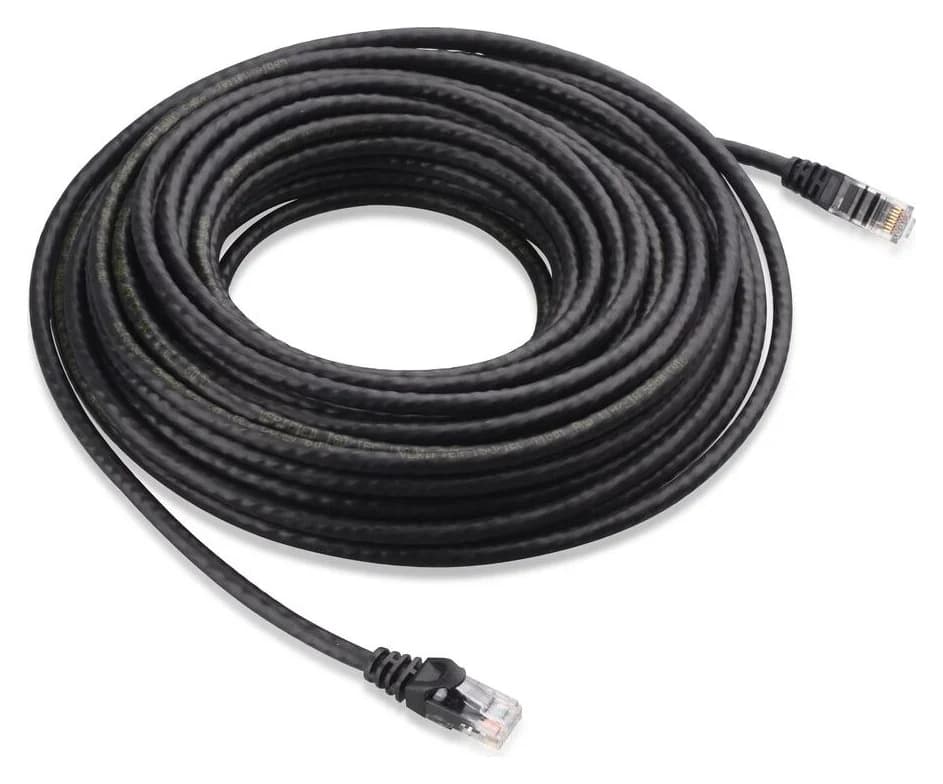
Cable pick for a short indoor move: Cable Matters Cat6 160001
Cable Matters
An indoor unshielded Cat6 Ethernet patch cable with bare-copper conductors and snagless boots.
Check package and model options
Choose this only if you need a lead and its length fits. Cable Matters describes the 160001 family as an unshielded indoor Cat6 patch cable with bare-copper conductors and RJ45 plugs. It suits an accessible equipment connection, such as moving a separate router from behind furniture to a nearby shelf.
The linked version is one black 7 ft cable. The maker's single-cable page also offers other lengths and colors; the family number alone does not select your length. Measure along the proposed route, including bends and enough slack to reach the ports without pulling. Choose a longer version on the maker's page if required; do not assume the linked version reaches across a room.
This cable is specified for indoor use. Treat an outdoor route or permanent building wiring as a separate installation decision; our Cat6, Cat6A and Cat8 guide covers cable selection. You do not need to buy a lead if the one you already have reaches the better position.
Check price on Amazon — black 7 ft single cable
Buying guide: draw the floor plan before moving anything
Sketch each occupied floor. Mark the incoming service connection, the boxes attached to it and the rooms where coverage matters. Google identifies a modem-router combination as a gateway; a separate modem connects to the router over Ethernet. Use our modem vs router explanation if you need help identifying your equipment. Source: Google's modem guide.
Use this worksheet to shortlist candidate positions:
Service entry
- Fill in before the move
- Incoming cable or fiber location; modem, ONT or gateway label; current router position
Priority rooms
- Fill in before the move
- Work desk, TV seat, bedroom and any fixed device that must stay connected; write the task beside each
Floors and barriers
- Fill in before the move
- Floors crossed; concrete, brick or metal; large appliances and aquariums between candidate and device
Candidate shelf
- Fill in before the move
- Room, height, open space, access to the ports and nearby power
Cable route
- Fill in before the move
- Actual path from the existing Ethernet connection to the candidate; bends, doors and walking routes
Decision
- Fill in before the move
- Which essential task must improve, and which working rooms must remain usable?
Full comparison table
Swipe to compare. Row labels stay visible.
| Mark on your plan | Fill in before the move |
|---|---|
| Service entry | Incoming cable or fiber location; modem, ONT or gateway label; current router position |
| Priority rooms | Work desk, TV seat, bedroom and any fixed device that must stay connected; write the task beside each |
| Floors and barriers | Floors crossed; concrete, brick or metal; large appliances and aquariums between candidate and device |
| Candidate shelf | Room, height, open space, access to the ports and nearby power |
| Cable route | Actual path from the existing Ethernet connection to the candidate; bends, doors and walking routes |
| Decision | Which essential task must improve, and which working rooms must remain usable? |
Scroll horizontally to see every column
| Mark on your plan | Fill in before the move |
|---|---|
| Service entry | Incoming cable or fiber location; modem, ONT or gateway label; current router position |
| Priority rooms | Work desk, TV seat, bedroom and any fixed device that must stay connected; write the task beside each |
| Floors and barriers | Floors crossed; concrete, brick or metal; large appliances and aquariums between candidate and device |
| Candidate shelf | Room, height, open space, access to the ports and nearby power |
| Cable route | Actual path from the existing Ethernet connection to the candidate; bends, doors and walking routes |
| Decision | Which essential task must improve, and which working rooms must remain usable? |
Move the router independently only where your equipment permits it. For a separate modem-router arrangement, our recommendation is to leave the service entry alone and change the Ethernet reach. Google's setup instructions connect the modem to the router's WAN port. With a combined gateway, ask the provider about relocation rather than assuming another wall socket is active.
A cellular gateway needs a different first check: its incoming wireless signal. Verizon directs Internet Gateway owners to use My Verizon's placement tool to find the best incoming signal. Follow your provider's equipment guidance before applying the central-room suggestion.
Room-by-room placement checklist
Central means central to the devices you use, as TP-Link explains. A mathematically central cupboard is a poor candidate if the path to your desk crosses substantial barriers. Use these starting points, then let the room checks decide:
Living room
- Candidate to try
- Open shelf toward the occupied part of the home
- Reason to reject the spot
- Behind the TV, enclosed media furniture or nearby large metal objects
Home office
- Candidate to try
- Accessible shelf with a clear route toward other priority rooms
- Reason to reject the spot
- A far corner chosen only because the modem is there
Hall or landing
- Candidate to try
- Open position near the rooms or floors needing coverage
- Reason to reject the spot
- No power or a cable crossing the walking route
Bedroom
- Candidate to try
- Stable, open furniture if that improves the occupied-room layout
- Reason to reject the spot
- Closed cupboard or location beside a heat source
Kitchen or utility room
- Candidate to try
- Compare a candidate outside the appliance cluster
- Reason to reject the spot
- Microwave, refrigerator, water or heat near the equipment
Basement
- Candidate to try
- Compare a main-floor candidate if the rooms above need coverage
- Reason to reject the spot
- Dense walls and extra floors between router and devices
Full comparison table
Swipe to compare. Row labels stay visible.
| Room or location | Candidate to try | Reason to reject the spot |
|---|---|---|
| Living room | Open shelf toward the occupied part of the home | Behind the TV, enclosed media furniture or nearby large metal objects |
| Home office | Accessible shelf with a clear route toward other priority rooms | A far corner chosen only because the modem is there |
| Hall or landing | Open position near the rooms or floors needing coverage | No power or a cable crossing the walking route |
| Bedroom | Stable, open furniture if that improves the occupied-room layout | Closed cupboard or location beside a heat source |
| Kitchen or utility room | Compare a candidate outside the appliance cluster | Microwave, refrigerator, water or heat near the equipment |
| Basement | Compare a main-floor candidate if the rooms above need coverage | Dense walls and extra floors between router and devices |
Scroll horizontally to see every column
| Room or location | Candidate to try | Reason to reject the spot |
|---|---|---|
| Living room | Open shelf toward the occupied part of the home | Behind the TV, enclosed media furniture or nearby large metal objects |
| Home office | Accessible shelf with a clear route toward other priority rooms | A far corner chosen only because the modem is there |
| Hall or landing | Open position near the rooms or floors needing coverage | No power or a cable crossing the walking route |
| Bedroom | Stable, open furniture if that improves the occupied-room layout | Closed cupboard or location beside a heat source |
| Kitchen or utility room | Compare a candidate outside the appliance cluster | Microwave, refrigerator, water or heat near the equipment |
| Basement | Compare a main-floor candidate if the rooms above need coverage | Dense walls and extra floors between router and devices |
eero's placement guidance identifies appliances, metal furniture and aquariums as obstacles or interference sources. Verizon also advises minimizing walls and ceilings between router and devices.
Before trying a candidate, apply these practical checks. NETGEAR's safety guidance says to leave cooling vents clear and route cables where they cannot be stepped on or tripped over.
- Yes: Open position with the cooling vents clear
- Yes: Suitable power available and ports accessible
- No: Reject a route that leaves cables underfoot
- Partly: A central spot behind dense barriers still needs comparison with another position
Keep indoor equipment indoors. eero explicitly warns against using its indoor-only units outside. A patio or detached-building installation needs its own outdoor equipment and cabling plan; do not extend this shelf-placement exercise into an outdoor installation.
Floors, Wi-Fi bands and antenna position
Upstairs or downstairs? TP-Link suggests a high position on the ground floor for a two-story home. Treat that as a candidate: compare it with an open position nearer the rooms you use most, including a landing where power and cable routing permit. Floors and ceilings belong on the worksheet, not outside the coverage calculation. Sources: TP-Link, Verizon.
Check the actual device and band. Google says 2.4 GHz can reach farther than 5 or 6 GHz, and some smart-home devices support only 2.4 GHz. A phone's successful connection therefore does not settle whether a fixed smart device works. Check that device too. If the router app reports the connected band, record it; Google's band guidance explains that the client ultimately decides which band to use.
Use the model's antenna instructions. TP-Link's placement FAQ suggests about 30 degrees for coverage across floors, while its placement blog describes a horizontal antenna and, for a three-antenna arrangement, outer antennas at roughly 45 degrees. These are different recommendations, not a universal setting. Start with your model's manual and keep antenna orientation unchanged while comparing locations.
Move one thing and repeat the same room checks
Use this comparison procedure before changing channels, adding nodes or replacing the router. Pick the essential task for each room first: a work call at the desk, playback at the TV or a fixed device staying connected.
Record the current position
Check each priority room and write down its task result before the move.
Move the router only
Keep the same settings, antenna orientation and test devices; let the connection settle.
Repeat at the same spots
Confirm Wi-Fi is connected; use the same device, speed-test service and server where selectable; note other household traffic.
Recheck the baseline if unclear
Return to the original location when results fluctuate; choose only after the essential-room results are repeatable.
Use a speed test on the device in the room when recording room performance. Google's Home app internet test measures from the router or primary point; it does not measure the Wi-Fi connection at your desk. Google also notes that speed results vary with location, server and congestion. Source: Google's speed-test explanation.
Pause large transfers for the speed comparisons, then check your essential tasks under ordinary household use. Verizon recommends stopping simultaneous streams when checking a slow connection.
Copy this blank log for each candidate. These are observation fields, not promised results:
Work desk
- Device / band if shown
- Fill in
- Current location
- Record download/upload in Mbps if useful
- Candidate location
- Repeat the same check
All specifications
- Essential task / disconnects
- Record call behavior
- Keep or retry?
- Decide
TV seat
- Device / band if shown
- Fill in
- Current location
- Record result
- Candidate location
- Repeat
All specifications
- Essential task / disconnects
- Record playback
- Keep or retry?
- Decide
Weak bedroom or fixed device
- Device / band if shown
- Fill in
- Current location
- Record result
- Candidate location
- Repeat
All specifications
- Essential task / disconnects
- Record connection behavior
- Keep or retry?
- Decide
Previously reliable room
- Device / band if shown
- Fill in
- Current location
- Record result
- Candidate location
- Repeat
All specifications
- Essential task / disconnects
- Check for regression
- Keep or retry?
- Decide
Full comparison table
Swipe to compare. Row labels stay visible.
| Room and exact spot | Device / band if shown | Current location | Candidate location | Essential task / disconnects | Keep or retry? |
|---|---|---|---|---|---|
| Work desk | Fill in | Record download/upload in Mbps if useful | Repeat the same check | Record call behavior | Decide |
| TV seat | Fill in | Record result | Repeat | Record playback | Decide |
| Weak bedroom or fixed device | Fill in | Record result | Repeat | Record connection behavior | Decide |
| Previously reliable room | Fill in | Record result | Repeat | Check for regression | Decide |
Scroll horizontally to see every column
| Room and exact spot | Device / band if shown | Current location | Candidate location | Essential task / disconnects | Keep or retry? |
|---|---|---|---|---|---|
| Work desk | Fill in | Record download/upload in Mbps if useful | Repeat the same check | Record call behavior | Decide |
| TV seat | Fill in | Record result | Repeat | Record playback | Decide |
| Weak bedroom or fixed device | Fill in | Record result | Repeat | Record connection behavior | Decide |
| Previously reliable room | Fill in | Record result | Repeat | Check for regression | Decide |
Our acceptance rule: keep a location when the essential tasks work reliably and no other essential room becomes unusable. If ordinary test-to-test variation swamps the apparent improvement, mark the move inconclusive and repeat. Keep raw observations instead of converting them into a coverage promise.
If tasks also fail beside the router, check the internet connection with your provider before shopping. Google notes that a slow incoming connection still limits performance, even with a capable router.
When to add a node or replace the router
If improving one end consistently breaks the other, compare an extender with mesh. For a wireless node, eero recommends a position partway toward the dead zone, with a strong link back. Moving a node into a room where it cannot receive a useful signal defeats that plan.
Check the exact models before ordering. Google's Nest Wifi Pro cannot mesh with Nest Wifi or Google Wifi: a shared brand does not establish compatibility. For wired expansion, follow the system's documented Ethernet layout; Google's hardwiring guide distinguishes points with Ethernet ports from the Nest Wifi point, which has none. Use the maker's setup guide for onboarding and wired backhaul.
Consider a replacement only after recording what placement cannot solve and which features you need. Our router picks and mesh-system guide handle that purchase decision.
How we choose
We researched official placement, connection and safety guidance from Google, eero, TP-Link, Verizon and NETGEAR, plus Cable Matters' product page. This is a research-based placement worksheet; we have not performed physical router or coverage tests. The location choices and comparison procedure are our editorial recommendations. We reuse the existing cable record and distinguish its linked length from the maker's wider family. Our selection method explains the site's approach.
Verdict
Start with the router you own, an open candidate position and a written room baseline. Buy a cable only after measuring the route. If no practical position serves the essential rooms, use the recorded weak spots to choose compatible expansion or a replacement.
Frequently asked questions
Should my router be upstairs or downstairs?
Start on the floor where you need coverage most, then compare the other occupied floors. TP-Link suggests a high position on the ground floor for a two-story home, but walls and ceilings remain obstacles. Try an open position near the route between floors and repeat the same room checks. Keep the location that serves your essential rooms, rather than choosing a floor by rule.
Does a router have to sit next to the modem?
A separate router needs an Ethernet connection to the modem, but the boxes do not have to touch. A suitable longer lead can let you place the router on a better shelf while leaving the modem at the service entry. Check power and the full cable route first. With a combined modem-router gateway, consult the provider before changing the incoming service connection.
Can I put my router in a cupboard or behind the TV?
Choose an open shelf instead. TP-Link advises against cabinets and placing a router behind a TV, while eero recommends keeping its units outside media consoles and cabinets. Keep cooling vents clear and avoid nearby heat sources. If hiding cables matters, plan an accessible route to an open location before deciding that the equipment must stay inside furniture.
What if moving the router does not fix Wi-Fi dead zones?
Compare the remaining weak rooms with your floor plan. A compatible wireless node needs a strong connection back toward the router, so place it partway toward the problem area. Dense barriers may justify a supported wired connection instead. Check exact model compatibility before buying; for example, Google says Nest Wifi Pro cannot mesh with older Nest Wifi or Google Wifi units.
Related guides
Buying guide · Wi-Fi Routers
Home Network Setup Checklist: Router, Switch, Wi-Fi and NAS
Plan your home network setup with a connection diagram, usable port counts, router and Wi-Fi choices, setup order, and internet and NAS recovery checks.
Comparison · Wi-Fi Routers
UniFi Dream Router 7 vs Express 7: Choose the Complete Kit
Compare UniFi Dream Router 7 and Express 7 by ports, security speed and applications, then build a complete home kit with the right PoE, cameras and cables.
Comparison · Wi-Fi Routers
GL.iNet Slate 7 vs Beryl 7: Which Should You Pack?
Choose between GL.iNet Slate 7 and Beryl 7 by hotel uplink, screen, phone tethering and your complete power kit. Includes exact-model and US buying checks.