

Buying guide
Home Network Setup Checklist
Router, Switch, Wi-Fi and NAS
Plan your home network setup with a connection diagram, usable port counts, router and Wi-Fi choices, setup order, and internet and NAS recovery checks.
By thisPING EditorialUpdated November 3, 20268 min read1 pick
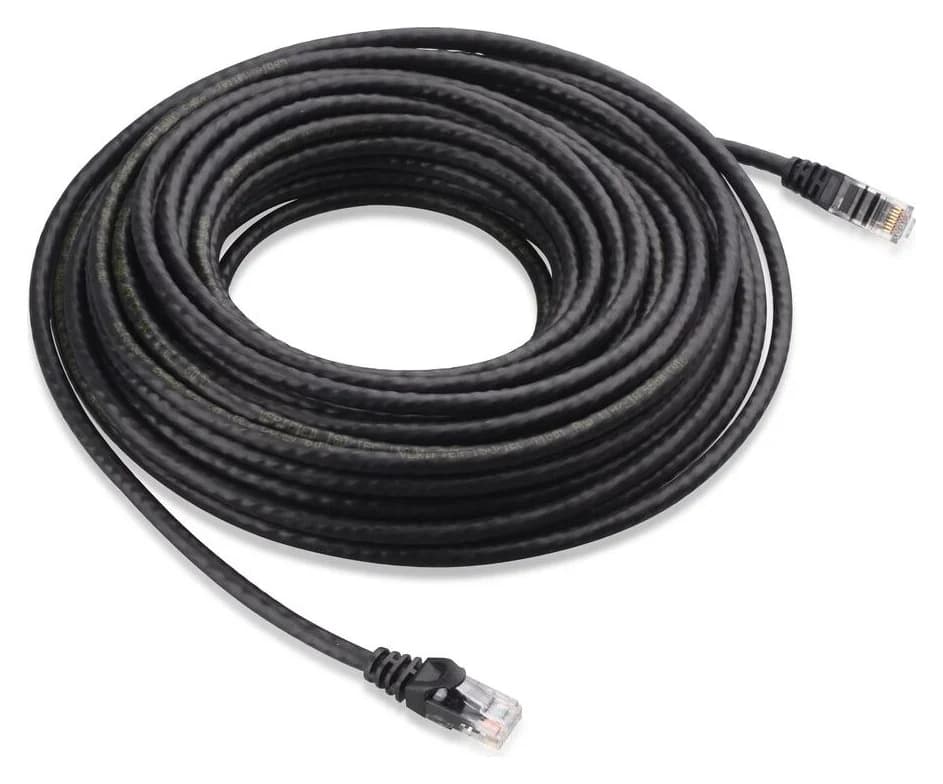
Our recommendation: Cable Matters 160001
Cable pick
Limit: Cat6 does not provide the full 100 m 10G application of Cat6A
On this page · Our picks at a glance
Our picks at a glance
- 1
Choose for: Cable pick
Check before buying: Cat6 does not provide the full 100 m 10G application of Cat6A
For a new home network setup, connect the modem or fiber ONT to a single routing gateway, then connect its LAN side to your devices, optional switch and Wi-Fi access points. Keep a supported router that already fits; if replacing it, our reference pick is the ASUS RT-BE92U, with a 10 Gbps WAN/LAN port and four 2.5 Gbps ports. Use the checklist to buy only the missing connections, coverage and storage.
Quick picks: buy for a missing job
Compare specifications and all conditions
Routing and Wi-Fi
- Clear choice
- ASUS RT-BE92U
- What it connects
- 10 Gbps WAN/LAN; four 2.5 Gbps ports
- Keep or skip instead
- Keep a supported gateway with enough ports and suitable coverage
Small wired expansion
- Clear choice
- TP-Link TL-SG105S-M2
- What it connects
- Five 2.5 Gbps ports; four remain after a router uplink
- Keep or skip instead
- Skip if the router's accessible LAN ports suffice
More wired expansion
- Clear choice
- TP-Link TL-SG108S-M2 V2
- What it connects
- Eight 2.5 Gbps ports; seven remain after a router uplink
- Keep or skip instead
- Choose the smaller switch if its usable ports suffice
Missing patch leads
- Clear choice
- Cable Matters Cat6 160001
- What it connects
- Indoor, unshielded, bare-copper RJ45 leads
- Keep or skip instead
- Measure first and count supplied cables
Shared files and backups
- Clear choice
- Synology DS225+
- What it connects
- Two drive bays; one 2.5GbE and one 1GbE port
- Keep or skip instead
- Skip until you have a shared-storage job
Full comparison table
Swipe to compare. Row labels stay visible.
| Part | Clear choice | What it connects | Keep or skip instead |
|---|---|---|---|
| Routing and Wi-Fi | ASUS RT-BE92U | 10 Gbps WAN/LAN; four 2.5 Gbps ports | Keep a supported gateway with enough ports and suitable coverage |
| Small wired expansion | TP-Link TL-SG105S-M2 | Five 2.5 Gbps ports; four remain after a router uplink | Skip if the router's accessible LAN ports suffice |
| More wired expansion | TP-Link TL-SG108S-M2 V2 | Eight 2.5 Gbps ports; seven remain after a router uplink | Choose the smaller switch if its usable ports suffice |
| Missing patch leads | Cable Matters Cat6 160001 | Indoor, unshielded, bare-copper RJ45 leads | Measure first and count supplied cables |
| Shared files and backups | Synology DS225+ | Two drive bays; one 2.5GbE and one 1GbE port | Skip until you have a shared-storage job |
Scroll horizontally to see every column
| Part | Clear choice | What it connects | Keep or skip instead |
|---|---|---|---|
| Routing and Wi-Fi | ASUS RT-BE92U | 10 Gbps WAN/LAN; four 2.5 Gbps ports | Keep a supported gateway with enough ports and suitable coverage |
| Small wired expansion | TP-Link TL-SG105S-M2 | Five 2.5 Gbps ports; four remain after a router uplink | Skip if the router's accessible LAN ports suffice |
| More wired expansion | TP-Link TL-SG108S-M2 V2 | Eight 2.5 Gbps ports; seven remain after a router uplink | Choose the smaller switch if its usable ports suffice |
| Missing patch leads | Cable Matters Cat6 160001 | Indoor, unshielded, bare-copper RJ45 leads | Measure first and count supplied cables |
| Shared files and backups | Synology DS225+ | Two drive bays; one 2.5GbE and one 1GbE port | Skip until you have a shared-storage job |
Inventory the service, rooms and devices
Write a short worksheet before ordering:
- Service: provider, plan, supplied box's exact model, Ethernet handoff speed and connection settings. Identify a modem, ONT or modem/router gateway; modem vs router explains the roles.
- Rooms: mark the service entry, cable termination point, desk, TV and places needing Wi-Fi. Record existing Ethernet runs and available power at each planned Wi-Fi location.
- Devices: list each wired connection separately, including a NAS, printer and each wired AP or mesh node.
- Reuse: note working cables, available ports and supported equipment. ASUS says devices on its EOL list no longer receive firmware and documentation updates; check the exact model and region before reusing one.
For cable service, check the provider's approved-device list before replacing the modem. Cable modem choices are a separate decision from buying a router.
Draw the connections and assign ownership
Use this wired reference plan; omit the switch when the router has enough accessible LAN ports:
Modem or ONT → router WAN
The gateway owns routing; use the provider's documented handoff and connection settings.
Router LAN → optional switch
The switch expands wired connections downstream of the gateway.
LAN → devices, wired APs and optional NAS
Connect directly to the router or through the switch; plan power for each AP separately.
Choose the routing owner before configuring Wi-Fi. For this basic home LAN, keep DHCP address assignment and NAT on the routing gateway. Apple's configuration guidance recommends a single DHCP server and generally enabling NAT only on the router.
If keeping a provider gateway as the router, put added Wi-Fi hardware into its documented AP mode. If your own router will take over, use the provider's documented bridge or bypass arrangement where supported. Turning off a gateway's Wi-Fi alone does not disable its routing; confirm the operating mode.
Count sockets where the cables actually meet
The RT-BE92U leaves four 2.5 Gbps LAN connections when its 10 Gbps port is WAN; a switch uplink uses one, leaving three. A five-port switch leaves four endpoint ports after its uplink; an eight-port switch leaves seven.
Worked example: assume all leads for a NAS, office PC, TV, printer and two wired APs terminate at the switch, with only its uplink returning to the router. The arithmetic is:
RT-BE92U after WAN allocation
- Available sockets
- 4 LAN ports
- Example assignment
- 1 switch uplink
- Spare
- 3 LAN ports
TL-SG108S-M2
- Available sockets
- 8 Ethernet ports
- Example assignment
- 1 router uplink + 6 endpoint links = 7 occupied
- Spare
- 1 Ethernet port
Full comparison table
Swipe to compare. Row labels stay visible.
| Box | Available sockets | Example assignment | Spare |
|---|---|---|---|
| RT-BE92U after WAN allocation | 4 LAN ports | 1 switch uplink | 3 LAN ports |
| TL-SG108S-M2 | 8 Ethernet ports | 1 router uplink + 6 endpoint links = 7 occupied | 1 Ethernet port |
Scroll horizontally to see every column
| Box | Available sockets | Example assignment | Spare |
|---|---|---|---|
| RT-BE92U after WAN allocation | 4 LAN ports | 1 switch uplink | 3 LAN ports |
| TL-SG108S-M2 | 8 Ethernet ports | 1 router uplink + 6 endpoint links = 7 occupied | 1 Ethernet port |
The smaller switch cannot hold that entire branch. If some endpoints can reach the router's spare ports directly, redraw the plan before buying the larger switch. Count AP uplinks and NAS connections just like other endpoints; start the DS225+ on its 2.5GbE port alone.
Check both ends of every speed-critical link. A 2.5 Gbps switch does not upgrade a gigabit computer interface. If the PC needs wireless instead, use our PC Wi-Fi adapter choices. For local NAS work, budget the computer-to-switch-to-NAS path separately from the internet plan.
Router pick: ASUS RT-BE92U
Choose this replacement when its ports solve your plan. The ASUS specifications list a 10 Gbps WAN/LAN port, a 2.5 Gbps WAN/LAN port and three dedicated 2.5 Gbps LAN ports. Select the WAN role deliberately rather than counting every socket as LAN.
It supports tri-band Wi-Fi 7, router mode, AP mode and AiMesh node mode. Check the package separately: ASUS lists the router, power adapter and an RJ45 cable.
For alternatives matched to your WAN and LAN connections, use best Wi-Fi 7 routers. Check ASUS's model firmware page when commissioning it.
Switch picks: TL-SG105S-M2 or TL-SG108S-M2
Pick the TL-SG105S-M2 for a branch needing up to four device connections after the uplink; choose the TL-SG108S-M2 for up to seven. TP-Link documents both as fanless, plug-and-play switches with auto-negotiating 100 Mbps/1 Gbps/2.5 Gbps ports. They expand your LAN; keep address assignment on the gateway.
Match the full model and hardware revision. The eight-port specifications used here are for V2; the five-port download selector offers multiple revisions. Don't assume a feature listed for another revision applies.
For Deco backhaul, check compatibility before buying: TP-Link's backhaul instructions warn that loop detection can block a backhaul port, while the eight-port V2 page advertises automatic loop prevention. Confirm the exact combination with the maker. See multi-gig switches for wider port choices.
Cable pick: Cable Matters Cat6 160001
Cable Matters
An indoor unshielded Cat6 Ethernet patch cable with bare-copper conductors and snagless boots.
Check package and model options
The maker's page identifies this as an indoor, unshielded cable with bare-copper conductors and RJ45 plugs. The linked existing variant is black, 7 ft, single pack; choose the required length and quantity rather than assuming every cable in the family is that version.
Subtract supplied leads before ordering: ASUS lists an RJ45 cable, and Synology lists two LAN cables. For wall runs, count the patch connections at both ends separately. Don't extend the maker's Cat6 speed headline into an unconditional long-run guarantee: Fluke recommends Cat6A for a new installation designed for 10GBASE-T up to 100 m. Our Cat6 vs Cat6A vs Cat8 guide handles installation choices.
Optional NAS pick: Synology DS225+
Add shared storage after the network works. Synology's specifications list two SATA drive bays, one 2.5GbE port and one 1GbE port. Use the 2.5GbE port for this plan; don't count the separate ports as a faster combined connection.
Treat the enclosure, drives and backup destination as separate order checks. Synology asks buyers to consult its drive compatibility list; a bundled disk's exact model matters. Its DSM 7.3 announcement permits third-party drives for installation and storage pools on its 2025 DiskStation Plus models running that release. Check the installed DSM version rather than applying an older blanket restriction.
Skip the NAS unless you need its job. Home NAS choices help choose an enclosure; NAS drive choices address the storage purchase.
How we choose
Recommendations use official specifications, setup instructions and compatibility guidance, with saved source evidence. We prioritize reusable equipment, usable ports at the termination point and documented operating modes. Port arithmetic is a planning calculation, not a performance result. These recommendations do not come from physical product testing. Read our selection method.
Buying guide: choose Wi-Fi, then configure in order
Single router: start here if the planned location serves your rooms; check coverage where you will actually use devices before ordering expansion.
Mesh: use mesh system choices when you need additional Wi-Fi locations. Check mode restrictions: Deco supports AP mode behind an existing router, but Google limits primary-unit bridge mode to a single Wifi device.
Separate wired APs: use access point choices when you can provide Ethernet and the specified power. Budget power separately from port speed: NETGEAR's WBE710, for example, specifies 802.3at PoE+. Check the AP's requirement against both the injector or switch port and the switch's total power budget; PoE switch choices cover that purchase.
Connect and configure in this order:
- Confirm service. Follow the provider's activation and handoff instructions; obtain required WAN settings. ASUS's setup wizard documentation distinguishes automatic IP, PPPoE credentials and static settings supplied by the ISP.
- Commission the gateway. Connect service to WAN and a setup computer to LAN. Set an administration password and Wi-Fi credentials, install firmware updates and enable automatic updates where available. Apple recommends WPA3 Personal or WPA2/WPA3 Transitional for older-device compatibility.
- Add the wired branch. Connect router LAN to the switch, then endpoints. Leave clients on DHCP initially. For predictable NAS or printer addresses, use the gateway's reservation feature; ASUS documents manual assignment by MAC address. Save the gateway, subnet, reservation and device names.
- Add Wi-Fi locations. Follow the exact system's order. Deco requires wireless onboarding before Ethernet backhaul; in Router mode its satellites belong downstream of the main Deco. For a reused ASUS AP, select Administration → Operation mode → Access Point, keep upstream DHCP enabled and follow its AP connection instructions.
- Add storage and record recovery. Put the computer and NAS on the same LAN, then use Synology's DSM installation instructions. Configure a separate backup destination and record recovery credentials. Save the router configuration too.
Verify local access, internet and recovery separately
Use this acceptance checklist before calling installation complete:
- Yes: Local network: confirm the gateway's client list, then open the NAS share or printer from the main LAN and each intended Wi-Fi location
- Yes: Internet: open an external website from the wired computer and each intended Wi-Fi location, with cellular fallback disabled
- Yes: Recovery: back up a disposable sample file, restore a separate copy and open it; save configuration and recovery information
A guest network can deliberately block local resources: ASUS describes its guest network as allowing internet while restricting LAN access. Run the local-access check from the intended main network. Reaching the internet alone does not prove that local devices can communicate.
Hyper Backup supports external devices, other servers and cloud destinations, plus file-level recovery. Choose an independent destination for NAS backups and perform the sample restore. Retain the plan and results for later fault-finding.
Verdict
Keep the working gateway when it fits. If replacing it, use the RT-BE92U as the reference router, choose the five- or eight-port switch from the usable-port ledger, and buy cables to measured lengths. Add Wi-Fi locations and a NAS only for named jobs, then sign off local access, internet access and a sample restore separately.
Frequently asked questions
Do I need to buy a modem, router and switch?
Not automatically. Identify whether your provider supplies a modem, fiber ONT or combined gateway before ordering. A gateway can already include routing and Wi-Fi. Keep equipment that meets the plan and still receives support. Add a switch only when the available LAN ports at the cable termination point cannot accommodate your wired connections; shared storage is an optional purchase.
Where does the Ethernet switch go in a home network?
For the routed layout in this guide, connect the switch to a LAN port on the routing gateway, then connect wired endpoints to the switch. Count the router uplink as an occupied switch port. In Deco Router mode, wired satellite nodes must sit downstream of the main Deco, directly or through its LAN-side switch.
Can I use a second router as an access point?
Yes, if that model documents an access point mode. ASUS instructs users to select AP mode, leave DHCP enabled on the primary router and connect the AP to the primary router's LAN side. Check mesh restrictions separately: Google says a multi-device Nest Wifi or Google Wifi mesh cannot have its primary unit in bridge mode.
Should every home network device have a static IP address?
Start with automatic addressing from the routing gateway's DHCP server. For equipment you want at a predictable address, such as a NAS or printer, use the gateway's documented address reservation feature. ASUS provides manual assignment by device MAC address in its DHCP settings. Record the assigned address and gateway instead of copying an example subnet from another network.
Cable Matters 160001
AmazonRelated guides
Comparison · Wi-Fi Routers
UniFi Dream Router 7 vs Express 7: Choose the Complete Kit
Compare UniFi Dream Router 7 and Express 7 by ports, security speed and applications, then build a complete home kit with the right PoE, cameras and cables.
Comparison · Wi-Fi Routers
GL.iNet Slate 7 vs Beryl 7: Which Should You Pack?
Choose between GL.iNet Slate 7 and Beryl 7 by hotel uplink, screen, phone tethering and your complete power kit. Includes exact-model and US buying checks.
Best picks · Wi-Fi Routers
Best Routers for Apartments: Pick by Connection, Rooms and Control
Choose an apartment router by who controls your internet, the rooms and devices you use, and the wired ports left over. Compare three picks and setup limits.