

Best picks
Best Routers for AT&T Fiber
Match Your Gateway and Plan
Choose the right router for AT&T Fiber: clear ASUS, Netgear and eero picks, gateway checks, IP Passthrough versus AP mode, and complete wiring examples.
By thisPING EditorialUpdated November 3, 20268 min read
On this page · Quick picks and comparison
The ASUS RT-BE92U is our best router for AT&T Fiber buyers who want router controls and several wired devices: it has a 10 Gbps WAN/LAN port and four 2.5 Gbps ports. Choose the Netgear Nighthawk RS300 for a standalone setup on a plan up to 2 Gig, or eero Pro 7 when you need a mesh across rooms. Keep the AT&T gateway in the connection and decide which box will handle routing before ordering.
Quick picks and comparison
Compare specifications and all conditions
ASUS RT-BE92U
- Our recommendation
- Wired devices and router controls
- Gateway-to-router connection
- Use the 10 Gbps WAN/LAN port
- Ports left after that connection
- Four 2.5 Gbps ports
All specifications
- Main tradeoff
- No remaining 5 or 10 Gbps LAN port
Netgear Nighthawk RS300
- Our recommendation
- Standalone router for plans up to 2 Gig
- Gateway-to-router connection
- 2.5 Gbps Internet port
- Ports left after that connection
- Two 2.5 Gbps LAN, two 1 Gbps LAN
All specifications
- Main tradeoff
- Internet port is below a 5 Gig plan's rate
eero Pro 7
- Our recommendation
- Mesh, including a 5 Gig connection
- Gateway-to-router connection
- Either auto-sensing 5 GbE port
- Ports left after that connection
- One 5 GbE port per main unit
All specifications
- Main tradeoff
- Wired backhaul consumes the remaining main-unit port
Keep your gateway
- Our recommendation
- Your existing network already meets your needs
- Gateway-to-router connection
- Keep the working connection
- Ports left after that connection
- Depends on installed gateway
All specifications
- Main tradeoff
- Buy only after identifying a problem to solve
Full comparison table
Swipe to compare. Row labels stay visible.
| Pick | Our recommendation | Gateway-to-router connection | Ports left after that connection | Main tradeoff |
|---|---|---|---|---|
| ASUS RT-BE92U | Wired devices and router controls | Use the 10 Gbps WAN/LAN port | Four 2.5 Gbps ports | No remaining 5 or 10 Gbps LAN port |
| Netgear Nighthawk RS300 | Standalone router for plans up to 2 Gig | 2.5 Gbps Internet port | Two 2.5 Gbps LAN, two 1 Gbps LAN | Internet port is below a 5 Gig plan's rate |
| eero Pro 7 | Mesh, including a 5 Gig connection | Either auto-sensing 5 GbE port | One 5 GbE port per main unit | Wired backhaul consumes the remaining main-unit port |
| Keep your gateway | Your existing network already meets your needs | Keep the working connection | Depends on installed gateway | Buy only after identifying a problem to solve |
Scroll horizontally to see every column
| Pick | Our recommendation | Gateway-to-router connection | Ports left after that connection | Main tradeoff |
|---|---|---|---|---|
| ASUS RT-BE92U | Wired devices and router controls | Use the 10 Gbps WAN/LAN port | Four 2.5 Gbps ports | No remaining 5 or 10 Gbps LAN port |
| Netgear Nighthawk RS300 | Standalone router for plans up to 2 Gig | 2.5 Gbps Internet port | Two 2.5 Gbps LAN, two 1 Gbps LAN | Internet port is below a 5 Gig plan's rate |
| eero Pro 7 | Mesh, including a 5 Gig connection | Either auto-sensing 5 GbE port | One 5 GbE port per main unit | Wired backhaul consumes the remaining main-unit port |
| Keep your gateway | Your existing network already meets your needs | Keep the working connection | Depends on installed gateway | Buy only after identifying a problem to solve |
Port inventories above are calculations from the ASUS specifications, RS300 specifications and Pro 7 specifications. They describe physical connections, not verified simultaneous throughput.
Start with the exact gateway
Read the full model on your installed equipment and note the Ethernet output you will use. Keep the provider connection in place while adding the new router; the modem versus router guide explains the different jobs.
BGW210
- What the downloaded documentation establishes
- Firewalla's official configuration guide covers IP Passthrough for this model
- What to do before buying
- Confirm its Ethernet output rating with AT&T before paying for a faster plan or uplink
BGW320-505
- What the downloaded documentation establishes
- Sonic's equipment guide for AT&T service documents one 5G Ethernet port and three 10/100/1000 BaseT ports
- What to do before buying
- Use the 5G output for a multi-gig router connection
Another model or revision
- What the downloaded documentation establishes
- The BGW210/BGW320 instructions below do not verify its menus or ports
- What to do before buying
- Check that model's documentation; use AP operation if you want AT&T to keep routing
Full comparison table
Swipe to compare. Row labels stay visible.
| Installed gateway | What the downloaded documentation establishes | What to do before buying |
|---|---|---|
| BGW210 | Firewalla's official configuration guide covers IP Passthrough for this model | Confirm its Ethernet output rating with AT&T before paying for a faster plan or uplink |
| BGW320-505 | Sonic's equipment guide for AT&T service documents one 5G Ethernet port and three 10/100/1000 BaseT ports | Use the 5G output for a multi-gig router connection |
| Another model or revision | The BGW210/BGW320 instructions below do not verify its menus or ports | Check that model's documentation; use AP operation if you want AT&T to keep routing |
Scroll horizontally to see every column
| Installed gateway | What the downloaded documentation establishes | What to do before buying |
|---|---|---|
| BGW210 | Firewalla's official configuration guide covers IP Passthrough for this model | Confirm its Ethernet output rating with AT&T before paying for a faster plan or uplink |
| BGW320-505 | Sonic's equipment guide for AT&T service documents one 5G Ethernet port and three 10/100/1000 BaseT ports | Use the 5G output for a multi-gig router connection |
| Another model or revision | The BGW210/BGW320 instructions below do not verify its menus or ports | Check that model's documentation; use AP operation if you want AT&T to keep routing |
The BGW320-505 hardware reference comes from Sonic's documentation for equipment supplied with resold AT&T service. Its app restrictions describe Sonic accounts; don't transfer those restrictions to a direct AT&T account.
Pick who handles routing
Want the new router's network controls? Use gateway IP Passthrough and leave the added router in router mode. eero's AT&T setup article describes this arrangement as retaining its advanced features while keeping the AT&T equipment.
Want Wi-Fi coverage while AT&T keeps routing? Leave the gateway routing and put the added ASUS or Netgear into access-point mode, or eero into bridge mode. ASUS says its AP mode disables NAT, IP sharing and its firewall; its upstream router must supply DHCP. Netgear's RS300 manual likewise documents AP operation with some router features disabled.
- Yes: IP Passthrough plus eero routing retains eero's advanced features
- Partly: Bridged eero still provides mesh Wi-Fi, with AT&T handling routing
- No: eero bridge mode loses SQM, IP reservations, port forwarding and Thread
Those losses are in eero's bridge-mode feature list. Choose the mode before paying for features you intend to use.
Best for wired devices: ASUS RT-BE92U
Choose the RT-BE92U when you want several wired connections without immediately adding a switch. Its specification distinguishes one 10 Gbps WAN/LAN port, one 2.5 Gbps WAN/LAN port and three fixed 2.5 Gbps LAN ports. With the 10G port assigned to the gateway connection, four 2.5G ports remain.
Complete example: BGW320-505's 5G output → ASUS 10G WAN/LAN configured as WAN → desktop and NAS on separate 2.5G ports. This leaves two 2.5G ports unused. Check the negotiated gateway link during setup; the 10G label alone does not verify the actual link rate. Each wired client in this example still has a 2.5G port ceiling.
It is tri-band Wi-Fi 7 with a 6 GHz band, supports AiMesh expansion and lists AP mode. Buy the exact RT-BE92U: BE9700 is its advertised Wi-Fi class, not an internet-speed promise. For other standalone choices, see best Wi-Fi 7 routers.
Best standalone pick up to 2 Gig: Netgear Nighthawk RS300
The RS300 is our pick when a 2.5 Gbps input is enough. It has two 2.5 Gbps LAN ports and two gigabit LAN ports, plus tri-band Wi-Fi 7 including 6 GHz. Its input is the reason to skip it for a 5 Gig plan.
Complete example: BGW320-505's 5G output → RS300's 2.5G Internet port → desktop and NAS on the two 2.5G LAN ports. Both gigabit LAN ports remain available. This is a suitable port layout for a 2 Gig plan; the gateway's faster output does not make the RS300 input faster.
For AP operation, the manual specifies ADVANCED → Advanced Setup → Router / AP Mode → AP Mode, with the Internet port connected to the existing router's LAN. The same manual covers separately named RS300, RS280 and BE9300 models: check the full RS300 model and US package, rather than shopping by the speed class alone. NETGEAR Armor is an optional subscription.
Best mesh pick: eero Pro 7
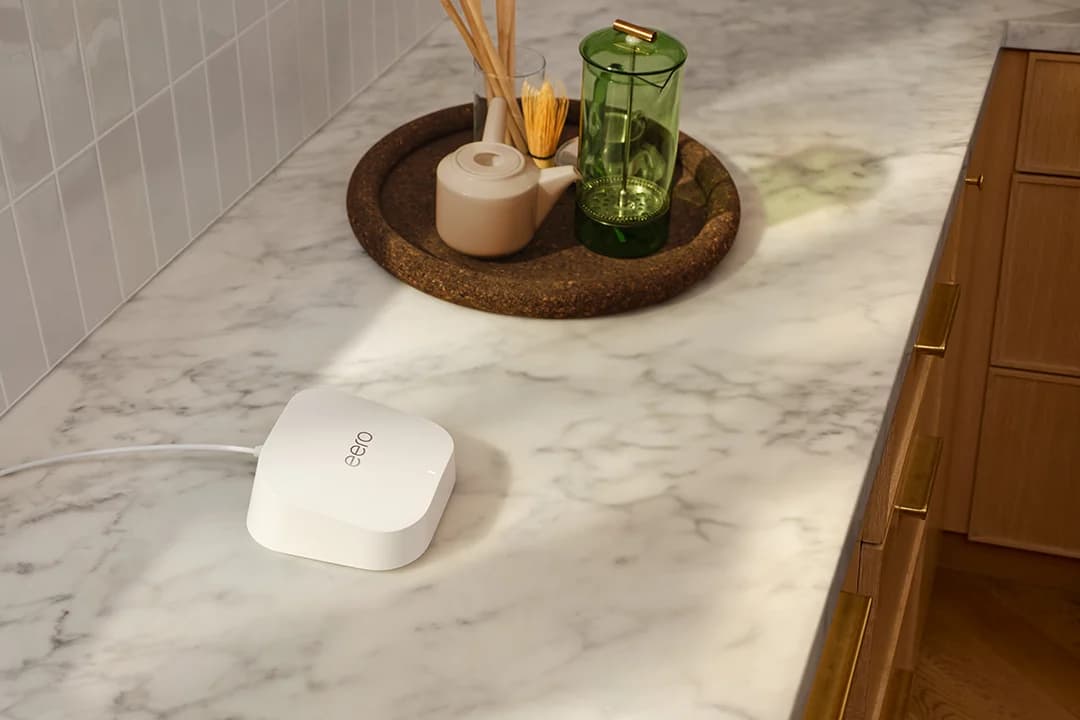
Choose Pro 7 when you need additional Wi-Fi locations and prefer app management. Each unit has two auto-sensing 5 GbE ports and tri-band Wi-Fi 7 including 6 GHz. eero markets it for plans up to 5 Gbps but specifies wired speeds up to 4.7 Gbps; neither figure is a wireless-backhaul guarantee.
Complete wired example: BGW320-505's 5G output → first Pro 7 → second Pro 7 → wired computer. The first Pro 7 now has no spare Ethernet sockets; the second has one until you connect the computer. For more wired devices, insert a suitable multi-gig switch after the first eero, following eero's topology guidance. Keep that arrangement even when eero is bridged: eero requires connections to funnel through one gateway unit.
Order the right pack: this card covers one Pro 7; eero also sells packs of two and three. Pro 7 is the model here, rather than eero 7 or Max 7. Its support page conflicts internally on coverage: the introduction says 2,000 sq ft per unit; the hardware table says 2,500. Treat both as manufacturer claims, and plan around actual rooms. Compare other systems in best mesh Wi-Fi systems.
Keep the gateway if it already works
Our first recommendation is to keep the current setup if you cannot identify a coverage, port or control problem. If you only need a different Wi-Fi location, an added unit in AP/bridge operation is an alternative to transferring routing responsibility. Follow the ASUS AP instructions or eero bridge instructions, according to your purchase. For ASUS, Administration → Operation mode → Access Point(AP) is the documented path; for eero, use Settings → Advanced networking → DHCP & NAT → Bridge after initial setup.
Set up BGW210/BGW320 IP Passthrough
This routine is for an ordinary dynamic-address installation using the added unit as a router. If you have a purchased static-address block, TV/phone dependencies or another gateway model, get the configuration for that service before changing settings.
The setting names below are documented in Sonic's AT&T gateway instructions and Firewalla's BGW210/BGW320 configuration guide. Confirm the procedure against AT&T's own model-specific instructions before changing firewall options.
Prepare
Connect the gateway LAN output to the new router's WAN input. Use Automatic IP/DHCP on its WAN and keep its router firewall enabled. Record its WAN MAC address and keep its LAN subnet different from the gateway's.
Open the gateway
From a connected device, open 192.168.1.254 and use the gateway's Device Access Code when prompted.
Assign passthrough
In Firewall → IP Passthrough, choose Allocation Mode: Passthrough and Passthrough Mode: DHCPS-fixed. Set Passthrough Fixed MAC Address to the new router's WAN MAC and save.
Apply and reconnect
Follow the exact gateway instructions for firewall changes; restart the equipment after saving, then reconnect clients behind the new router.
Firewalla's instructions disable advanced firewall settings and packet filters, leave Cascaded Router off and allow gateway LAN DHCP to remain enabled. Those are changes for this passthrough arrangement; the AP arrangement instead needs the upstream router's DHCP service. eero's AT&T guidance also says to retain AT&T Wi-Fi when U-verse TV depends on it; without TV it permits disabling that Wi-Fi to avoid conflicting networks.
Buying and verification checklist
Before ordering, write down the exact gateway, plan, chosen mode, required Wi-Fi locations and every Ethernet connection. For Pro 7, count the gateway cable and backhaul before counting spare sockets. Its individually sold package includes a Cat6a cable; check the selected pack's contents and required length first. The existing Cable Matters Cat6 patch cable is an optional replacement lead, not a required extra purchase. For room wiring, use our cable-category guide.
After setup, check WAN addressing and negotiated Ethernet rates in the router interface. In passthrough operation, investigate a retained private WAN address or a link below the intended rate before blaming Wi-Fi. Compare a wired device near the primary router with the problem room, then repeat after a restart. A link-rate reading and an internet throughput result answer different questions.
For ongoing support, ASUS lists automatic firmware updates and maintains an EOL list. Netgear's policy generally places end of service three years after the last sale date. eero publishes security updates for Pro 7 at least through October 31, 2031, with a longer minimum possible for qualifying new purchases. These are published policies, not predictions about future firmware.
How we choose
These are research recommendations based on official specifications and setup documentation, checked November 2, 2026. We prioritize the complete Ethernet path, remaining ports and operating-mode features over headline Wi-Fi classes. Wiring inventories are calculations; they establish connectivity, not measured routing capacity or room coverage. BE classes sum theoretical radio rates and should not be read as internet throughput. Full editorial method: How we choose.
Verdict
Pick RT-BE92U for several wired devices, RS300 for a standalone setup up to 2 Gig, or Pro 7 for mesh. Keep the gateway, select who handles routing, and count every occupied port before ordering. If your current network meets your needs, keep it.
Frequently asked questions
Can I replace my AT&T Fiber gateway with my own router?
For the BGW210/BGW320 arrangements covered here, keep the AT&T gateway and connect your router behind it. Use IP Passthrough when the added router will manage the home network, or use access-point operation when AT&T will keep routing. These are Ethernet router additions to an existing installation; this guide does not establish a supported gateway-removal procedure.
Is AT&T IP Passthrough the same as putting eero in bridge mode?
They put routing responsibility in different places. With gateway IP Passthrough and eero routing, eero retains its advanced features. With eero bridged, the AT&T gateway routes while eero provides mesh Wi-Fi. eero lists losses including Smart Queue Management, IP reservations, port forwarding and Thread in bridge mode, so decide which features you need before choosing the mode.
Which router should I buy for AT&T Fiber 2 Gig or 5 Gig?
For 2 Gig, the RS300's 2.5 Gbps internet and LAN ports are a suitable interface match. For 5 Gig mesh, consider Pro 7, with two 5 GbE ports, while noting eero's published wired-speed ceiling of 4.7 Gbps. The RT-BE92U offers a 10 Gbps WAN/LAN port but its remaining ports are 2.5 Gbps each. Also verify the installed gateway's output. These are port-based recommendations, not measured routing-speed guarantees.
Do I need to buy Ethernet cables for eero Pro 7?
The individually sold Pro 7 includes a Cat6a Ethernet cable, according to eero. Check the contents and cable lengths for the exact pack you select before buying more. A wired link between rooms needs its own cable path; eero also supports wireless nodes. If you want several wired devices at the main unit, budget for a downstream Ethernet switch because the Pro 7 has only two Ethernet ports.
Related guides
Best picks · Wi-Fi Routers
Best Routers for Starlink: Picks, Ethernet and Bypass by Kit
Find the best router for your Starlink kit: compare RS300, ASUS and eero, check Ethernet adapters and retained power equipment, then choose bypass or AP mode.
Buying guide · Wi-Fi Routers
Black Friday Router Deals: Mesh and NAS Buying Checklist

Judge Black Friday router, mesh Wi-Fi and NAS offers by exact US model, pack size, spare ports, drive capacity and support with a printable buying worksheet.
Comparison · Wi-Fi Routers
Wi-Fi 7 vs Wi-Fi 6E vs Wi-Fi 6: Should You Replace Your Router?
Compare Wi-Fi 7, 6E and 6 by your actual devices, ports and rooms. Use our household inventory to decide whether to keep, add an adapter or replace your router.