

Best picks
Best Wi-Fi 7 Access Points for Older Homes in 2026
Cable-First Picks
Wi-Fi 7 access points for older homes with thick walls: the APs, PoE power and Cat6A cable to pull, plus the mesh fallback when a cable run fails.
By thisPING EditorialUpdated November 5, 20269 min read5 picks
On this page · Our picks at a glance
Our picks at a glance
- 1
Best single access point
Choose for: Best single access point
Check before buying: its single 1/2.5 GbE RJ45 port is the only Ethernet port, so nearby wired devices still need a switch.
- 2
Simplest first install
Choose for: Local management and two 2.5 GbE ports, with optional Nebula cloud management.
Limit: USB-C power is limited to units released after June 2025, starting at serial S250Y13073732. Use PoE for an unidentified older unit.
- 3
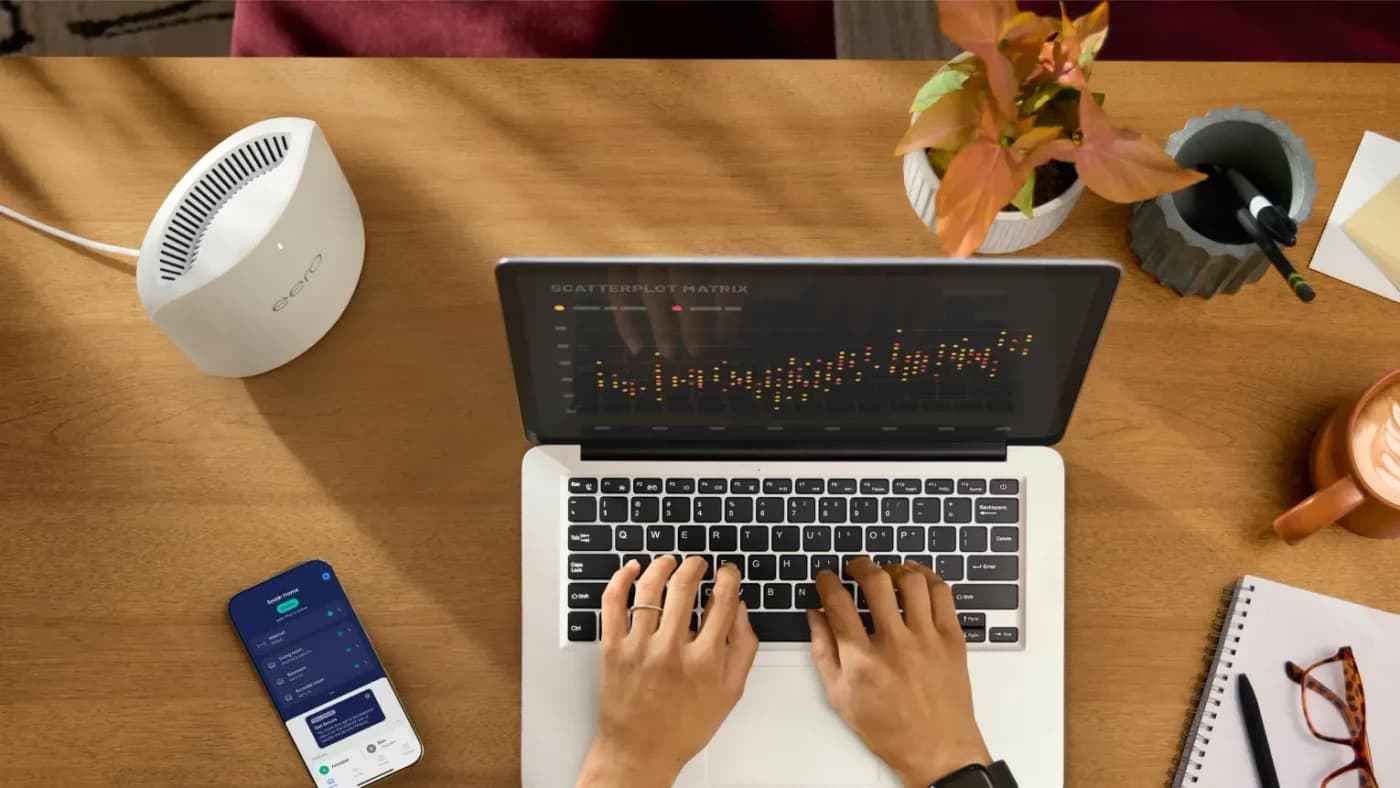
No viable cable path
Wi-Fi 7 · 3 bands
Choose for: No viable cable path
Check before buying: 10G WAN plus 10G backhaul consumes both gateway 10 GbE ports; a local 10G device then needs a switch.
Show all 5 picks
- 4
- 5
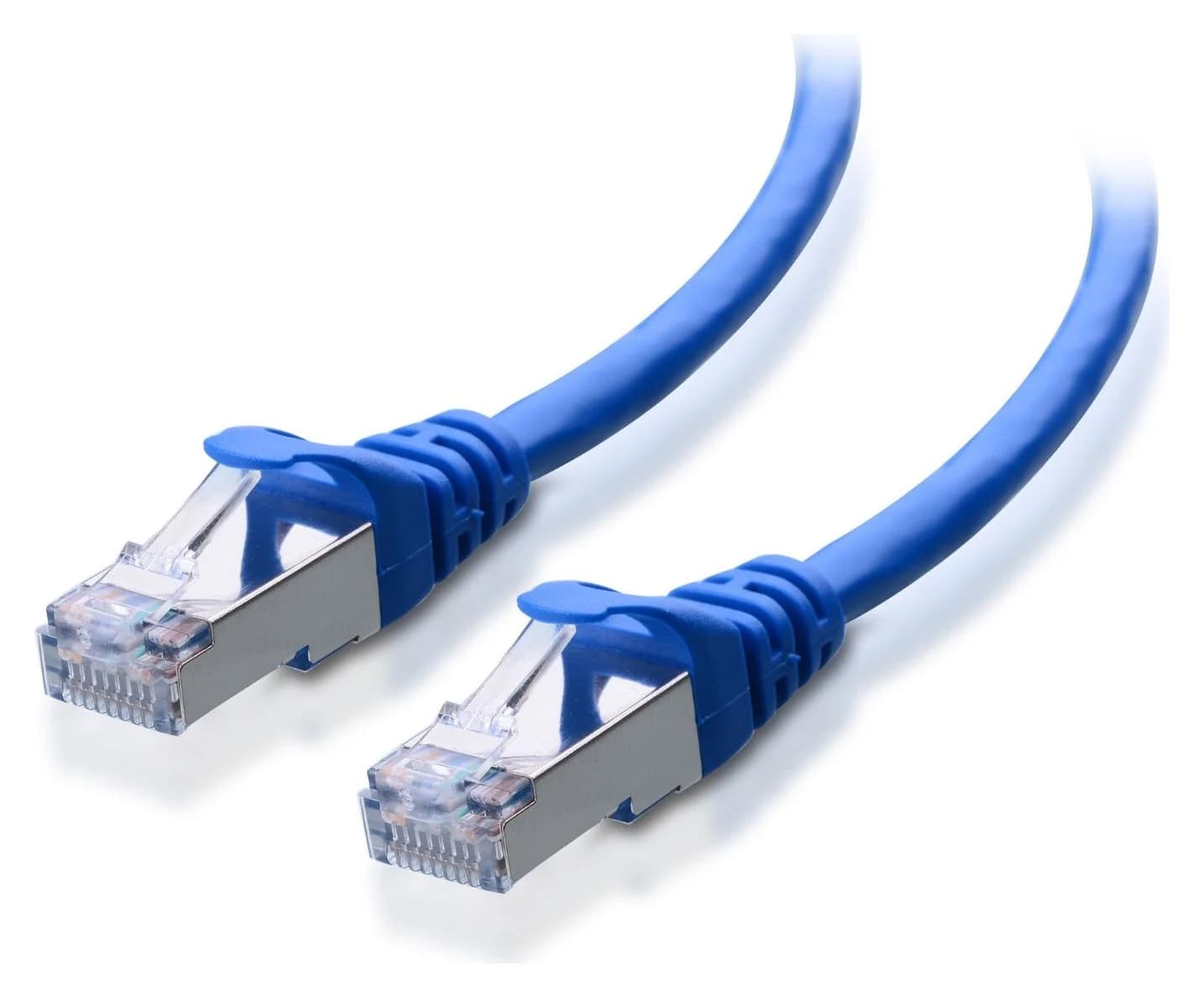
The run itself
Choose for: The run itself
Check before buying: Five-cable pack; check the length and jacket color selected at checkout
For an older home whose walls eat Wi-Fi, the fix is not a bigger router — it's moving the radio. Our lead pick is the Ubiquiti UniFi U7 Pro, a tri-band Wi-Fi 7 access point you mount on a ceiling or wall and feed with a single Cat6A Ethernet run carrying both data and PoE+ power. If you want the simplest possible first installation, the Zyxel NWA130BE manages itself from a web browser with no controller. When no cable path exists at all, the eero Max 7 two-pack is the mesh fallback that still leaves the door open for wiring later. Maker specifications checked November 4, 2026.
An access point only works as well as its cable run, so this guide is ordered the way an older-home install actually happens: pick the wall path, pull the cable, power the AP, then verify coverage.
Quick picks
Compare specifications and all conditions
Ubiquiti U7 Pro
- Best for
- Best single access point
- Wi-Fi
- Tri-band Wi-Fi 7
- Uplink port
- 1/2.5 GbE
All specifications
- Power for full operation
- PoE+
- Management
- UniFi Network
Zyxel NWA130BE
- Best for
- Simplest first install
- Wi-Fi
- Tri-band Wi-Fi 7, BE11000
- Uplink port
- 2 x 1/2.5 GbE LAN
All specifications
- Power for full operation
- 802.3at PoE+, 24 W draw
- Management
- Standalone web, or Nebula cloud
eero Max 7 (2-pack)
- Best for
- No viable cable path
- Wi-Fi
- Tri-band Wi-Fi 7
- Uplink port
- 2 x 10 GbE + 2 x 2.5 GbE
All specifications
- Power for full operation
- AC power
- Management
- eero app
TP-Link TL-SG1008MP
- Best for
- Powering one or two APs
- Wi-Fi
- —
- Uplink port
- 8 x gigabit
All specifications
- Power for full operation
- 153 W PoE+ budget
- Management
- Unmanaged
Cable Matters Cat6A bulk
- Best for
- The run itself
- Wi-Fi
- —
- Uplink port
- —
All specifications
- Power for full operation
- —
- Management
- —
Full comparison table
Swipe to compare. Row labels stay visible.
| Pick | Best for | Wi-Fi | Uplink port | Power for full operation | Management |
|---|---|---|---|---|---|
| Ubiquiti U7 Pro | Best single access point | Tri-band Wi-Fi 7 | 1/2.5 GbE | PoE+ | UniFi Network |
| Zyxel NWA130BE | Simplest first install | Tri-band Wi-Fi 7, BE11000 | 2 x 1/2.5 GbE LAN | 802.3at PoE+, 24 W draw | Standalone web, or Nebula cloud |
| eero Max 7 (2-pack) | No viable cable path | Tri-band Wi-Fi 7 | 2 x 10 GbE + 2 x 2.5 GbE | AC power | eero app |
| TP-Link TL-SG1008MP | Powering one or two APs | — | 8 x gigabit | 153 W PoE+ budget | Unmanaged |
| Cable Matters Cat6A bulk | The run itself | — | — | — | — |
Scroll horizontally to see every column
| Pick | Best for | Wi-Fi | Uplink port | Power for full operation | Management |
|---|---|---|---|---|---|
| Ubiquiti U7 Pro | Best single access point | Tri-band Wi-Fi 7 | 1/2.5 GbE | PoE+ | UniFi Network |
| Zyxel NWA130BE | Simplest first install | Tri-band Wi-Fi 7, BE11000 | 2 x 1/2.5 GbE LAN | 802.3at PoE+, 24 W draw | Standalone web, or Nebula cloud |
| eero Max 7 (2-pack) | No viable cable path | Tri-band Wi-Fi 7 | 2 x 10 GbE + 2 x 2.5 GbE | AC power | eero app |
| TP-Link TL-SG1008MP | Powering one or two APs | — | 8 x gigabit | 153 W PoE+ budget | Unmanaged |
| Cable Matters Cat6A bulk | The run itself | — | — | — | — |
Speed classes like BE11000 sum every band's maximum theoretical rate — they are not real-world throughput.
Why older homes need the AP, not a new router
Thick walls punish Wi-Fi twice: the signal from a router in one corner is weakened by every masonry, brick or plaster wall it crosses, and every device reply has to cross back. A ceiling or wall access point, placed centrally on the floor where people actually are, shortens every one of those paths. The router stays where the internet enters the house, and a single Ethernet cable — carrying power and data over PoE — feeds the AP.
That cable is the whole game, which is why we plan the run before the radio. Our where to put your router guide covers the placement physics, and Ethernet vs Wi-Fi explains why the wired backhaul is the part worth spending your weekend on.
- 2.5 GbEU7 Pro uplink, per Ubiquiti's spec page
- 1,500 sq ftMaker's coverage claim for one U7 Pro
- 153 WPoE+ budget of the TL-SG1008MP switch
- 24 WZyxel's PoE power draw for the NWA130BE
One access point or mesh?
One ceiling AP per floor is the clean answer when cable runs are possible. When they are not, a tri-band Wi-Fi 7 mesh with a dedicated backhaul is the fallback — see mesh vs extender for why cheap repeaters are the worst of both.
- Yes: A cable can reach a central ceiling spot: one wired access point per floor
- Yes: Cable can reach one floor only: one AP there, mesh or a second AP for the other floor
- Partly: Cable path unclear: try MoCA over existing coax before giving up — see our MoCA vs powerline guide
- No: No coax, no workable cable path: a Wi-Fi 7 mesh such as the eero Max 7 two-pack
Best single access point: Ubiquiti UniFi U7 Pro
The U7 Pro is the pick we'd put on the most-used floor's ceiling. Ubiquiti's spec page lists tri-band Wi-Fi 7 with a 6 GHz radio, six spatial streams (2x2 DL/UL MU-MIMO on each band), and a 2.5 GbE uplink fed by PoE+. The Pro Mount for ceiling or wall installation is in the box, so the only extra hardware is the cable and a PoE+ source.
Tap a label to explore. You can also hover or use your keyboard.
ModemThe internet connection
The modem connects to the primary Google Wifi point with an Ethernet cable. Google Wifi still needs an internet service provider and a modem.
Sources: 1: The primary Google Wifi point connects to a modem with Ethernet.- Ethernet cable
Mesh routerYour primary Wifi point
The first Google Wifi point acts as the router and connects to the modem by Ethernet. Set up this primary point before adding the rest of the mesh.
Sources: 1: The primary Google Wifi point connects to a modem with Ethernet., 4: Set up the primary Google Wifi point before adding additional points. - Wireless mesh link
Mesh pointsCoverage in more rooms
Additional Google Wifi points can connect wirelessly. Place the next point partway toward the area that needs coverage, rather than at the far end of a weak signal.
Sources: 2: Additional Google Wifi points can connect wirelessly or be hardwired., 3: Google recommends placing the next point partway toward the area that needs Wi-Fi.
This shows a wireless mesh topology. Google Wifi also supports hardwired points. Follow the setup guide for your particular system.
Source notes4 references
The primary Google Wifi point connects to a modem with Ethernet.
support.google.com — source for The primary Google Wifi point connects to a modem with Ethernet.connected to a modem with an Ethernet cable
Additional Google Wifi points can connect wirelessly or be hardwired.
support.google.com — source for Additional Google Wifi points can connect wirelessly or be hardwired.Additional Google Wifi points can be on a wireless setup
Google recommends placing the next point partway toward the area that needs Wi-Fi.
support.google.com — source for Google recommends placing the next point partway toward the area that needs Wi-Fi.Place your next point about halfway in that direction
Set up the primary Google Wifi point before adding additional points.
support.google.com — source for Set up the primary Google Wifi point before adding additional points.Set up your primary Google Wifi point
- Wi-Fi 7 (802.11be) with 2.4, 5 and 6 GHz radios; 2x2 on each band
- Advertised radio rates of 688 Mbps on 2.4 GHz, 4.3 Gbps on 5 GHz and 5.8 Gbps on 6 GHz — maximum rates, not measured throughput
- Power over PoE+ with a maximum power consumption of 21 W
- Coverage claim of 140 m² (1,500 ft²) and 300+ clients, per the maker
- Compact ceiling disc: 206 mm diameter and 46 mm deep, 680 g
The trade-offs: its single 1/2.5 GbE RJ45 port is the only Ethernet port, so nearby wired devices still need a switch. Managed adoption needs UniFi Network version 8.0.28 or later running somewhere on the network — Ubiquiti documents a limited standalone mobile-app mode, but for the full feature set, plan on the controller. If you already run UniFi, this slots straight in; if not, the Zyxel below needs no controller at all.
Best starter AP: Zyxel NWA130BE
For a first pull, the NWA130BE simplifies the management question. Zyxel's specifications page lists Cloud managed, Standalone and ZON Utility operating modes and lists Web UI/CLI as a management capability — and it can join Nebula later. Mount plate and mounting screws are included accessories.
- BE11000 triple-radio Wi-Fi 7 with 2.4, 5 and 6 GHz bands
- Two 1/2.5 Gbps LAN ports: one feeds a nearby wired device
- PoE (802.3at) with a power draw of 24 W; 12 VDC or USB PD as fallback power, with USB Type-C on post-June 2025 units
- Fast roaming with 802.11r/k/v for multi-floor hand-offs
The trade-off is an 802.3af trap: Zyxel's PoE mode table says plain 802.3af gives "No Wireless," so budget a real PoE+ port or injector. One mounting detail for tight old-house ceilings: the unit measures 250 x 160 mm and weighs 808 g — a low-profile wall or ceiling slab rather than a disc.
Best two-unit setup without new cable: eero Max 7 two-pack
When the cable run genuinely fails — no path, no coax, landlord says no — the eero Max 7 two-pack is the Wi-Fi 7 mesh we'd buy. Each unit is tri-band Wi-Fi 7 with two auto-sensing 10 Gigabit Ethernet ports and two auto-sensing 2.5 Gigabit Ethernet ports, so any node that later gets an Ethernet run backhauls over it (wired backhaul guide).
eero
A US pack of 2 eero Max 7 routers for a mesh network with wired or wireless backhaul.
Check package and model options
- Wi-Fi 7
- 3 bands
- 10 Gbps port
- Per eero: compatible with internet plans up to 10 Gbps, wireless speeds up to 4.3 Gbps and wired speeds up to 9.4 Gbps
- Coverage claim of 2,500 sq ft per unit, 250+ connected devices
- Zigbee-compatible smart home hub, Thread compatible and Matter compliant
- Setup happens in the eero app
The trade-offs: it's app-managed rather than locally administered, advanced features sit behind the eero Plus subscription, and mesh backhaul still spends radio airtime that a wired AP keeps for clients. eero's own note is that range may be reduced depending on placement and building materials — the honest sentence to reread in a thick-wall house.
PoE and switch requirements
Add up the watts before you buy the switch. The U7 Pro tops out at 21 W and the NWA130BE draws 24 W, so one or two APs sit comfortably inside the TP-Link TL-SG1008MP, an unmanaged switch with 8 gigabit RJ45 ports, all eight PoE+ capable, a maker-quoted 153 W laboratory power budget and up to 30 W per port (TP-Link's product page has the full details).
Two cautions from the makers' own pages. Zyxel disables wireless on plain 802.3af, so "PoE" on a cheap switch isn't enough for the NWA130BE. And TP-Link's port-priority scheme cuts power to the lowest-priority port when the total reaches 153 W — at the APs' maker-stated maxima one or two fit the budget, but sum every powered device rather than assuming camera headroom. If your internet plan is multi-gig, step up to a 2.5 GbE PoE switch from our multi-gig switch guide; the switch's gigabit ports cap the wired link at 1 Gbps.
Cable paths, mounting and placement
Pull Cable Matters' Cat6A riser bulk cable for the run. Its 23 AWG solid bare-copper conductors support Power over Ethernet (PoE, PoE+ and PoE++ / 4PPoE) on the same cable that carries data, and its riser-rated (CMR) jacket is the rating intended for in-wall and riser installations between floors. It's rated for 10 Gbps, so the run outlives today's 2.5 GbE APs.
Practical notes from the maker's page: this 23 AWG unshielded cable is thicker than standard patch cable and is not recommended for standard RJ45 modular plugs — Cable Matters recommends terminating it with compatible Cat6A keystone jacks or a patch panel, which is what a wall plate in a finished older home wants anyway. It comes on spools, and if your first path fails, the slack becomes the second attempt.
Pick the wall path
Follow existing service routes: alongside heating pipes, through the old phone or coax holes, up a closet corner.
Measure twice, order once
One spool plus wall plates, keystone jacks and a long drill bit; keep the run away from parallel power runs where you can.
Pull, terminate, test
Terminate on keystone jacks (not plugs), label both ends, and confirm the link before closing walls.
Mount and verify
AP on the ceiling or high wall centrally on its floor, then walk-test before you patch the wall plate hole.
How to verify coverage after setup
Don't trust the box. Ubiquiti's 1,500 sq ft and eero's 2,500 sq ft are each maker's best-case claims. Walk the far corners of each floor with a phone and watch where the signal drops; in a solid-wall home, expect the honest number per floor to be smaller, and add a second AP or a mesh node at the dead zone rather than moving the first one to chase it. Our Wi-Fi 7 device compatibility guide explains which of your existing phones and laptops will even see the 6 GHz radio.
Complete buying kits
- One floor, cable possible: U7 Pro + TL-SG1008MP + Cat6A spool, keystone jacks and wall plates.
- Two floors, two cable paths: NWA130BE on each floor (one wall-plate LAN port each) or a second U7 Pro; one TL-SG1008MP powers both with room to spare.
- No cable path: eero Max 7 two-pack, wiring one node later if a path ever opens; see best mesh Wi-Fi systems for alternatives.
- Cable path to one floor only: wired AP on that floor plus a mesh add-on upstairs, or try MoCA if there's coax — our MoCA vs powerline guide covers when each works.
How we choose
We haven't tested these products. Every port, radio, power figure and mounting detail above comes from the makers' own pages — Ubiquiti's and Zyxel's specification pages, eero's product and support pages, TP-Link's switch page and Cable Matters' product page — linked in each section and checked November 4, 2026. Coverage figures are the makers' claims, and speed classes sum theoretical band rates. Picks are ordered by the installation path they serve, not by any ranking. Full method: How we choose.
Verdict
In an older home the walls pick the winner for you. If a cable can reach a central ceiling, get the Ubiquiti U7 Pro: tri-band Wi-Fi 7 with a 6 GHz radio, a 2.5 GbE PoE+ uplink and the mount in the box. Prefer zero controller and a spare LAN port at the wall plate? The Zyxel NWA130BE runs standalone from a browser. Power either from the TP-Link TL-SG1008MP if gigabit Ethernet is sufficient, pull the run in Cable Matters' Cat6A riser cable, and if no path survives the drill, fall back to the eero Max 7 two-pack and wire it later. Whatever you choose, the cable is the permanent part — spend your effort there.
Frequently asked questions
Is an access point better than mesh in an older home?
If you can get one Ethernet cable to a good central ceiling spot, a wired access point beats mesh on paper: the backhaul doesn't share airtime with your devices and doesn't have to cross thick walls twice. If no cable path exists, a tri-band Wi-Fi 7 mesh such as the eero Max 7 is the practical answer, and you can still wire its nodes later if a path opens up.
Can I power a Wi-Fi 7 access point from any PoE switch?
Not any switch. The Ubiquiti U7 Pro needs PoE+ and draws up to 21 W; the Zyxel NWA130BE runs unrestricted on 802.3at PoE+ with a 24 W draw, but on plain 802.3af Zyxel states wireless is disabled. A gigabit PoE+ switch with a 153 W budget, like the TL-SG1008MP, covers one or two of these APs plus cameras later.
Do I need 10 Gigabit Ethernet for a Wi-Fi 7 access point?
No. The U7 Pro's uplink is 2.5 GbE and the NWA130BE uses 1/2.5 GbE LAN ports, and those ports, not the radio, set the wired ceiling. Cat6A is still the cable to pull: it is rated for 10 Gbps, so the same run supports a faster AP years from now without re-pulling.
Where should an access point go in a house with thick walls?
Centrally, on the ceiling of the floor where most devices live, with the cable run avoiding long parallel contact with power wiring. Ubiquiti's coverage claim for the U7 Pro is 1,500 sq ft per AP, but masonry and lath-and-plaster cut that down; plan one AP per floor for solid-wall homes and verify with a walk-test after setup.
Best single access point
Ubiquiti U7 Pro
Related guides
Buying guide · Access Points
Best Outdoor Wi-Fi Access Points: Extend Coverage With the Right Kit
Extend Wi-Fi outdoors with a wired access point or compatible mesh node. Compare exact models, winter limits, mounting, controllers and the complete power kit.
Comparison · Access Points
UniFi U7 Pro vs U7 Pro XG: Keep 2.5G or Build a 10G Path?
Choose between UniFi U7 Pro and U7 Pro XG from your existing switch: compare uplinks, PoE, radios, mounts, controller versions and complete installation kits.
Comparison · Access Points
UniFi U7 Pro XG vs Omada EAP773: Complete AP and Controller Kits
Choose UniFi U7 Pro XG or Omada EAP773 US V2 with exact controllers, one-AP and four-AP power and port budgets, VLAN checks, and revision traps before buying.