

Comparison
Starlink Ethernet Adapter vs. a New Router
Which Should You Buy First?
The first Starlink wired-networking purchase, in order: which router generation you have, whether the Ethernet Adapter or bypass mode applies, and when a Nighthawk RS300 earns its place.
By thisPING EditorialUpdated November 5, 20269 min read1 pick
On this page · Our picks at a glance
Our picks at a glance
- 1
The router to buy once wired is unlocked
Wi-Fi 7 · BE9300
Choose for: The router to buy once wired is unlocked
Check before buying: two of the four LAN ports are gigabit, so multi-gig wired devices must share the two 2.5 Gbps ports.
If you own a Starlink Standard Actuated kit with the Gen 2 router and want anything wired — a desktop, a switch, or your own router — the first purchase is the Starlink Ethernet Adapter, not a new router. The Gen 2 router has no built-in Ethernet ports, and Starlink's own instructions for connecting third-party routers and switches to this kit call for exactly this adapter. Enterprise and Performance (Gen 1/2/3) kits instead provide a Starlink Ethernet cable or native Ethernet on the included power supply. Once the adapter is in place, the Netgear Nighthawk RS300 is the wired-first router upgrade that fits: its 2.5 Gbps internet port provides wired headroom, it leaves two 2.5 Gbps LAN ports for your devices, and Netgear explicitly lists "one DSL/cable/fiber/satellite modem that has an RJ45 connector" among its requirements — a Starlink dish with an Ethernet handoff can qualify. Sources: Starlink support and setup documentation, and Netgear's RS300 page, checked November 1, 2026.
This page settles the sequencing decision: which purchase comes first for your kit, what bypass mode does, and the exact wiring Starlink documents for each path. Our broader best routers for Starlink roundup covers more router options once you know the answer here.
Quick decision: adapter, router, or nothing
Gen 2 router, want wired devices
- Buy first
- Starlink Ethernet Adapter
- Why
- The Gen 2 router has no Ethernet ports; the adapter is Starlink's documented fix
Gen 2 router, want your own routing/Wi-Fi
- Buy first
- Ethernet Adapter, then a router
- Why
- The adapter enables the wired handoff; the router needs bypass mode on
Router 3 or Router Mini, want wired devices
- Buy first
- Nothing (or a switch)
- Why
- Router 3 has a WAN port and two LAN ports; the Router Mini has one of each
Starlink Performance (Gen 1/2/3) or Enterprise kit
- Buy first
- Router only
- Why
- These kits include a Starlink Ethernet cable on the power supply; connect the third-party router directly
Wi-Fi coverage is the only problem
- Buy first
- Router or mesh
- Why
- A wired backhaul or a bigger router solves what an adapter cannot
Full comparison table
Swipe to compare. Row labels stay visible.
| Your situation | Buy first | Why |
|---|---|---|
| Gen 2 router, want wired devices | Starlink Ethernet Adapter | The Gen 2 router has no Ethernet ports; the adapter is Starlink's documented fix |
| Gen 2 router, want your own routing/Wi-Fi | Ethernet Adapter, then a router | The adapter enables the wired handoff; the router needs bypass mode on |
| Router 3 or Router Mini, want wired devices | Nothing (or a switch) | Router 3 has a WAN port and two LAN ports; the Router Mini has one of each |
| Starlink Performance (Gen 1/2/3) or Enterprise kit | Router only | These kits include a Starlink Ethernet cable on the power supply; connect the third-party router directly |
| Wi-Fi coverage is the only problem | Router or mesh | A wired backhaul or a bigger router solves what an adapter cannot |
Scroll horizontally to see every column
| Your situation | Buy first | Why |
|---|---|---|
| Gen 2 router, want wired devices | Starlink Ethernet Adapter | The Gen 2 router has no Ethernet ports; the adapter is Starlink's documented fix |
| Gen 2 router, want your own routing/Wi-Fi | Ethernet Adapter, then a router | The adapter enables the wired handoff; the router needs bypass mode on |
| Router 3 or Router Mini, want wired devices | Nothing (or a switch) | Router 3 has a WAN port and two LAN ports; the Router Mini has one of each |
| Starlink Performance (Gen 1/2/3) or Enterprise kit | Router only | These kits include a Starlink Ethernet cable on the power supply; connect the third-party router directly |
| Wi-Fi coverage is the only problem | Router or mesh | A wired backhaul or a bigger router solves what an adapter cannot |
The one-way door in this decision is bypass mode: enabling it requires the Starlink app, and exiting it later requires a physical factory reset of the Starlink router — the app cannot turn bypass off. Decide whether your router or Starlink's will do the routing before you buy anything.
Step 1: identify your Starlink router generation
The adapter question only exists because Starlink's routers differ. Starlink's support article on router Ethernet ports breaks it down:
- Yes: Gen 2 router (Standard Actuated / High Performance kits): no built-in Ethernet ports; Ethernet adapter from the Starlink Shop enables wired connections
- Yes: Router 3: one WAN port and two LAN Ethernet ports under the rear rubber cover
- Yes: Router Mini: one WAN port and one LAN port
- Yes: Gen 1 router (Standard Circular): one WAN port plus an AUX Ethernet port (do not use an Ethernet adapter with this router)
- Yes: Starlink Performance (Gen 1/2/3) with included power supply: an RJ45 cable for direct hardwired connections
If you are not sure which router you have, identify your Starlink kit and router from Starlink's documentation or the Starlink app before buying networking hardware. The distinction matters in both directions: paying for an adapter you cannot use (Router 3, Router Mini, Gen 1) is wasted, and buying a router before you can wire it to the dish (Gen 2 without an adapter) leaves it unusable as your main router.
The adapter, not a router: Starlink Ethernet Adapter (Gen 2 kits)
{{}}
The Starlink Ethernet Adapter plugs into the Gen 2 router to add wired networking. Starlink's documentation is specific about the two jobs it does:
- Wired devices without a new router. Connect a wired device — or a network switch, if you need more than one port — to the adapter. Per Starlink's switch instructions for the Standard Actuated kit: "Do not turn on bypass mode. Bypass mode is for a third-party router, and it provides only one IP address."
- A third-party router such as the RS300. Connect the adapter to the Gen 2 router, then run Ethernet from the adapter to your router's WAN (internet) port, and turn on bypass mode in the Starlink app so your router does the routing.
Two cautions from Starlink's own pages. The Starlink router and dish-power equipment stay in the loop — the adapter adds Ethernet, it does not replace the router, and only a factory reset exits bypass mode once it is on. And Starlink "does not guarantee performance or compatibility with third-party networking equipment," so the adapter is the one piece of this chain Starlink itself documents and sells.
For cabling, Starlink recommends an RJ45 Cat5e or greater cable for wired connections. Our Cat6 vs Cat6A vs Cat8 guide covers which grade is worth buying for runs inside the house.
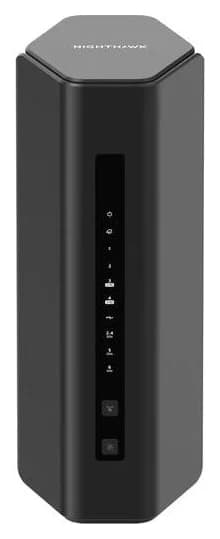
The router to buy once wired is unlocked: Netgear Nighthawk RS300
The RS300 is the wired-first upgrade for a Starlink home that has outgrown the built-in router's Wi-Fi. Per Netgear's RS300 page:
- Tri-band Wi-Fi 7 (BE9300): 2.4 GHz, 5 GHz and 6 GHz bands, rated up to 9.3 Gbps — the sum of every band's maximum theoretical rate, not real-world throughput
- Ports: one 2.5 Gbps internet port, two 2.5 Gbps Ethernet LAN ports, two 10/100/1000 Mbps gigabit LAN ports, one USB 3.0 port
- Coverage claim: up to 2,500 sq ft (Netgear's claim; walls and layout reduce it), up to 100 concurrent devices
- Quad-core 2.0 GHz processor; four internal antennas with high-power amplifiers
- WPA3, guest and IoT networks, VPN support, automatic firmware updates; Nighthawk app setup
Netgear
A mainstream tri-band Wi-Fi 7 router with a 2.5 Gbps internet port and two 2.5 Gbps LAN ports.
Check package and model options
- Wi-Fi 7
- BE9300
- 3 bands
- 2.5 Gbps port
Wired to the Starlink adapter, the RS300 takes over Wi-Fi and routing: enable bypass mode in the Starlink app, and the RS300's 2.5 Gbps internet port carries the Starlink connection to the rest of the network. The two 2.5 Gbps Ethernet LAN ports can serve 2.5 Gbps-capable wired devices — our best 2.5Gb switches picks expand from there — and the gigabit ports cover printers and smart-home hubs.
The trade-offs: two of the four LAN ports are gigabit, so multi-gig wired devices must share the two 2.5 Gbps ports. Netgear's End of Service policy says products, in general, reach EOS three years after the last sale date and then no longer receive firmware updates, including security updates; its Armor security subscription is optional. If your Starlink plan tops out well under gigabit speeds, the wired ports are headroom, not a speed promise — your service plan and network conditions set the ceiling.
- 2LAN ports built into Router 3 — no adapter needed
- 2.5Gbps on the RS300's internet port and two of its LAN ports
- 2500sq ft of coverage Netgear claims for the RS300
Adapter vs. router: what each purchase actually solves
Starlink Ethernet Adapter
- Solves
- No wired ports on a Gen 2 router
- Prerequisite
- Gen 2 router
- Starlink configuration
- None for switch use; bypass mode if a router follows
All specifications
- Reversibility
- Bypass off requires factory reset of the Starlink router
- Adds Wi-Fi
- No
Nighthawk RS300
- Solves
- Wi-Fi coverage, routing, LAN ports
- Prerequisite
- A wired handoff: adapter (Gen 2), Router 3 LAN port, or Performance-kit cable
- Starlink configuration
- Bypass mode on in the Starlink app
All specifications
- Reversibility
- Independent of Starlink once wired
- Adds Wi-Fi
- Tri-band Wi-Fi 7 with a 6 GHz band
Full comparison table
Swipe to compare. Row labels stay visible.
| Specification | Starlink Ethernet Adapter | Nighthawk RS300 |
|---|---|---|
| Solves | No wired ports on a Gen 2 router | Wi-Fi coverage, routing, LAN ports |
| Prerequisite | Gen 2 router | A wired handoff: adapter (Gen 2), Router 3 LAN port, or Performance-kit cable |
| Starlink configuration | None for switch use; bypass mode if a router follows | Bypass mode on in the Starlink app |
| Reversibility | Bypass off requires factory reset of the Starlink router | Independent of Starlink once wired |
| Adds Wi-Fi | No | Tri-band Wi-Fi 7 with a 6 GHz band |
Scroll horizontally to see every column
| Specification | Starlink Ethernet Adapter | Nighthawk RS300 |
|---|---|---|
| Solves | No wired ports on a Gen 2 router | Wi-Fi coverage, routing, LAN ports |
| Prerequisite | Gen 2 router | A wired handoff: adapter (Gen 2), Router 3 LAN port, or Performance-kit cable |
| Starlink configuration | None for switch use; bypass mode if a router follows | Bypass mode on in the Starlink app |
| Reversibility | Bypass off requires factory reset of the Starlink router | Independent of Starlink once wired |
| Adds Wi-Fi | No | Tri-band Wi-Fi 7 with a 6 GHz band |
Source: Starlink router-ports article; Netgear RS300 page (linked above)
The adapter is an enabler: one port, no Wi-Fi, no routing change. The RS300 is a replacement for the Starlink router's Wi-Fi job — but it cannot do that job until the adapter (or a Router 3 LAN port) hands it the connection. That is the whole sequencing argument, and it is why the adapter wins the "buy first" decision for Gen 2 kits.
The upgrade sequence, end to end
Identify your router
Router 3 and Router Mini already have LAN ports; Gen 2 needs the Ethernet Adapter; Performance kits use the included cable on the power supply.
Add the handoff
Adapter into the Gen 2 router, or a LAN port on Router 3, or the Performance-kit power supply — RJ45 Cat5e or better cable.
Decide who routes
Switch only: leave bypass off. Third-party router: enable bypass mode in the Starlink app (factory reset to undo it).
Wire the router
RS300 internet port to the handoff; your devices into its 2.5 Gbps and gigabit LAN ports.
Expand
Add a switch for more ports, or mesh nodes with Ethernet backhaul — see our wired backhaul setup guide.
Placement follows the same physics as any router: the RS300's 2,500 sq ft claim is Netgear's best case, and Starlink's own setup guidance for router placement — routers no more than two rooms apart, avoiding cement walls and large mirrors, off the ground — applies to any node you add on the wired side. For whole-home coverage, our mesh Wi-Fi picks and the Ethernet backhaul setup guide cover the wired-first approach that pairs well with a Starlink handoff.
Compatibility traps
Both makers sit on the FCC's Conditional Approval list for foreign-made consumer routers (DA 26-1130, October 21, 2026): SpaceX Services' Starlink routers are covered from July 27, 2026 to January 17, 2028, and Netgear's Nighthawk consumer mesh, mobile and standalone routers — a group that includes the RS series — from April 14, 2026 to October 1, 2027. Our FCC router rule explainer covers what the rule does and does not prohibit.
How we choose
We have not tested this hardware. Every wiring instruction, port count and router-generation distinction here comes from Starlink's published support articles and the Gen 3 Router setup guide, the RS300's ports, bands and coverage claims come from Netgear's own product page, and support timelines come from Netgear's End of Service policy and the FCC's October 21, 2026 public notice, all checked November 1, 2026. Picks are ordered the way the purchases have to happen: the documented handoff first, then the router that uses it. Full method: How we choose.
Verdict
For a Gen 2 Starlink kit, buy the Starlink Ethernet Adapter first — it is the piece Starlink documents for both switches and third-party routers, and nothing else in the chain works without it. Buy the Nighthawk RS300 once the handoff exists and your problem is Wi-Fi coverage, a 6 GHz band, or multi-gig wired ports; its 2.5 Gbps internet port and two 2.5 Gbps LAN ports provide wired headroom, with gigabit ports and USB for the rest. If you own Router 3, wired devices normally need no adapter — its two LAN ports are the handoff — but using Router 3 as your base router requires an Ethernet adapter and bypass mode.
Frequently asked questions
Does the Starlink Ethernet Adapter work with Router 3 or the Router Mini?
Usually not. Router 3 already has a WAN port and two LAN Ethernet ports, and the Router Mini has one WAN and one LAN port, so wired devices normally need no adapter. The exception is using the Gen 3 Router as your base router: Starlink's setup guide says that requires an Ethernet adapter and bypass mode. The adapter also exists for the Gen 2 router, which has no built-in Ethernet ports.
Do I need bypass mode to use a Nighthawk RS300 with Starlink?
Yes, if the RS300 will be your router. Connect the RS300 behind the Starlink router and turn on bypass mode in the Starlink app under Settings; the Starlink router's Wi-Fi is then completely disabled. To leave bypass mode later you must factory-reset the Starlink router — the app cannot turn bypass off.
Can I just add a network switch instead of buying a router?
Often, yes. For a Standard Actuated kit, Starlink's instructions are to plug the network switch into the Ethernet adapter and leave bypass mode off — bypass mode is for a third-party router and provides only one IP address. If your devices only need wired ports and the Starlink router's Wi-Fi is fine, a switch is the cheaper, simpler upgrade.
Will a new router make my Starlink faster?
Not your connection to the satellite: that is set by your plan, the dish's view of the sky and network conditions. A router such as the RS300 upgrades the network inside your home — tri-band Wi-Fi 7 with a 6 GHz band, and 2.5 Gbps ports for wired devices. Starlink does not guarantee performance or compatibility with third-party networking equipment, so buy the router for ports and Wi-Fi, not for satellite speed.
Related guides
Comparison · Wi-Fi Routers
Netgear Nighthawk RS100 vs RS300: Which Wi-Fi 7 Router Should You Buy?
The RS100 and RS300 compared on bands, ports, coverage and price class: which Nighthawk fits your home size, service tier and expansion plans.
Comparison · Wi-Fi Routers
GL.iNet Beryl 7 vs ASUS RT-BE58 Go: Which Travel Router Should You Buy?
Pick between the GL.iNet Beryl 7 and ASUS RT-BE58 Go by ports, power, tethering, captive portals and VPN speed. Specs from the makers.
Comparison · Wi-Fi Routers
Netgear Nighthawk RS300 vs RS700S: Which Wi-Fi 7 Router Should You Buy?
Netgear's mainstream and flagship Nighthawk Wi-Fi 7 routers compared by internet plan, wired ports, radios and coverage — so you buy the one your home needs.